# 🧩 How to set Specific Dates with Different Time Slots
> Set different time slots or hours for specific dates that differ from your standard schedule.
This configuration allows you to offer **different booking capacities per time slot and per specific date**.
It’s the most flexible availability setup in Cowlendar and is ideal when:
* Capacity changes depending on the day
* Weekdays and weekends require different limits
* A single day needs different capacities for morning vs afternoon sessions
**🧩 When to Use This Setup**
Use this configuration if you need to:
* Set **different maximum people per slot** depending on the date
* Offer higher capacity on weekends or special events
* Customize capacity by **time ranges within the same day**
* Fully control availability from the Availability section
**📲 Step-by-Step: Enable Slot-Level Capacity Control**
**Step 1: Disable Booking Limits at the Service Level**
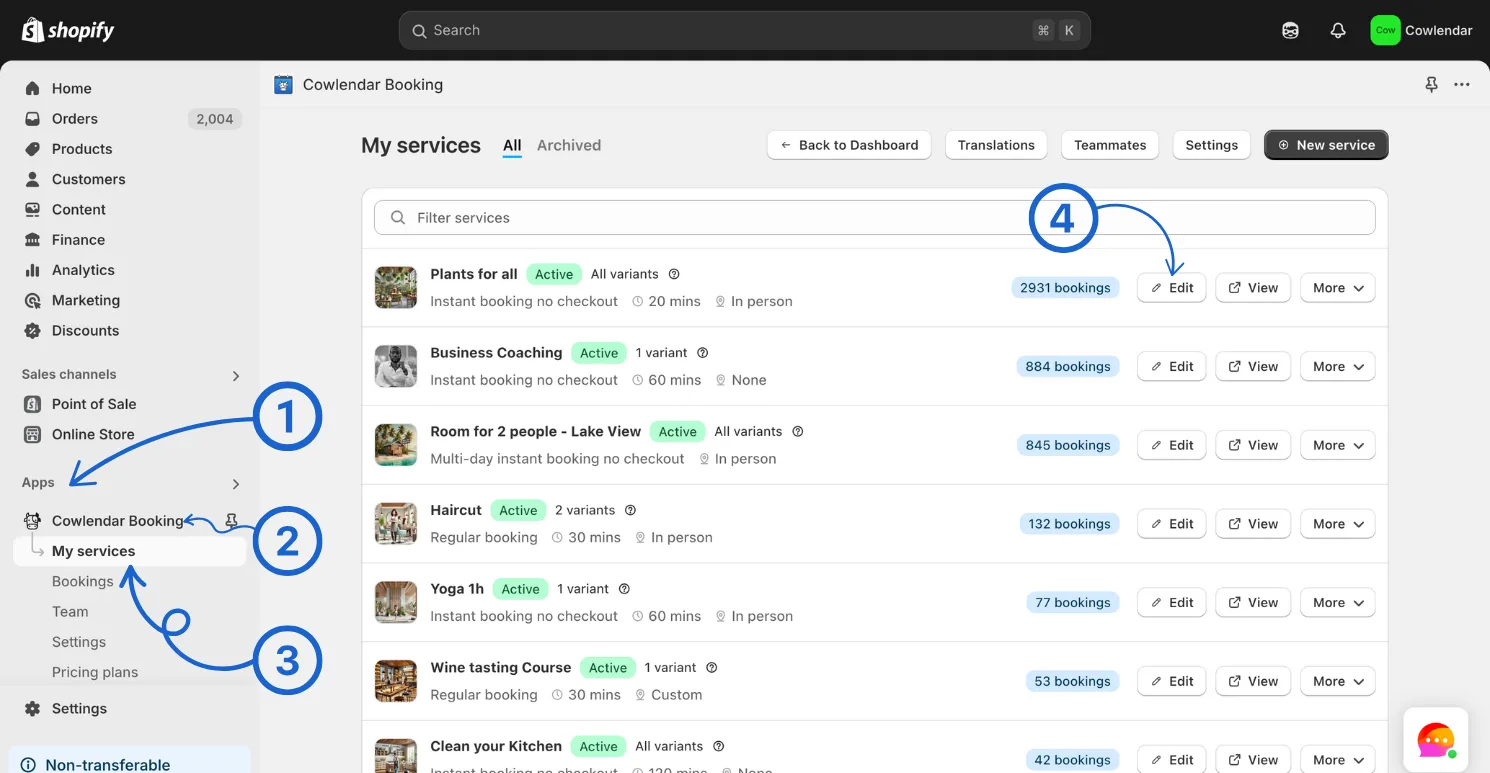
From your **Shopify admin**, go to **Apps**.
Open **Cowlendar**.
Click on **My Services**.
Find the service you want to edit and click **Edit**.
Go to the **Availability** tab.
In the **Booking limit** card:
Disable **Booking limit per timeslot**
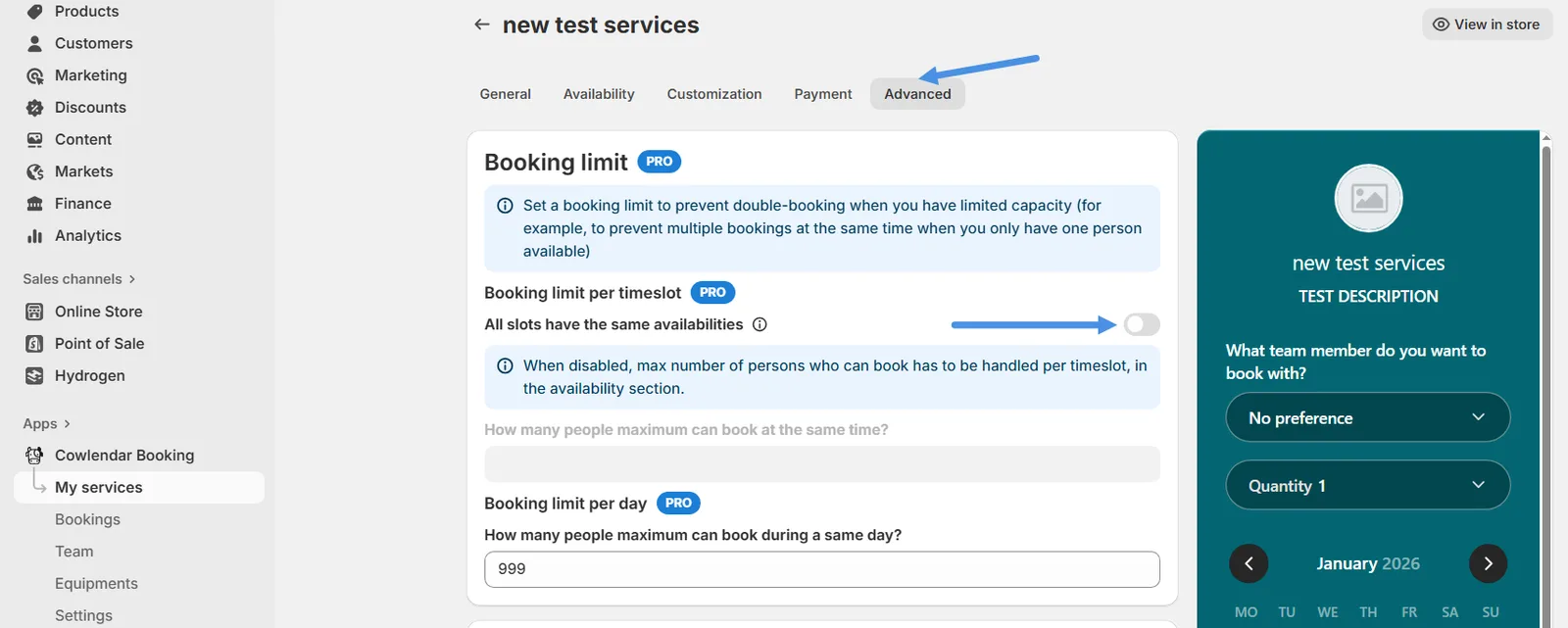
➡️ This is required so all booking limits are managed **directly from Availability**, not globally.
**Step 2: Go to Availability Settings**
Go to the **Availability** tab.
Make sure **Availability mode** is set to **Availability per service**.
ust below **Availability mode**, locate the **Availability** section.
**🎯 Maximum People Per Slot (Key Setting)**
For each availability block you create, you’ll now see a new option at the bottom:
**Maximum People Per Slot**
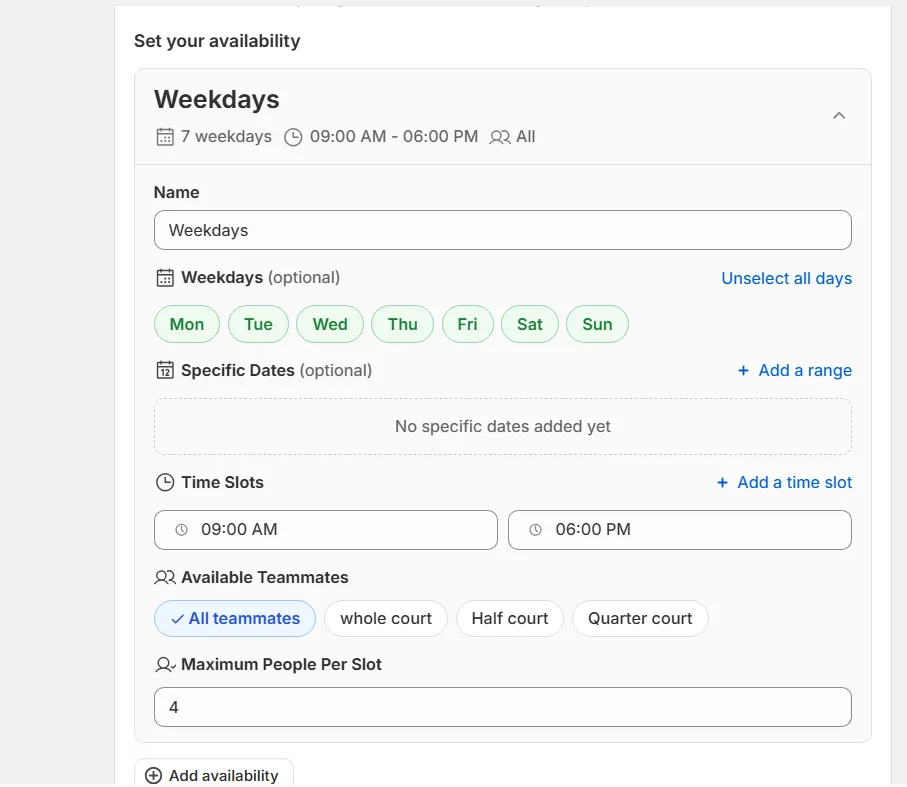
This allows you to define **how many people can book each time slot for that specific availability only**.
Each availability can have a **different capacity**.
**🧪 Example 1: Different Capacity for Weekdays vs Weekends**
**Scenario**
* Weekdays → max **10 people per slot**
* Weekends → max **25 people per slot**
**Configuration**
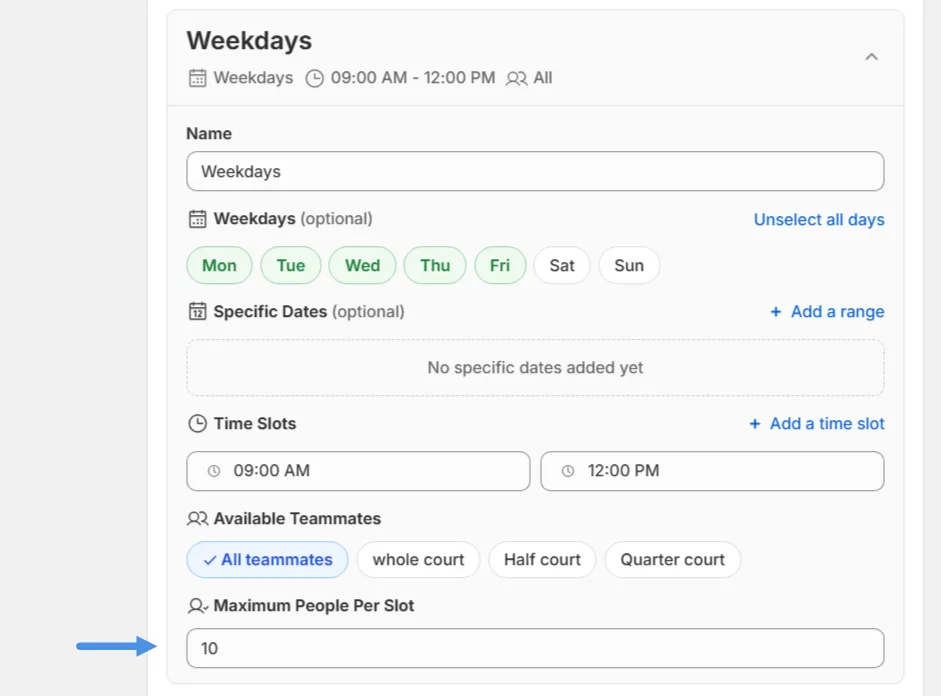
**Availability 1: Weekdays**
* Enable **Weekdays**
* Select **Monday to Friday**
* Deselect **Saturday & Sunday**
* Set your time slot(s)
* Set **Maximum People Per Slot = 10**
**Availability 2: Weekend**
* Deselect all weekdays
* Select **Saturday & Sunday**
* Set your time slot(s)
* Set **Maximum People Per Slot = 25**
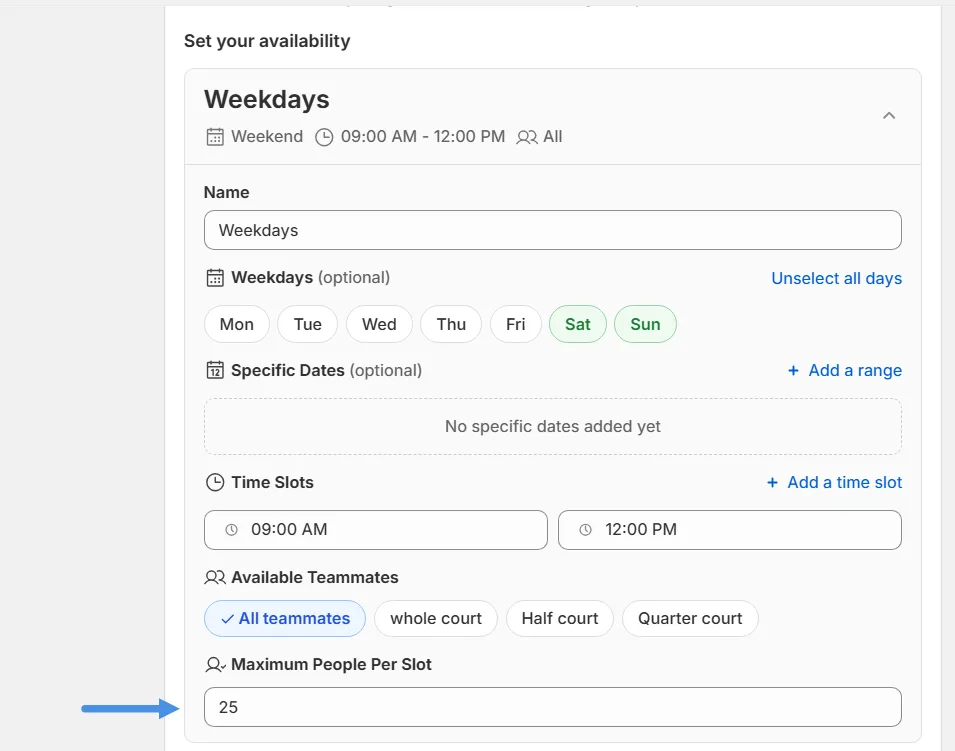
➡️ Result:
Each booking slot will respect the capacity defined for that specific availability.
**🧪 Example 2: Different Capacities by Time Range on the Same Day**
This setup allows **multiple capacities within a single date**, based on time.
**Scenario**
On **January 5th**:
* **9:00 AM – 12:00 PM** → max **10 people per slot**
* **1:00 PM – 8:00 PM** → max **12 people per slot**
**Configuration**
**Availability 1: Morning Slots**
* Use **Specific dates**
* Select **January 5th**
* Set time slot: **9:00 AM – 12:00 PM**
* Set **Maximum People Per Slot = 10**
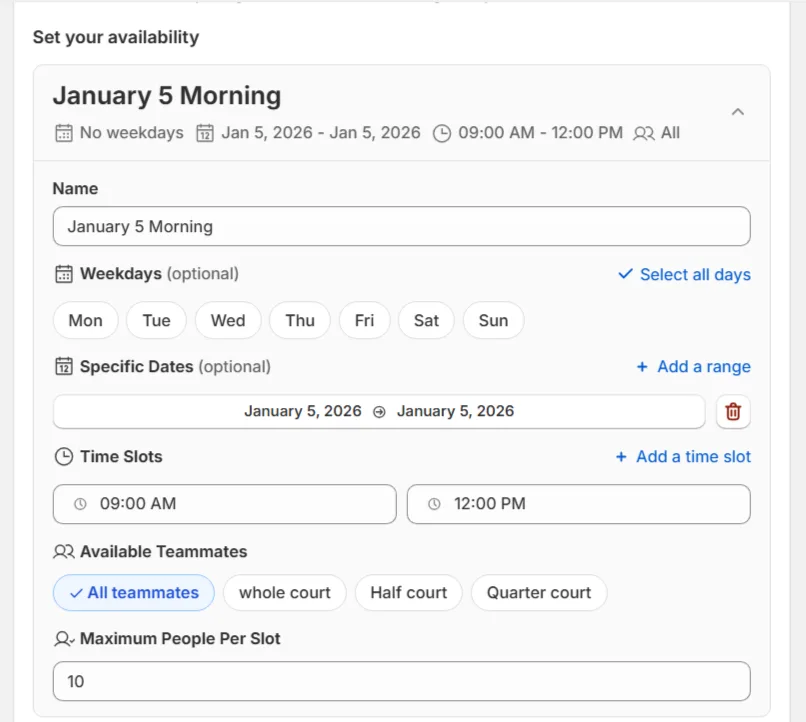
**Availability 2: Afternoon Slots**
* Use **Specific dates**
* Select **January 5th**
* Set time slot: **1:00 PM – 8:00 PM**
* Set **Maximum People Per Slot = 12**
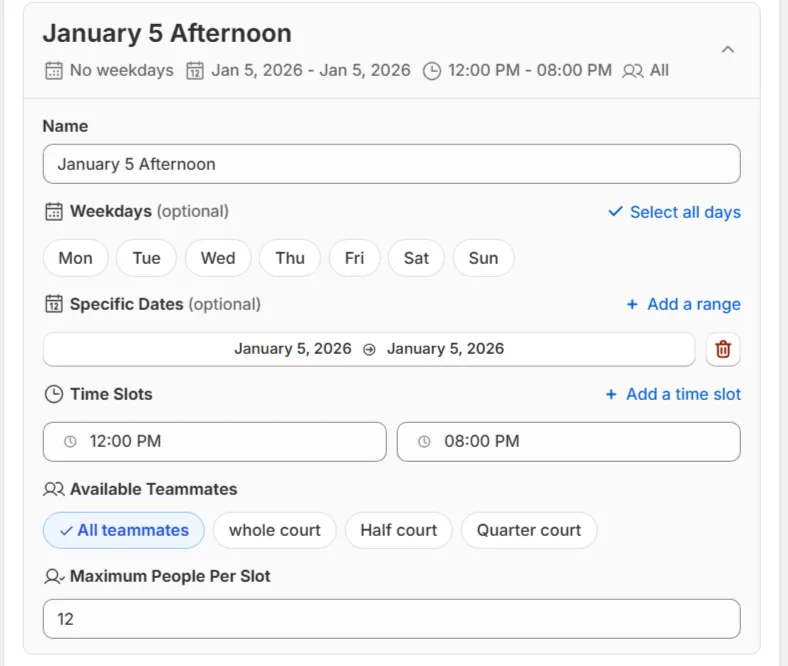
> **⚠️ Warning**
>
> ⚠️ Important Rule
>
> * The same date + time range cannot exist in more than one availability
> * Do not select January 5th in any other availability
> * This avoids conflicts and ensures the correct capacity is applied
**⚠️ Important Rules to Avoid Errors**
* Each date + time slot combination must be unique
* A specific date should not overlap across multiple availabilities
* Capacity is determined only by the availability that matches the date and time
* If overlaps exist, the system may ignore or miscalculate availability
**✅ Final Result**
With this configuration:
* Each date can have its **own capacity**
* Each time range can have **different limits**
* You gain full control over high-demand or special-event scheduling
* Customers always see accurate availability and capacity
> **ℹ️ Info**
>
> 💡 This setup is perfect for workshops, conferences, events, seasonal programs, or any service where demand varies by day or time.