This configuration allows you to offer different booking capacities per time slot and per specific date.
It’s the most flexible availability setup in Cowlendar and is ideal when:
- Capacity changes depending on the day
- Weekdays and weekends require different limits
- A single day needs different capacities for morning vs afternoon sessions
🧩 When to Use This Setup
Use this configuration if you need to:
- Set different maximum people per slot depending on the date
- Offer higher capacity on weekends or special events
- Customize capacity by time ranges within the same day
- Fully control availability from the Availability section
📲 Step-by-Step: Enable Slot-Level Capacity Control
Step 1: Disable Booking Limits at the Service Level
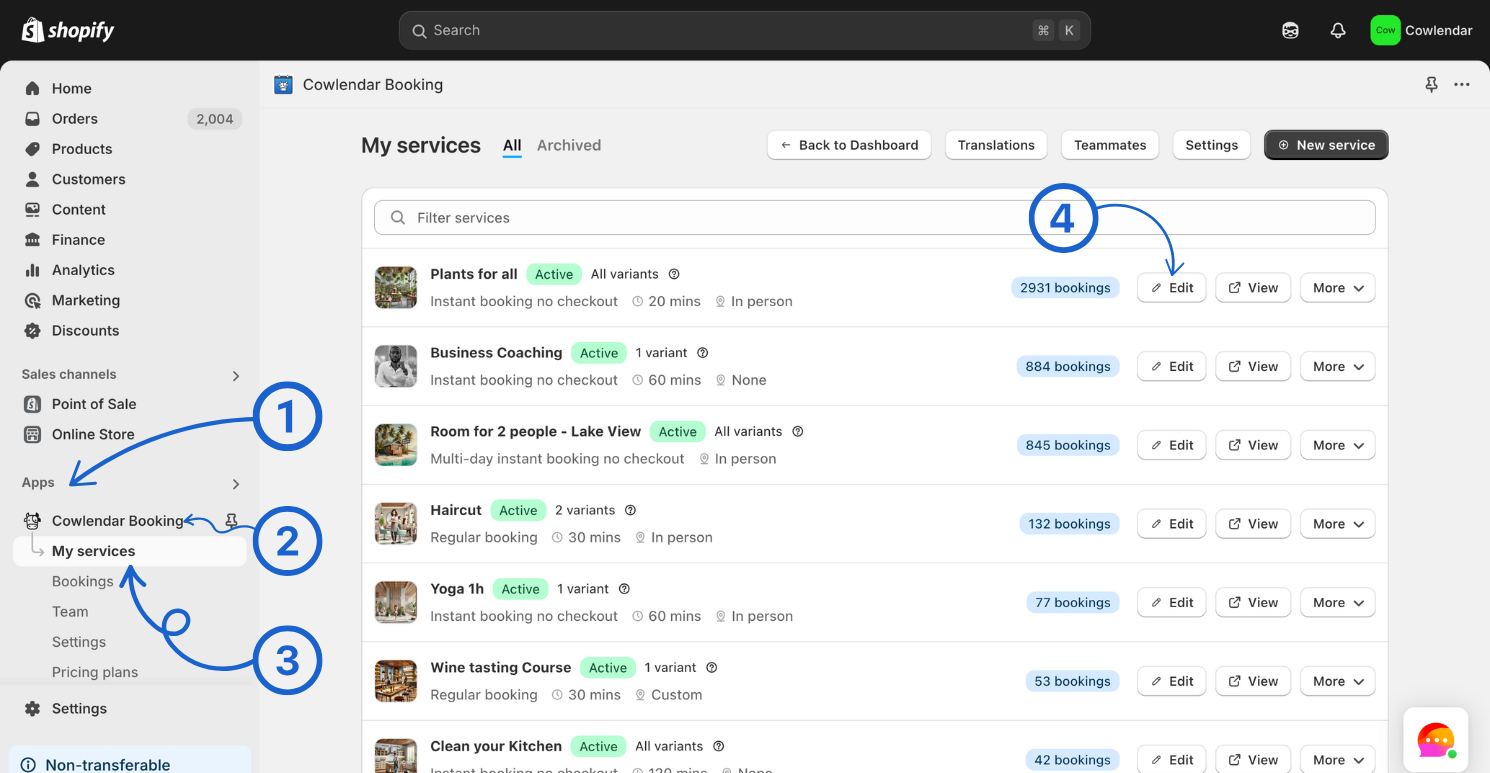
From your Shopify admin, go to Apps.
Open Cowlendar.
Click on My Services.
Find the service you want to edit and click Edit.
Go to the Advanced tab.
In the Booking limits section:
Disable Booking limit per timeslot
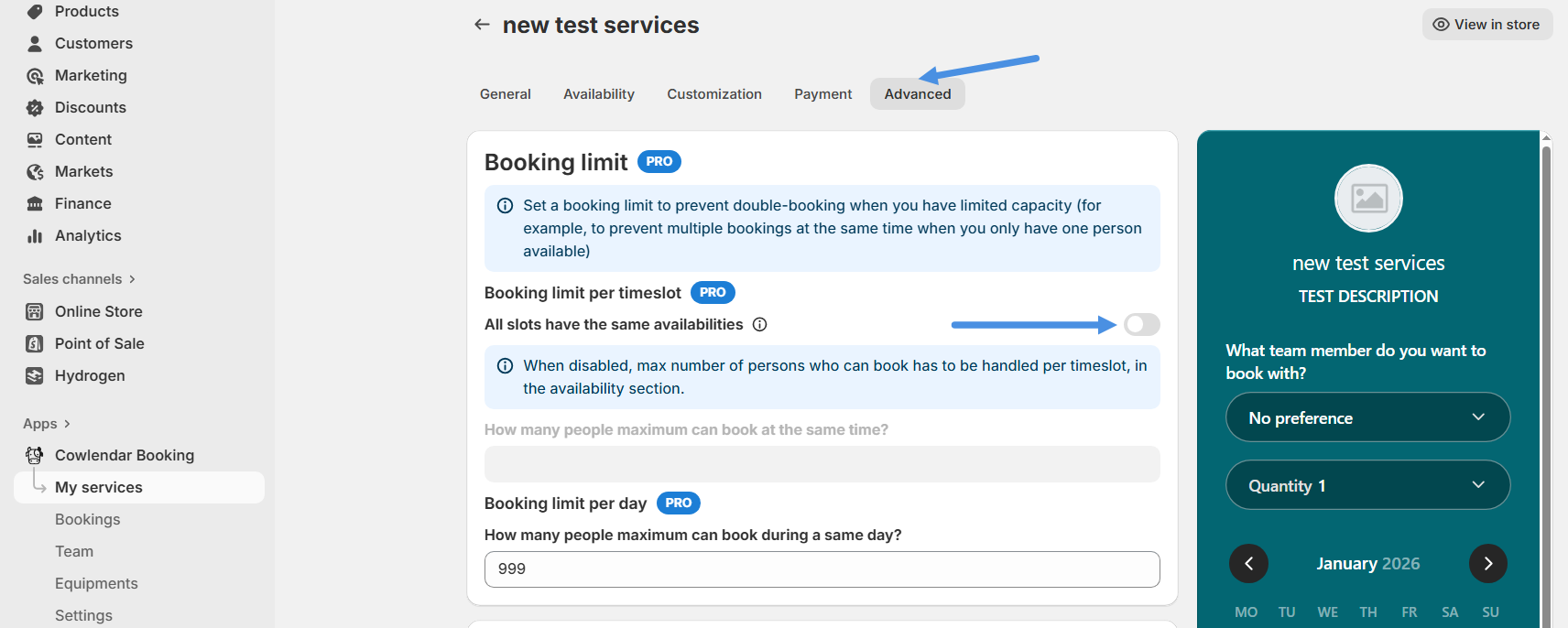
➡️ This is required so all booking limits are managed directly from Availability, not globally.
Step 2: Go to Availability Settings
Go to the Availability tab.
Make sure Availability mode is set to Availability per service.
ust below Availability mode, locate the Availability section.
🎯 Maximum People Per Slot (Key Setting)
For each availability block you create, you’ll now see a new option at the bottom:
Maximum People Per Slot
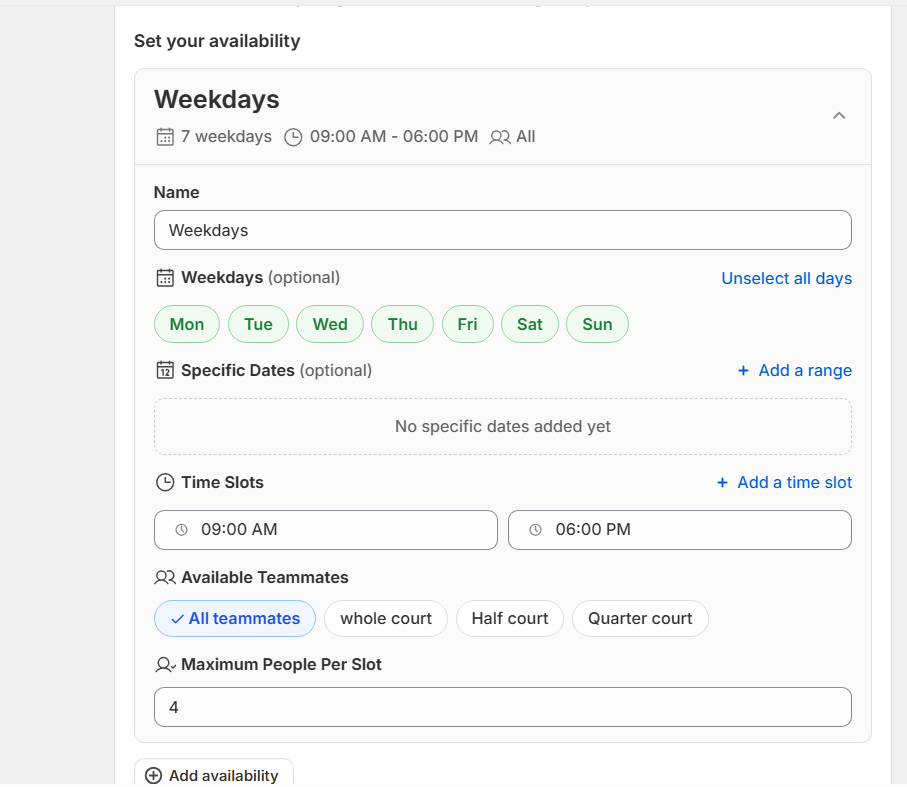
This allows you to define how many people can book each time slot for that specific availability only.
Each availability can have a different capacity.
🧪 Example 1: Different Capacity for Weekdays vs Weekends
Scenario
- Weekdays → max 10 people per slot
- Weekends → max 25 people per slot
Configuration
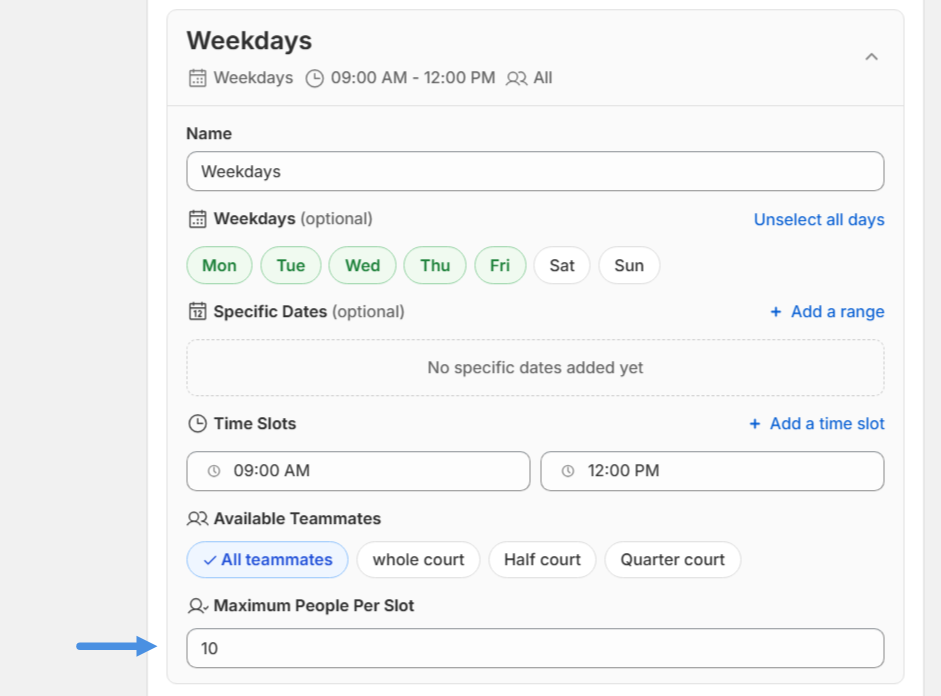
Availability 1: Weekdays
- Enable Weekdays
- Select Monday to Friday
- Deselect Saturday & Sunday
- Set your time slot(s)
- Set Maximum People Per Slot = 10
Availability 2: Weekend
- Deselect all weekdays
- Select Saturday & Sunday
- Set your time slot(s)
- Set Maximum People Per Slot = 25
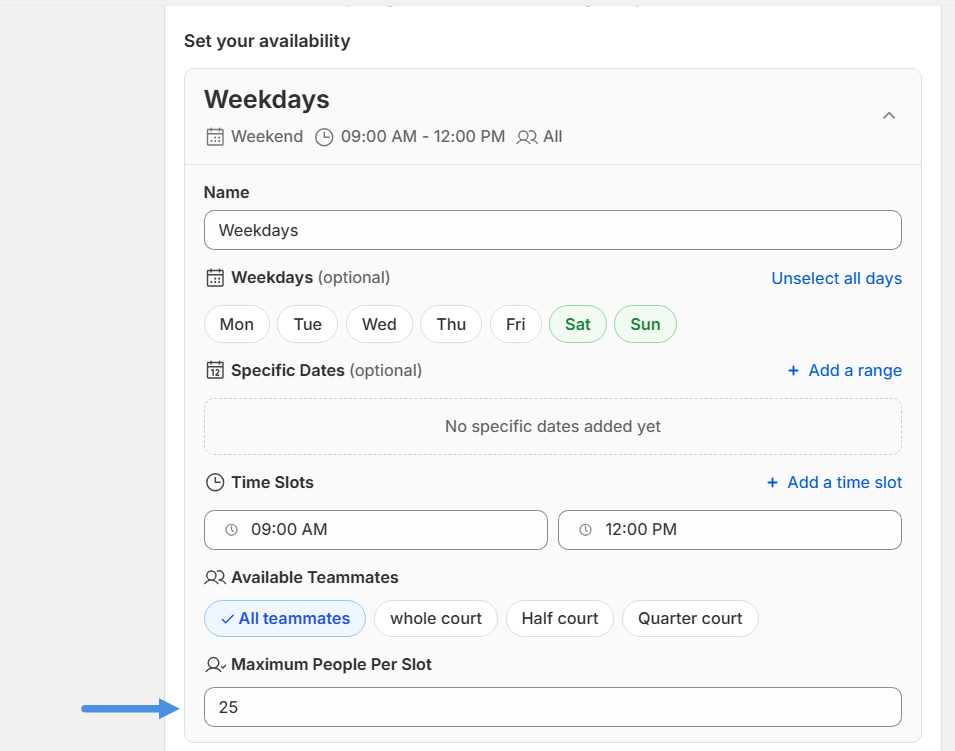
➡️ Result:
Each booking slot will respect the capacity defined for that specific availability.
🧪 Example 2: Different Capacities by Time Range on the Same Day
This setup allows multiple capacities within a single date, based on time.
Scenario
On January 5th:
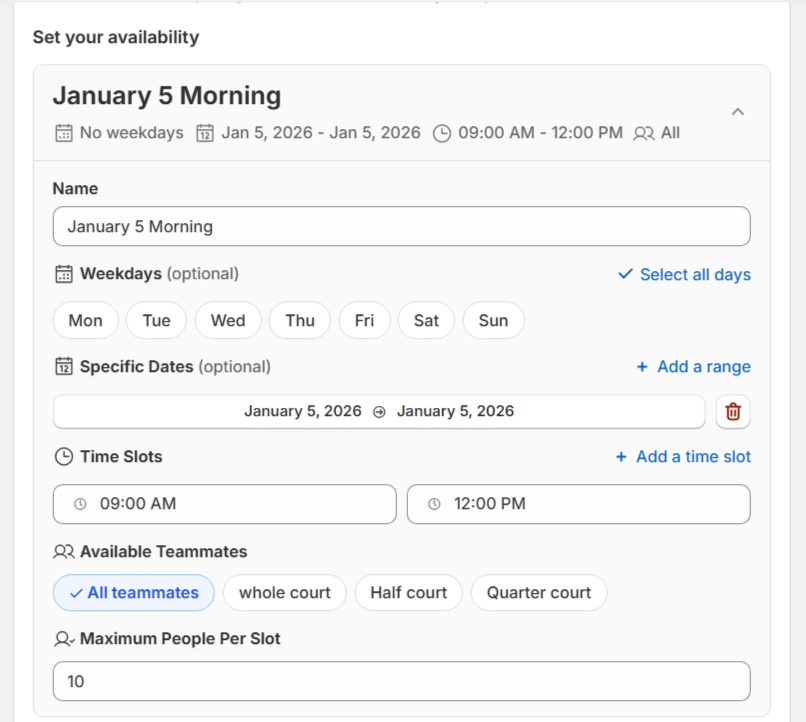
- 9:00 AM – 12:00 PM → max 10 people per slot
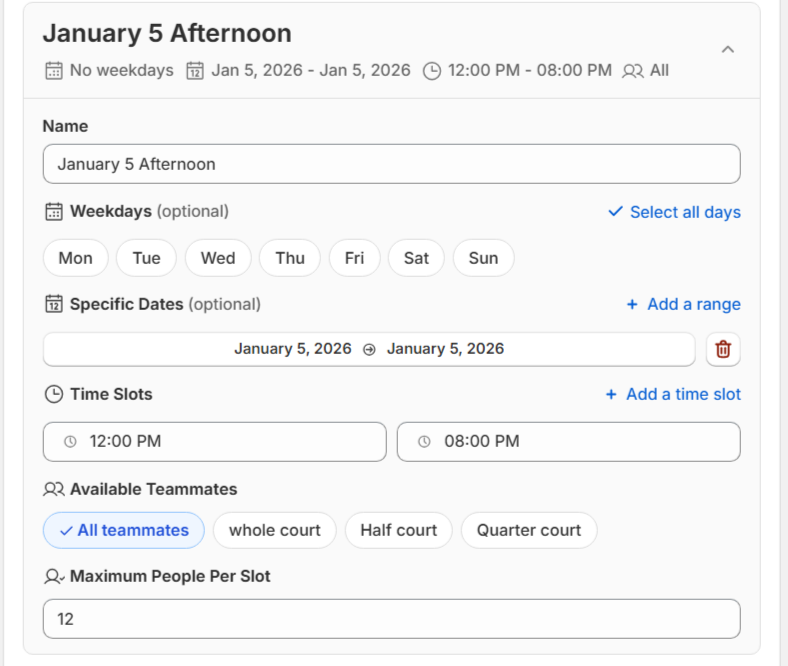
- 1:00 PM – 8:00 PM → max 12 people per slot
Configuration
Availability 1: Morning Slots
- Use Specific dates
- Select January 5th
- Set time slot: 9:00 AM – 12:00 PM
- Set Maximum People Per Slot = 10
Availability 2: Afternoon Slots
- Use Specific dates
- Select January 5th
- Set time slot: 1:00 PM – 8:00 PM
- Set Maximum People Per Slot = 12
* The same date + time range cannot exist in more than one availability
* Do not select January 5th in any other availability
* This avoids conflicts and ensures the correct capacity is applied
⚠️ Important Rules to Avoid Errors
- Each date + time slot combination must be unique
- A specific date should not overlap across multiple availabilities
- Capacity is determined only by the availability that matches the date and time
- If overlaps exist, the system may ignore or miscalculate availability
✅ Final Result
With this configuration:
- Each date can have its own capacity
- Each time range can have different limits
- You gain full control over high-demand or special-event scheduling
- Customers always see accurate availability and capacity
