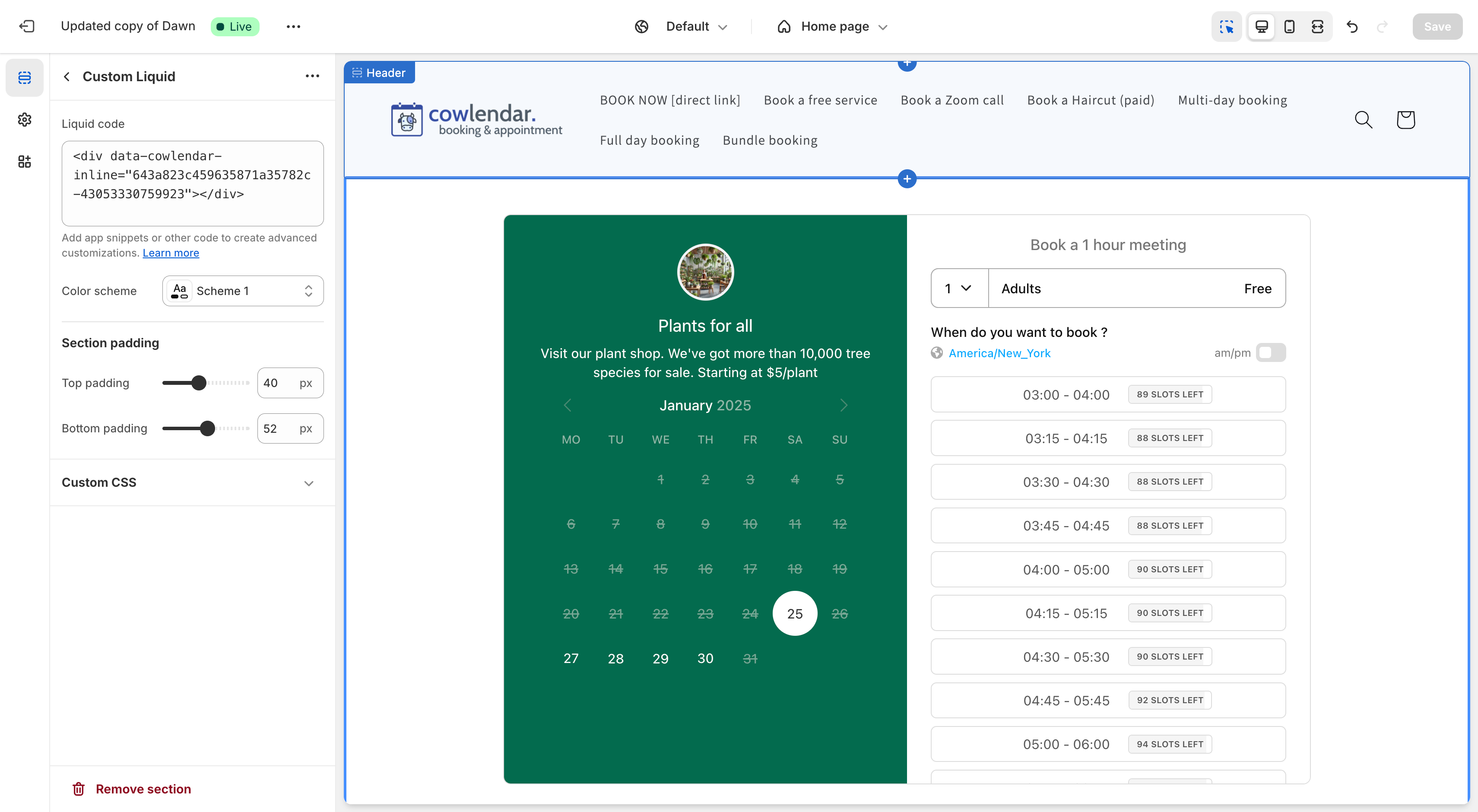
In this guide you will learn how to apply the Cowlendar Calendar direclty into any page. This means that the entire calendar widget will show up on your page like below
Steps to use inline widget integration
In the Shopify admin dashboard on the left panel click on Apps
Click on Cowlendar
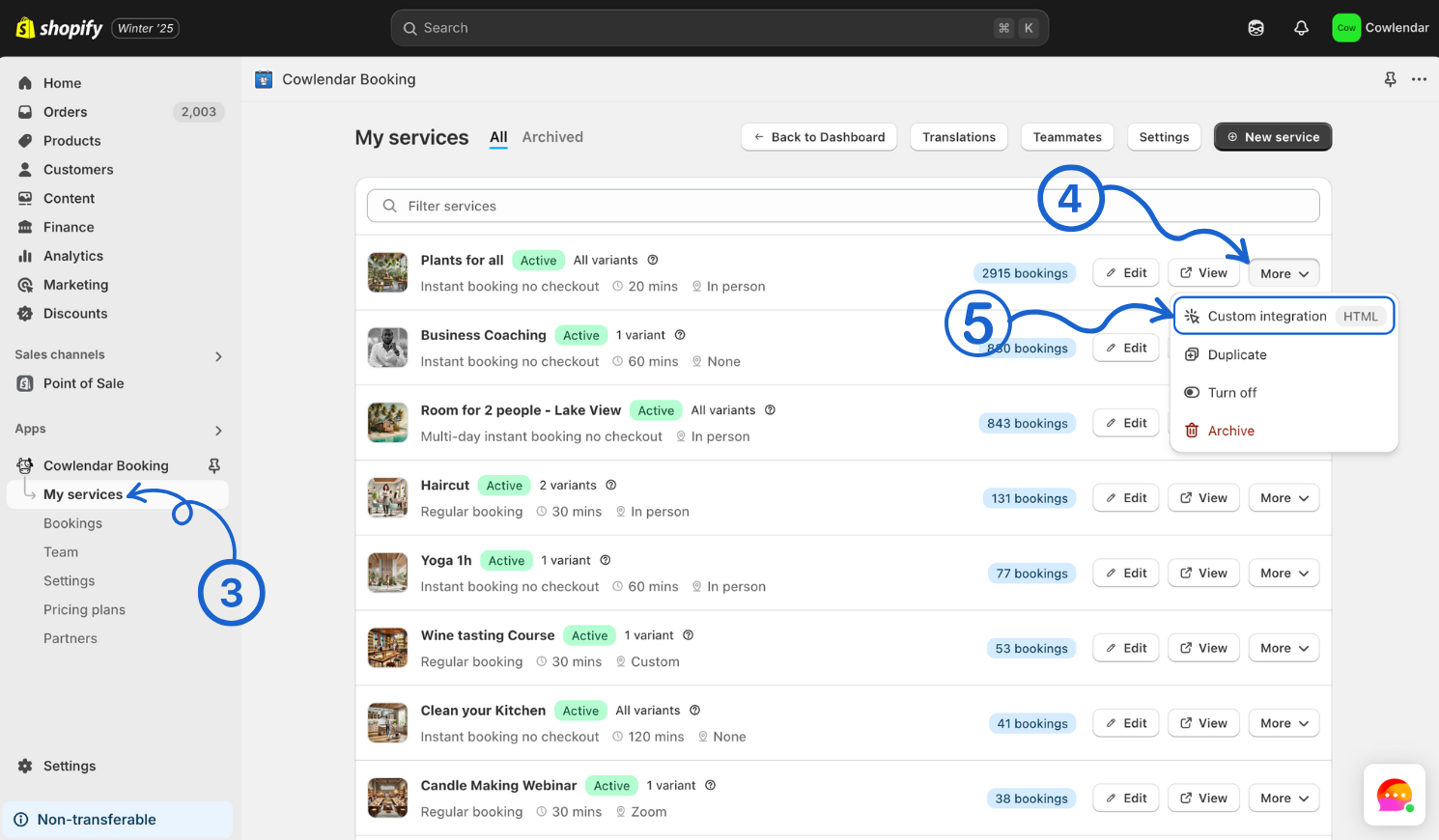
Click on My Services
On the specific service you want to display click on More
Click on Custom Integration
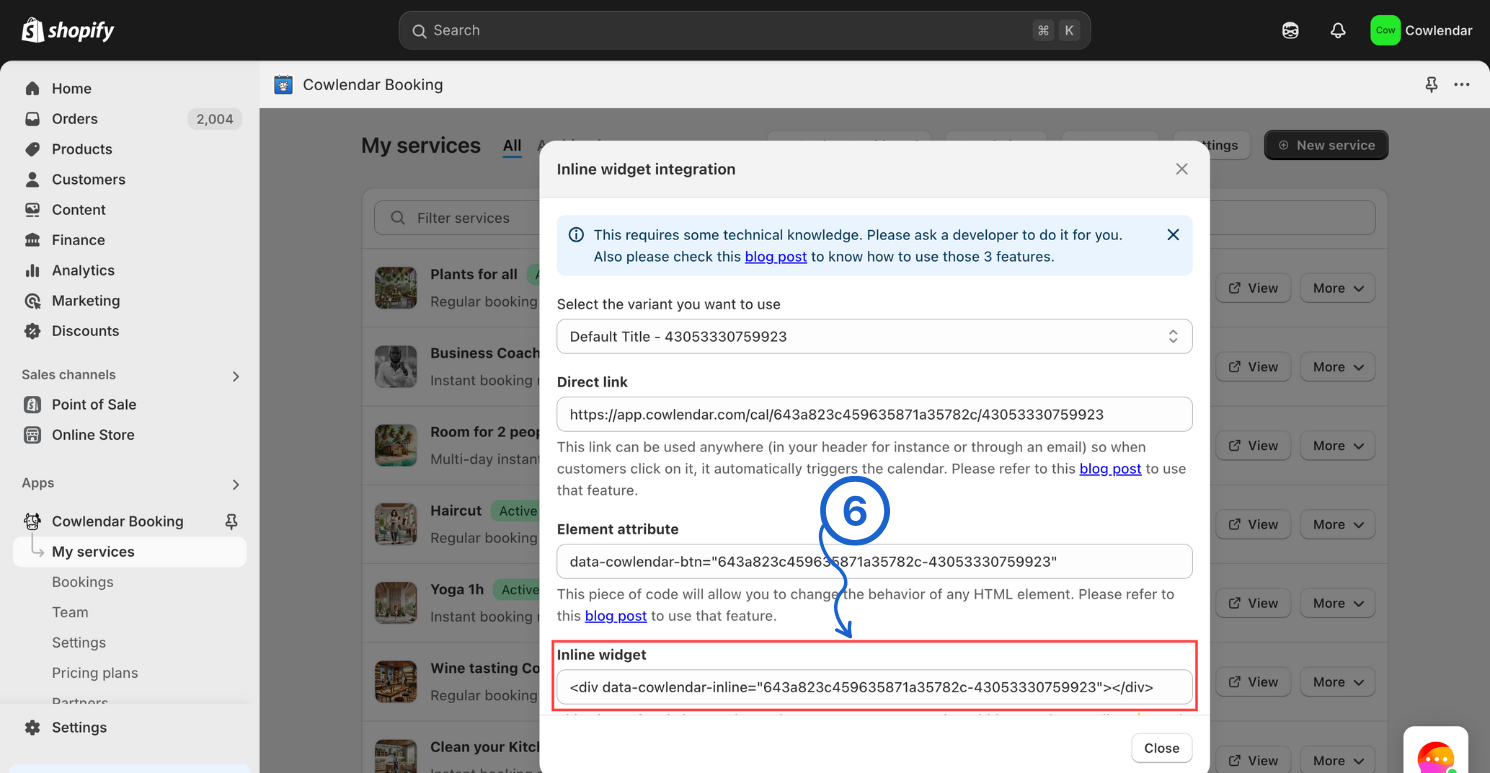
Inside of Custom Integrations copy the inline widget code
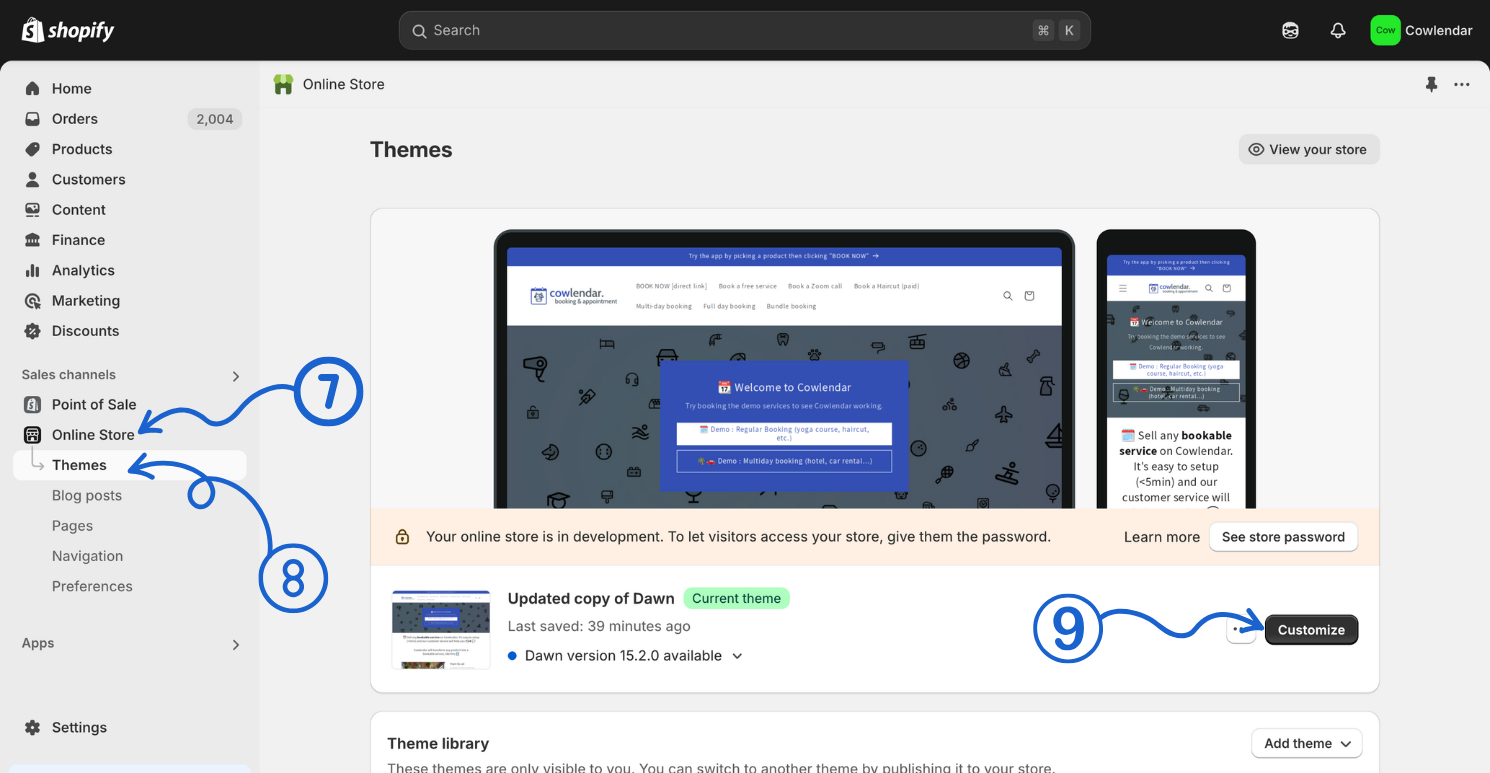
In the Shopify admin dashboard on the left panel click on Online Store
Click on Themes
In the main panel click on Customize to access your theme editor
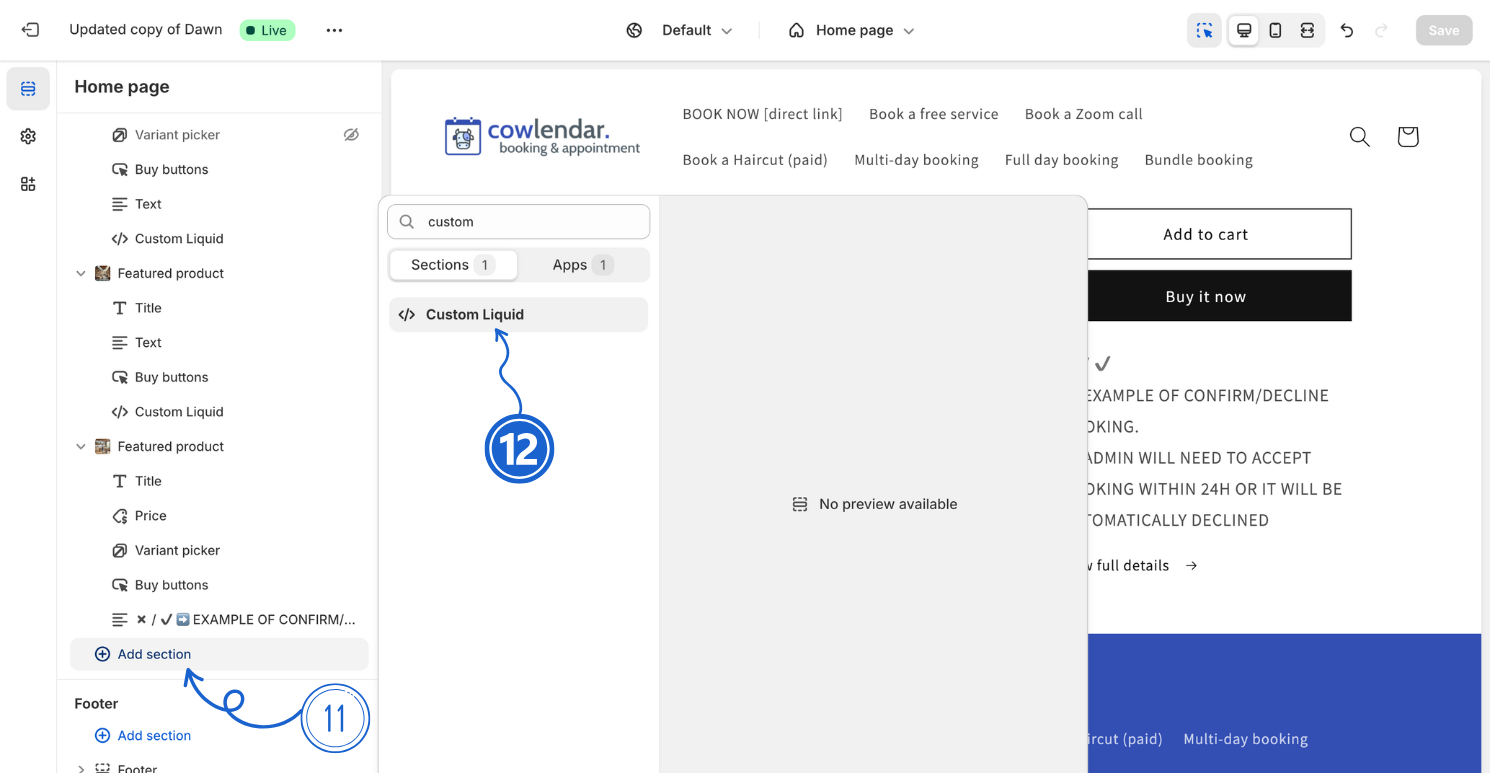
Once in the theme editor go to the page you want to place the calendar in
On that page click on Add Section which is found in the left panel
Add the Custom Liquid section which can be found after clicking on Add section
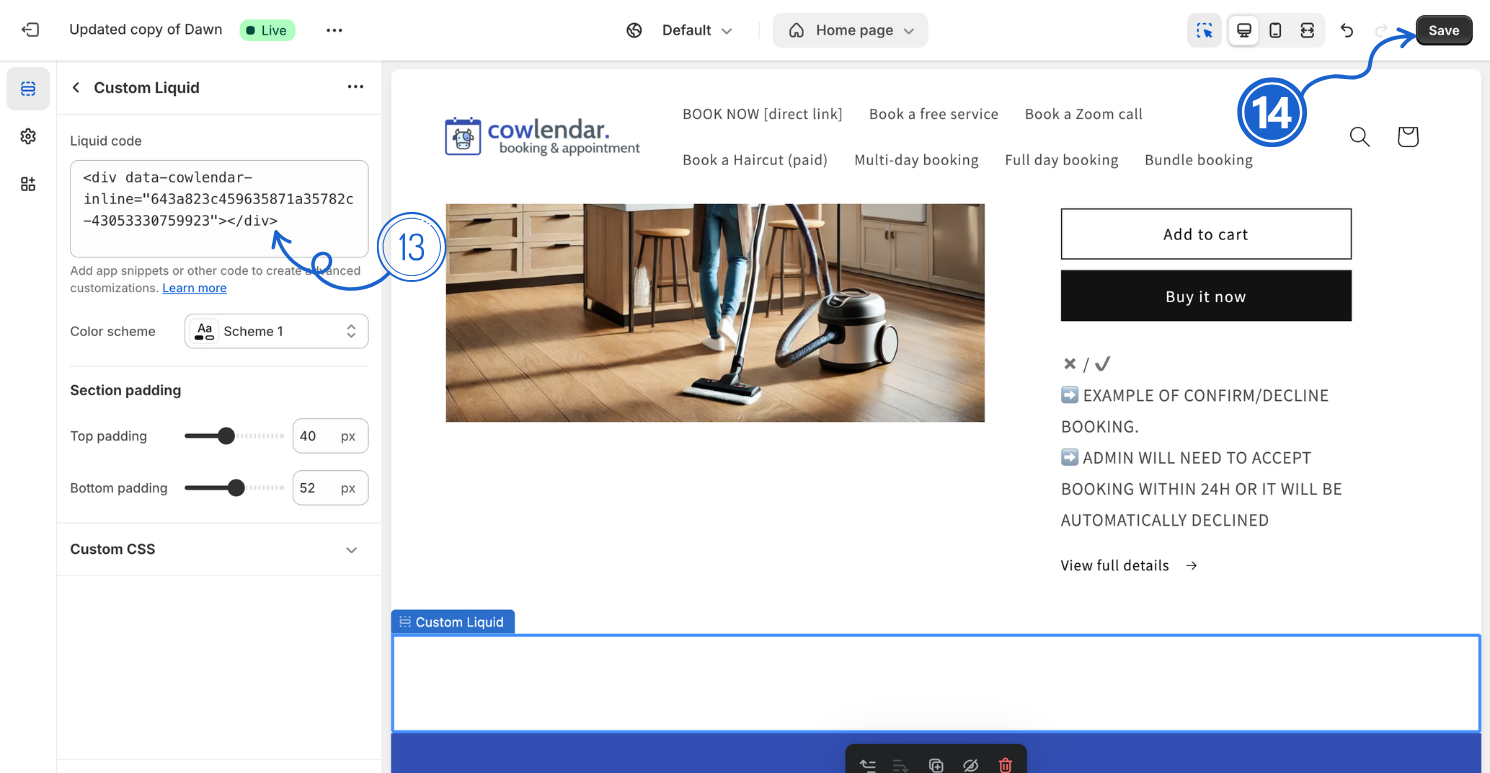
Inside of the Custom Liquid section paste the inline widget code you copied earlier
Click Save