
🚫 Blocked Emails and Public Holidays
Stop specific emails from booking with you and block official public holidays of a country in one click. Learn how both work in Cowlendar General settings.
Two small features in General settings save you a lot of work: block people who should not book with you, and block public holidays in one click.
Where to find them: Shopify admin > Apps > Cowlendar Booking > Settings > General settings. They are in the cards Blocked emails and Blocked times.
Blocked emails
Block emails from booking with you. Use it for customers who repeatedly make fake bookings or no-shows, or to stop spam.
- Open Settings > General settings.
- Scroll to the card Blocked emails.
- Click Add a blocked email. A new row appears with an empty field and a red trash icon.
- Type the email address in the field. The placeholder shows an example like [email protected].
- Click Save in the bar at the top (it shows Unsaved changes, Discard and Save). You will see the message Settings saved.
You can add several emails, one per row. A blocked email cannot complete a booking on any service.
To remove one, click the red trash icon at the end of its row (it does not ask for confirmation) and then click Save. If you leave without saving, the change is lost.


Public holidays
Import the official public holidays of a country and block them in one click. They behave exactly like blocked dates.
- Open Settings > General settings.
- Scroll to the card Blocked times. When you have no holidays it shows No public holidays.
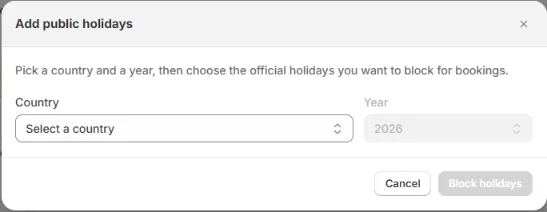
- Click Add public holidays. A window opens: Pick a country and a year, then choose the official holidays you want to block for bookings.
- Choose the Country and the Year. A list appears with a checkbox for each official holiday. Past holidays are grey, disabled and marked Past. The upcoming ones are selected by default. Untick the ones you do not want to block.
- Click the button at the bottom of the window, which shows how many you are blocking (for example Block 3 holidays).
- The holidays appear under Public holidays with the date in bold, the name, a country tag (for example US) and a red trash icon. Click Save in the bar at the top (Unsaved changes, Discard, Save). You will see Settings saved.
To remove holidays, click the red trash icon on each one and then Save. There is no button to remove all of them at once.
Public holidays behave like blocked dates:
- Customers cannot book on those dates.
- Existing bookings are not canceled or changed. Blocking only affects future bookings.
- The timezone of the card Blocked times is used for them.

Other ways to block time
| What you want | Where |
|---|---|
| Block time every day for all services (lunch) | Break times in the same card. |
| Block a specific date for all services | Block specific dates in the same card. |
| Block only one service | The Availability tab of that service, in Blocked dates or Break times. See How to Block Dates for One Service. |
| Block only one piece of equipment | The Equipments page. See The Equipments Page: Manage Your Bikes, Courts, Tables and More. |
Common questions
Will blocking a date cancel bookings I already have?
No. Blocked dates only affect future bookings. If you need to cancel an existing booking, do it from the Bookings page.
Can I remove a blocked email later?
Yes. Open Settings > General settings, go to the card Blocked emails, click the red trash icon at the end of the row and click Save.
Did this answer your question?