
How to Lock Quantity in Shopify Cart After Booking
🔒 How to Lock the Quantity in the Shopify Cart After a Cowlendar Booking
Prevent Customers From Changing the Booked Quantity
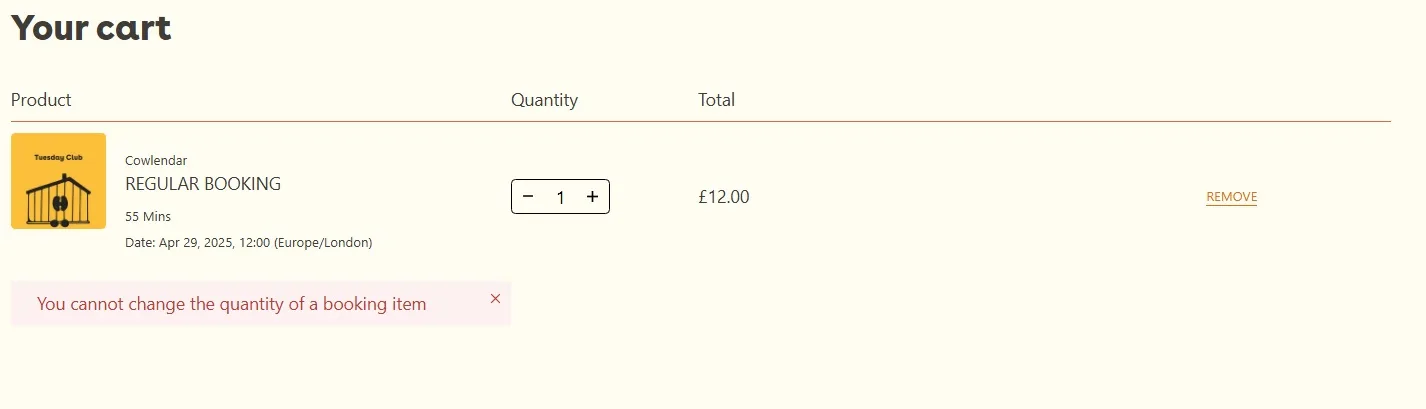
When you enable Cowlendar’s Lock quantity after booking feature, customers will no longer be able to change the quantity of a booked service from the Shopify cart.
This prevents the quantity shown in the Shopify order from becoming different from the quantity selected during the booking process. It also helps prevent accidental overbooking and keeps the booking details aligned with the final order.
How to Enable Cowlendar’s Cart and Checkout Validation Rule
1. Open Your Shopify Settings
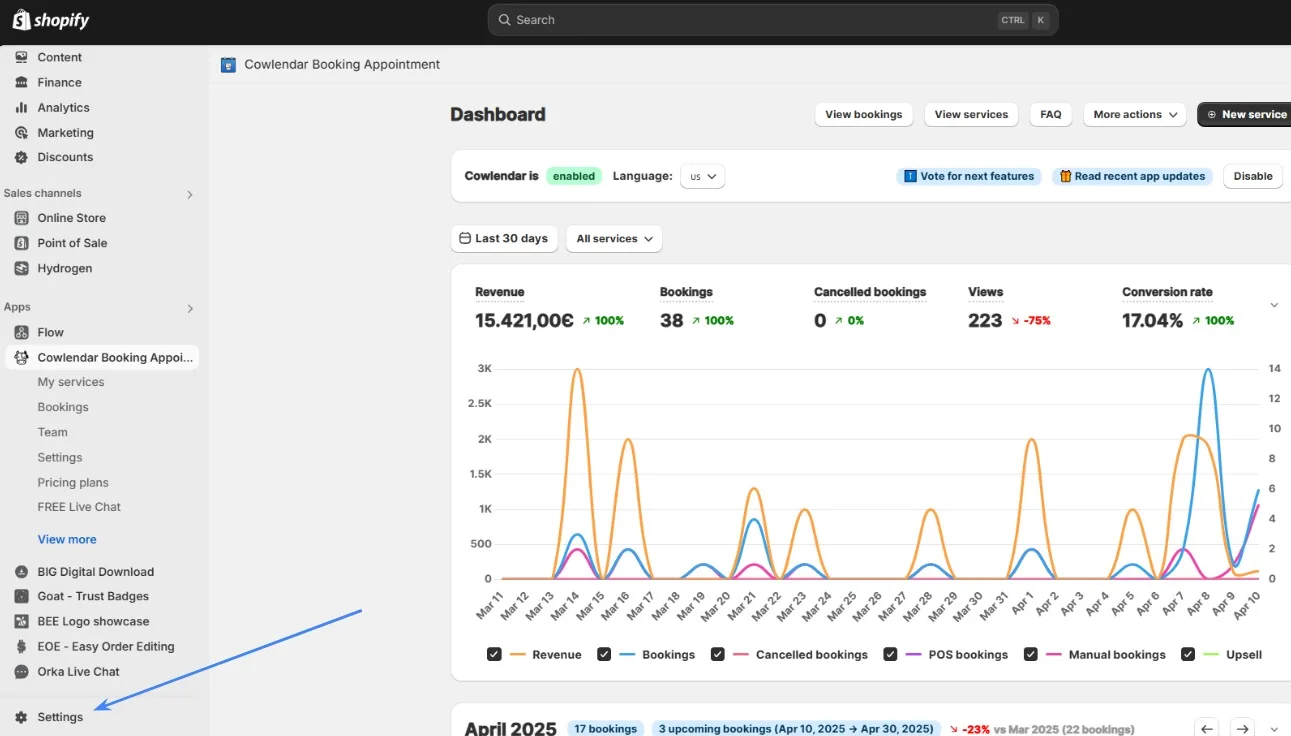
From your Shopify admin, click Settings in the bottom-left corner.
2. Open the Checkout Section
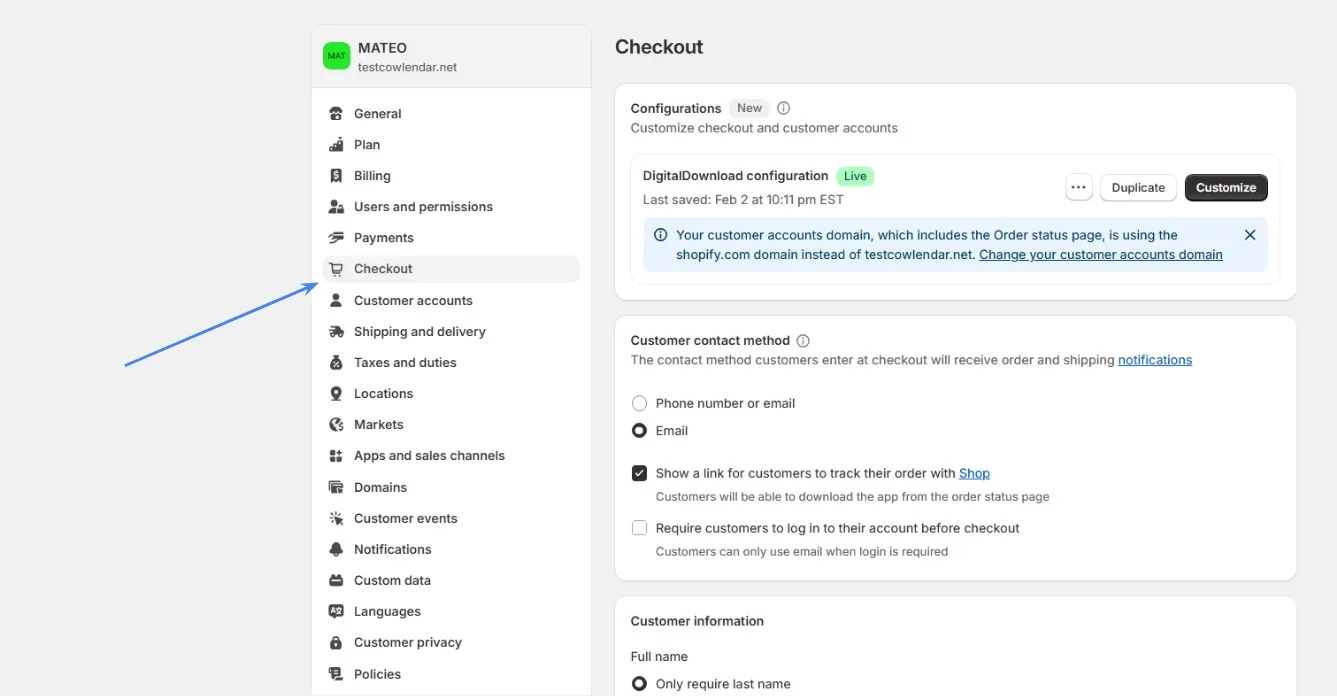
Inside Shopify Settings, select Checkout.
3. Find the Checkout Rules Section
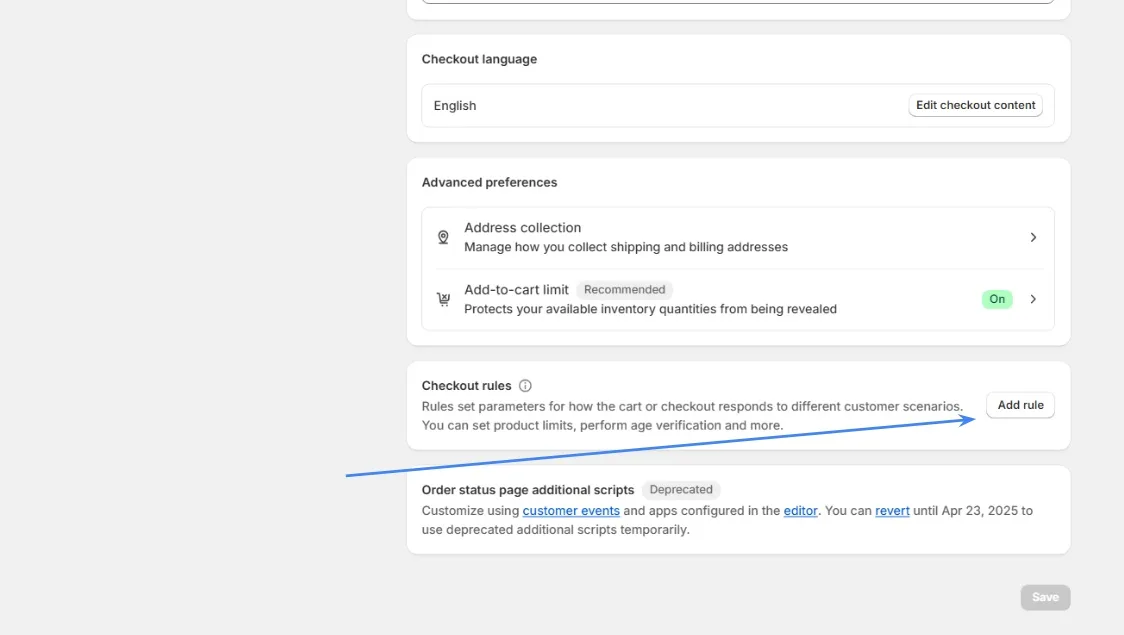
Scroll to the bottom of the Checkout settings page until you see Checkout rules.
4. Add and Activate the Cowlendar Rule
Click Add rule, then choose cart-checkout-validation by Cowlendar.
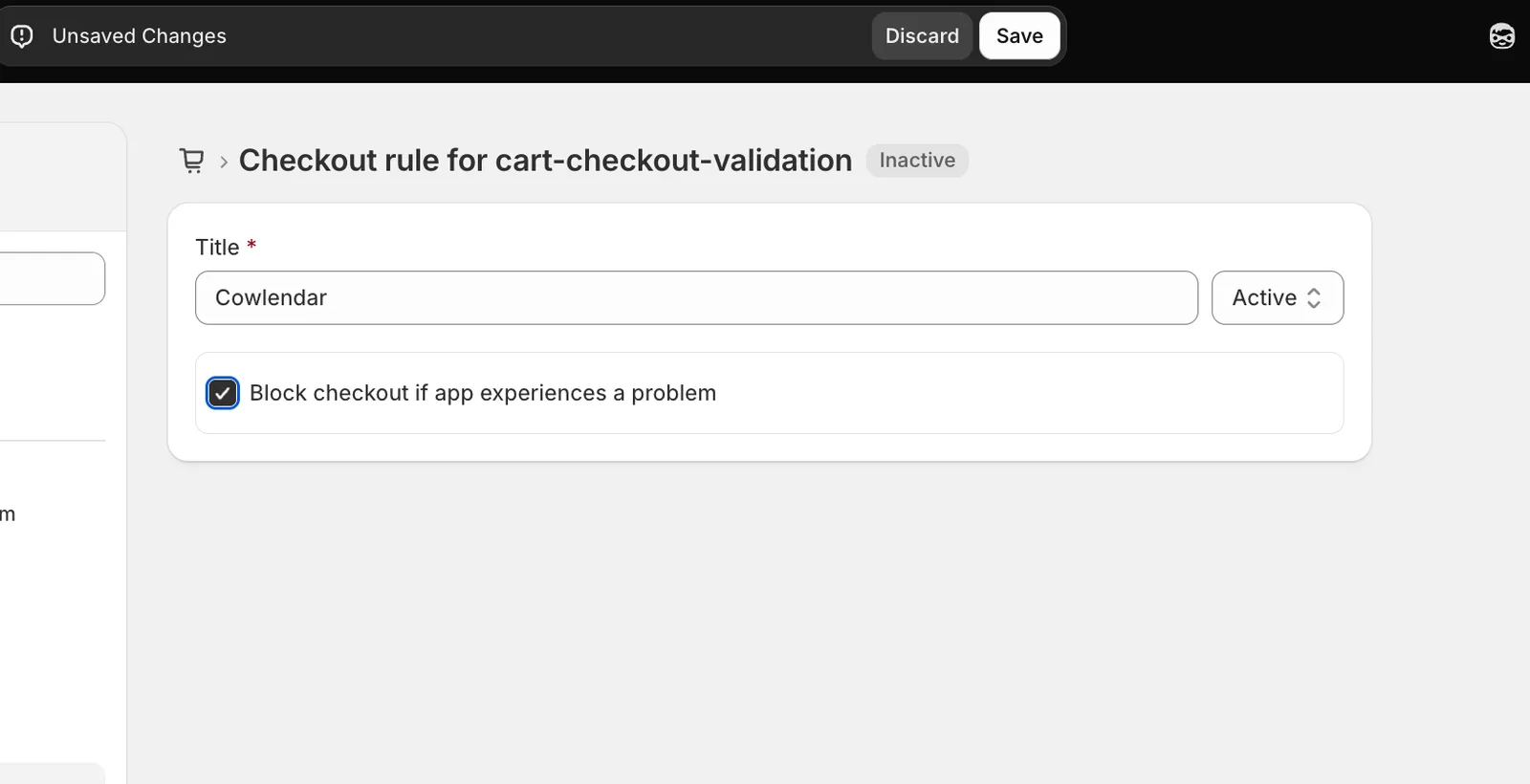
On the rule settings page:
- Enter a title, such as Cowlendar.
- Set the rule status to Active.
- Enable Block checkout if app experiences a problem.
- Click Save at the top of the page.
Once the rule has been saved and activated, customers will no longer be able to change the booked quantity in a way that creates a mismatch between the Cowlendar booking and the Shopify order. ```
Did this answer your question?