
👥Customers page: search, sort, export and customer notes
See every person who has booked with you, search and sort them, check their booking history, add private notes and export the list to CSV or XLSX.
The Customers page lists everyone who has booked with you, with their totals, last and next visits and the services they booked. It is the quickest way to find a customer, check their history or export your list.
How to get there
- In your Shopify admin, click Apps.
- Open Cowlendar Booking.
- Click Customers in the app sidebar.
The number next to the title is your total number of customers.
Search, filter and sort

- Search: type a customer name, email or phone number in the search box.
- All services: show only customers who booked the services you tick.
- All teammates: show only customers who booked with the teammates you tick.
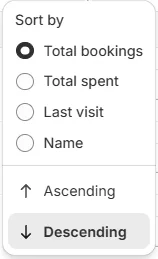
- Sort: click the sort icon and choose Total bookings, Total spent, Last visit or Name, then Ascending or Descending. The default is Total bookings, highest first.
What each column shows

| Column | What it shows |
|---|---|
| Customer | Name and email |
| Contact | Phone number, or a dash if there is none |
| Total bookings | How many bookings this customer has made |
| Total spent | Sum of what they paid, or a dash if zero |
| Last visit | Date of their most recent booking |
| Next visit | Date of their next upcoming booking, or a dash |
| Services | The services they booked, with a counter when there are many |
| Actions | The Details button |
The list loads in groups. Click Show more at the bottom to load more customers.
Open a customer's details
Click Details on any row. The window shows:

- Five summary cards: Total bookings, Total spent, First visit, Last visit and Top service.
- A Bookings tab with every booking of that customer, in the same layout as the Bookings page.
- A Notes tab for private notes.
- Buttons to Edit the customer, Export their data and create a Manual booking for them.
Add private notes
- Open the customer with Details.
- Go to the Notes tab.
- Write your note and click Add note.

Notes are for you and your team. Customers never see them.
Export your customers
Click Export and choose Export CSV or Export XLSX. If you tick the checkbox of one or more rows first, the button shows how many are selected, for example Export (1), and only those customers are exported. Tick the box in the header to select all rows on screen.
Add a customer manually
Click Add customer at the top right to create a customer yourself, for example someone who booked by phone.
FAQ
Are customers created automatically?
Yes. A customer appears the first time someone books a service. You can also add one manually.
Is there a bulk action on this page?
Selecting rows only changes what Export sends. There are no bulk edit or delete actions here.
Is this feature limited to a plan?
No. All Cowlendar features are available on every plan. Plans only differ by monthly booking or revenue volume.
If you need help, reach out through our in-app chat.
Did this answer your question?