
📧 Klaviyo Integration (Beta)
Connect Cowlendar to Klaviyo with a private API key, pick which booking events to send, build flows with sample events and move your booking emails to Klaviyo.
The Klaviyo integration sends your booking events and customer profiles to Klaviyo, so you can trigger your own email and SMS flows: confirmations, follow-ups, win-back campaigns and more.
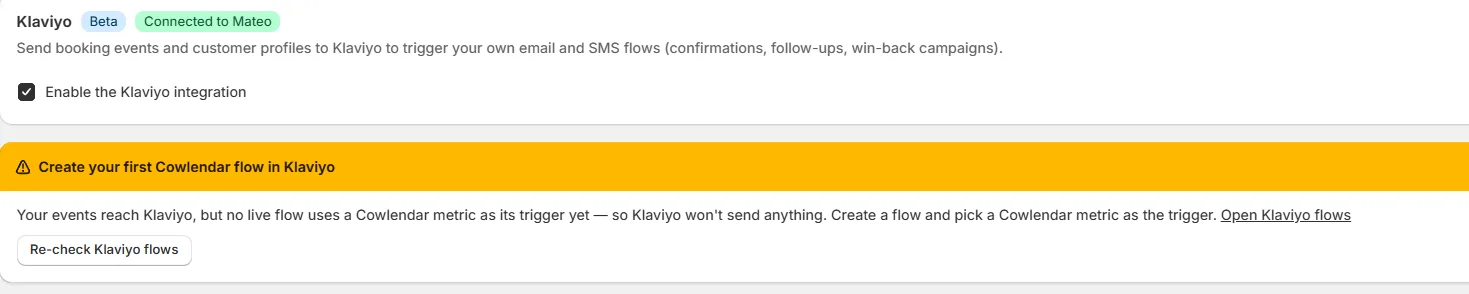
Where to find it: Shopify admin > Apps > Cowlendar Booking > Settings > Klaviyo. The page has a Beta badge. When the connection works you will also see a green badge Connected to followed by your Klaviyo account name.
Step 1: Connect Klaviyo
- Open Settings > Klaviyo.
- Tick Enable the Klaviyo integration.
- In the Connection card, click Open Klaviyo API keys. It opens your Klaviyo account settings.
- Create a private API key in Klaviyo. Copy it.
- Paste it in the field Private API key in Cowlendar.
- Click Test connection to check that it works.
Once a key is saved, the field shows it masked and the helper says A key is already saved. Enter a new one to replace it. To change the key, type a new one.
The card also has Send test event to send one test event to Klaviyo and shows Last event sent with the date and time.
Treat the private key like a password. Never share it or put it in a screenshot.
Step 2: Choose the events
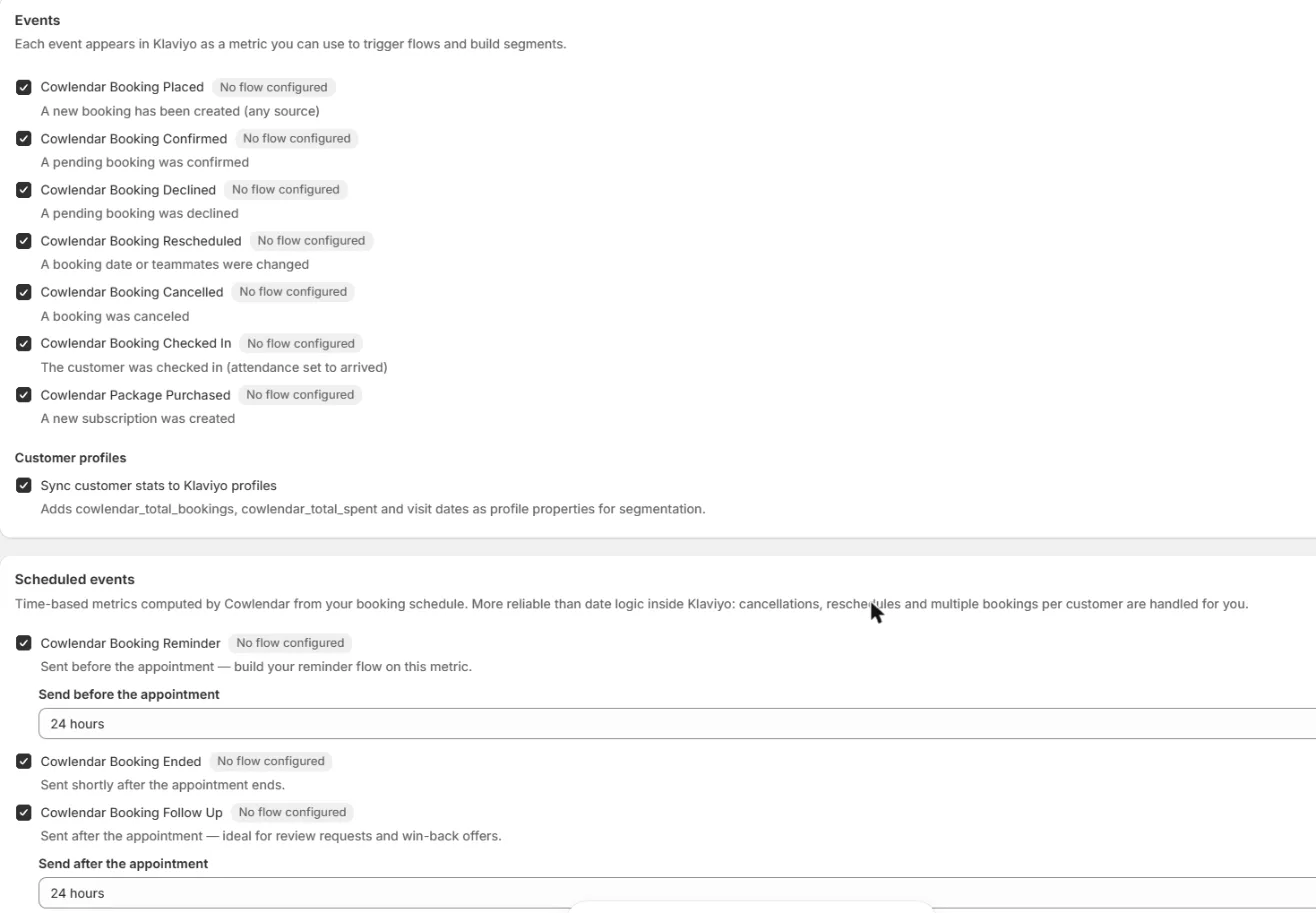
In the Events card, each event appears in Klaviyo as a metric that you can use to trigger flows and build segments.
| Event | Sent when |
|---|---|
| Cowlendar Booking Placed | A new booking has been created (any source). |
| Cowlendar Booking Confirmed | A pending booking was confirmed. |
| Cowlendar Booking Declined | A pending booking was declined. |
| Cowlendar Booking Rescheduled | A booking date or teammates were changed. |
| Cowlendar Booking Cancelled | A booking was canceled. |
| Cowlendar Booking Checked In | The customer was checked in (attendance set to arrived). |
| Cowlendar Package Purchased | A new subscription was created. |
Each event shows a grey label No flow configured until you have a live flow that uses it.
Under Customer profiles, the option Sync customer stats to Klaviyo profiles adds the properties cowlendar_total_bookings, cowlendar_total_spent and the visit dates to each profile in Klaviyo, so you can segment your customers.
Scheduled events
The Scheduled events card has time-based metrics that Cowlendar calculates from your booking schedule. They are more reliable than doing date maths inside Klaviyo, because cancellations, reschedules and several bookings per customer are handled for you.
| Event | What it is for |
|---|---|
| Cowlendar Booking Reminder | Sent before the appointment. Choose how long before with Send before the appointment (for example 24 hours). Build your reminder flow on this metric. |
| Cowlendar Booking Ended | Sent shortly after the appointment ends. |
| Cowlendar Booking Follow Up | Sent after the appointment. Choose how long after with Send after the appointment. Ideal for review requests and win-back offers. |
Step 3: Build your flows before your first booking
Klaviyo only lists a metric in its flow builder after it has received at least one event. The card Build your flows without waiting solves this.
- Choose All enabled events (or one event) in the selector.
- Click Send sample events.
- In Klaviyo, create your flow and pick a Cowlendar metric as the trigger.
Samples carry fake data flagged is_sample: true. Events received before a flow exists never trigger it, so samples are safe.
If you see an orange box Create your first Cowlendar flow in Klaviyo, it means your events reach Klaviyo but no live flow uses a Cowlendar metric yet, so Klaviyo will not send anything. Create a flow, then click Re-check Klaviyo flows.

Switching your booking emails to Klaviyo
If you want Klaviyo to send your booking emails instead of Cowlendar:
- Connect Klaviyo and enable the events you need.
- Keep your Cowlendar email notifications ON for now. Your customers keep receiving confirmations while you build your flows.
- Create and test your Klaviyo flows. Use sample events to build them.
- When your flows are live, turn OFF the matching Cowlendar emails to avoid duplicates. The link Open email settings takes you there. See Email Settings, Templates and Email History.
Ready-made email templates
The card Looking for ready-made email templates? has five templates: Booking confirmation, Booking rescheduled, Booking reminder, Booking follow-up and Booking cancelled.
- Open the template you want.
- Click Copy template.
- Paste it into the template editor of Klaviyo.
Every variable fills in automatically with your booking data. Adjust your branding and you are done.
Common questions
My events arrive in Klaviyo but no email is sent.
You need a live flow in Klaviyo that uses a Cowlendar metric as its trigger.
Customers get two emails.
You have both the Cowlendar email and your Klaviyo flow on. Turn off the matching Cowlendar email in Email settings.
Do I need to save after ticking an event?
Yes. When you change an option, a bar appears at the top with Unsaved changes, Discard and Save. Click Save to keep your changes. If you leave without saving, they are lost.
Did this answer your question?