
📐 Booking Rules: Add Custom Constraints to Your Availability
Learn what Booking rules do in Cowlendar, where to add your first rule and how rules change the availability of your services and teammates.
Booking rules let you add custom constraints on services and teammates that impact their availability. They are for cases that the normal availability, blocked dates and capacity settings cannot cover.
Where to find it: Shopify admin > Apps > Cowlendar Booking > Settings > Booking rules.
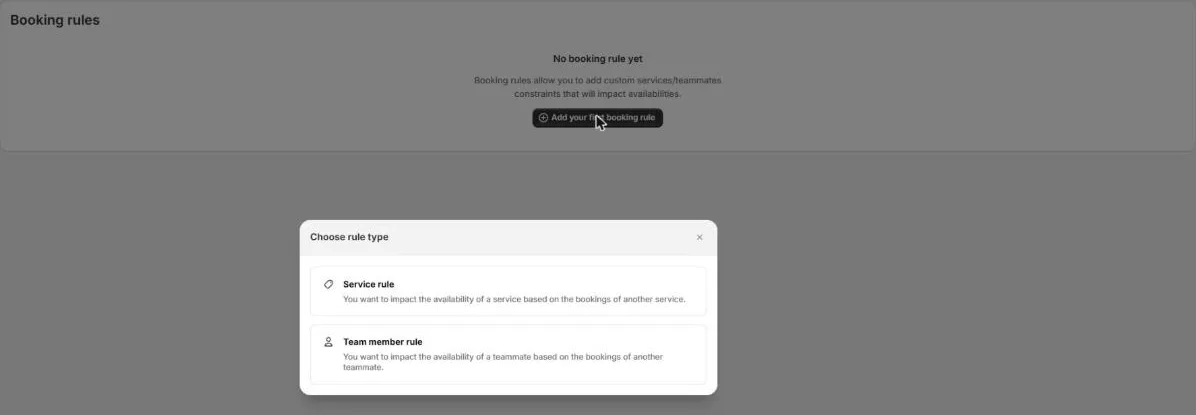
When you have no rules, the page shows No booking rule yet and the dark button Add your first booking rule.

Create a booking rule
A booking rule lets one service or one teammate affect the availability of another. Use it when a booking of one should block or limit the other, for example when two services share the same room or the same person.
Open Settings > Booking rules and click Add your first booking rule. After the first one, the same button is called Add a booking rule.
In Choose rule type, pick one of the two options:
- Service rule: you want to impact the availability of a service based on the bookings of another service.
- Team member rule: you want to impact the availability of a teammate based on the bookings of another teammate.
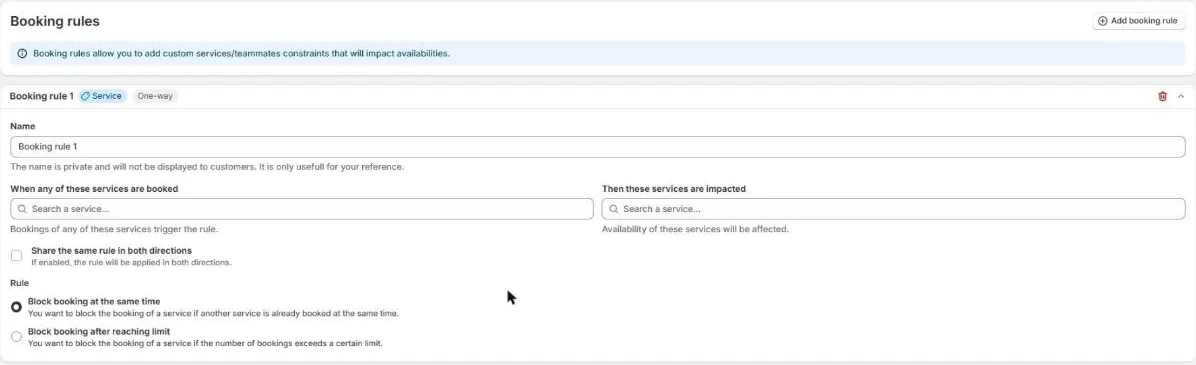
The rule form opens with a title such as Booking rule 1, a label with the type (Service or Team member) and a label that says One-way. Fill in the fields:
- Name: for your own reference. It is private and customers never see it.
- When any of these services are booked (or team members): search and pick one or more. A booking of any of them triggers the rule.
- Then these services are impacted (or team members): search and pick one or more. Their availability is affected when the rule is triggered.
- Share the same rule in both directions: when it is on, the label changes from One-way to Two-way and the rule works in both directions.
- Rule: choose how the rule affects availability:
- Block booking at the same time: blocks the booking of a service if another service is already booked at the same time. It is the default.
- Block booking after reaching limit: blocks the booking of a service if the number of bookings goes over a limit. It shows two more fields: Number of bookings (the maximum allowed before blocking more) and Count bookings by, with the options Time slot and Calendar day.
A bar at the top shows Unsaved changes, with Discard and Save. Click Save to create the rule. The trash icon on a rule deletes it.
Examples:
- Two services use the same room: create a Service rule with Block booking at the same time, in both directions, so when one is booked the other disappears from that time.
- A teammate can only attend one session per day: create a Team member rule with Block booking after reaching limit, 1 booking, counted by Calendar day.
See the effect of your rules
In Bookings > Bookings calendar, tick Booking rules under Show extra layers to display your rules on the calendar. See Bookings Calendar: View and Print Your Bookings.
When to use a rule and when not
| You want to... | Use |
|---|---|
| Set the days and hours a service is available | The Availability tab of the service |
| Block a specific date | Blocked dates (service or General settings) |
| Limit how many people book a slot | Booking limit in the service, or Maximum booking per timeslot in General settings |
| Add a constraint between services or teammates | Booking rules |
For the older guide, read How to Use Advanced Service Settings: Booking Rules.
Did this answer your question?