
🔐 Team Portal and Permissions
Let teammates see their own bookings in the Cowlendar team portal. Learn the 10 permissions, how to hide prices and contacts, and how to send the magic link.
The team portal lets your teammates open their own bookings without access to your Shopify admin. You decide, teammate by teammate, what they can see and what they can do.
Where to find it: Shopify admin > Apps > Cowlendar Booking > Team > click Edit on a teammate > Permissions.
How it works in 4 steps
- Open Team and click Edit next to the teammate.
- In the left menu Teammate settings, click Permissions.
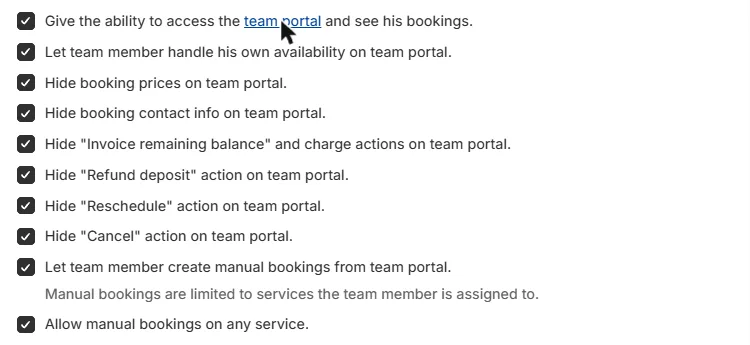
- Tick the permissions you want to give. The first one, Give the ability to access the team portal and see his bookings, is what turns the portal on for that teammate.
- Click Send magic link. The teammate receives an email to log in. From there they can also set a password.
If a Shopify bar with Save appears at the top after you tick a box, click Save.
The 10 permissions
A blue note at the top says that these permissions control the teammate's access to the team portal and related features.
| # | Permission | What it does |
|---|---|---|
| 1 | Give the ability to access the team portal and see his bookings | Turns the team portal on for this teammate. Without it, none of the others matter. |
| 2 | Let team member handle his own availability on team portal | The teammate can manage their own availability from the portal. |
| 3 | Hide booking prices on team portal | The teammate does not see prices. |
| 4 | Hide booking contact info on team portal | The teammate does not see customer contact details. |
| 5 | Hide "Invoice remaining balance" and charge actions on team portal | The teammate cannot invoice or charge the remaining balance of pre-payment bookings. |
| 6 | Hide "Refund deposit" action on team portal | The teammate cannot refund deposits. |
| 7 | Hide "Reschedule" action on team portal | The teammate cannot reschedule bookings. |
| 8 | Hide "Cancel" action on team portal | The teammate cannot cancel bookings. |
| 9 | Let team member create manual bookings from team portal | The teammate can create manual bookings. Under this box, a grey note says: manual bookings are limited to the services the team member is assigned to. |
| 10 | Allow manual bookings on any service | Lets the teammate create manual bookings on any service, not only the ones assigned to them. |
The boxes that start with Hide work in reverse: when the box is ticked, the information or action is hidden from the teammate. Leave it unticked to let them see it.
Examples
A cashier who only needs to see the schedule. Tick 1, 3 and 4. They see their bookings without prices and without customer contact details.
A senior stylist who runs their own agenda. Tick 1, 2 and 9. They see their bookings, manage their availability and add manual bookings for their own services.
A manager who can do everything. Tick 1 and leave all the "Hide" boxes unticked. Add 9 and 10 if they also need to book on any service.
Send the magic link
Click Send magic link. The text next to the button explains it: it sends the teammate an email to log in, and they can also set a password from there.
The button sends a real email. Use it only when the teammate is ready to log in.
Where the portal opens
The link in the first permission opens the team portal. Your teammate logs in with the email that received the magic link.
Team seats and cost
Your plan includes 3 team members. Each extra seat costs $5.99 per month. You can see how many seats you use in Pricing plans > Team members. See Cowlendar Pricing Plans, Limits and Billing.
Common questions
Can I give the portal to the admin teammate?
The admin teammate (the shop owner, marked with the Cowlendar admin badge) also has the Permissions tab, so the same options are available for the shop owner.
My teammate does not see any bookings in the portal.
Check that the first permission is ticked, that the teammate is assigned to the service (see How to Properly Set Up Your Team Members in Cowlendar) and that you sent the magic link.
Did this answer your question?