
✉️ Email Settings, Templates and Email History
Customize Cowlendar emails: logo, From name, reply-to, custom sender, CC and BCC copies, ICS file and Google emails. Check delivery and resend in Email history.
Cowlendar sends emails to your customers and to you at every step of a booking. This article covers where you control them and how to check that they were delivered.
Where to find it: Shopify admin > Apps > Cowlendar Booking > Settings > Email settings.
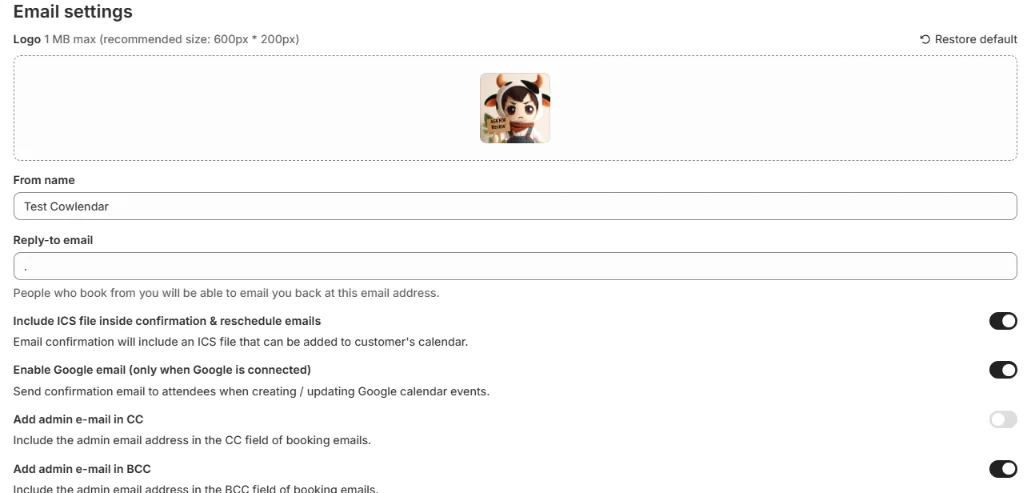
Email settings
| Setting | What it does |
|---|---|
| Logo | The logo shown in your emails. Maximum 1 MB, recommended size 600px x 200px. Click Restore default to go back to the default logo. |
| From name | The sender name your customers see. |
| Reply-to email | When customers reply, their answer goes to this address. |
| Include ICS file inside confirmation & reschedule emails | Adds an ICS file that customers can add to their calendar. |
| Enable Google email (only when Google is connected) | Sends a confirmation email to attendees when Cowlendar creates or updates Google Calendar events. |
| Add admin e-mail in CC | Includes your admin email in the CC field of booking emails. |
| Add admin e-mail in BCC | Includes your admin email in the BCC field of booking emails. |
| Send the copy to | The address that receives the CC or BCC copy. Leave it empty to use your admin email address. |
Related guides: How to Include an ICS File Inside Confirmation and Reschedule Emails, How to Add Admin Email to CC or BCC and Why Does Google Calendar Always Send Invitation Emails.
Custom sender email
The card Custom sender email has the option Use a custom sender email for emails notifications. Type your address in the field and click Use this e-mail address. That address is used as the sender of the booking emails.
Which emails are sent
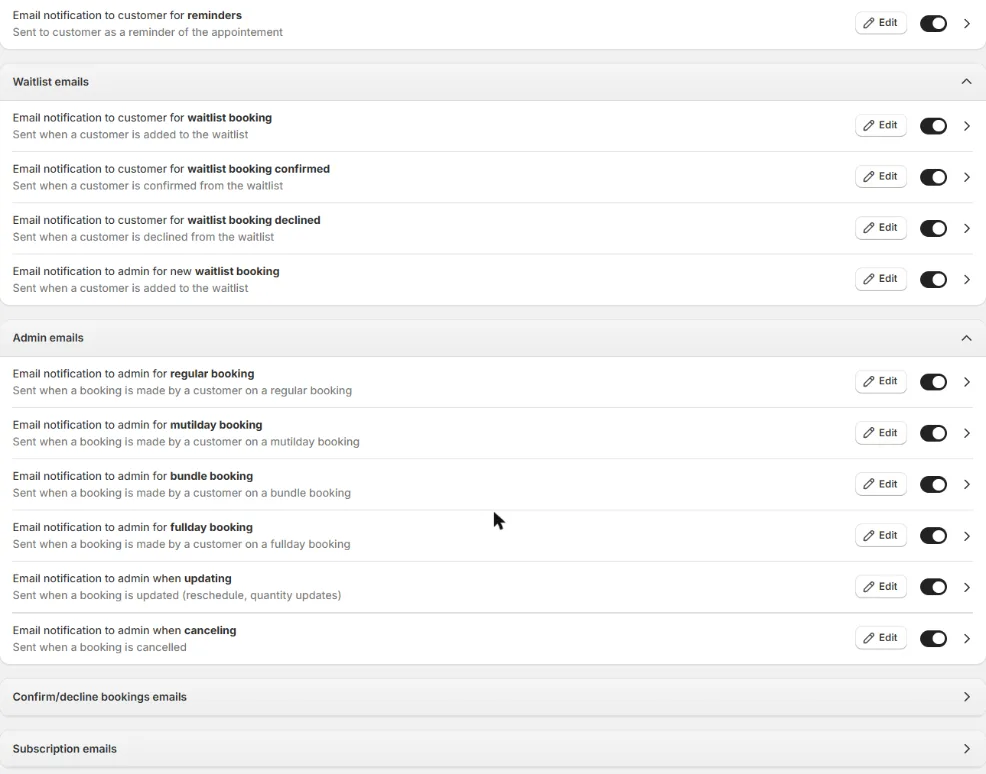
Below the settings there are groups of emails. Each email has a title, a short description, an Edit button and an on/off switch.
Other customer emails
| When it is sent | |
|---|---|
| Email notification to customer when updating | When a booking is updated (reschedule, quantity updates). |
| Email notification to customer when canceling | When a booking is cancelled. |
| Email notification to customer for reminders | As a reminder of the appointment. |
Waitlist emails
| When it is sent | |
|---|---|
| Customer waitlist booking | When a customer is added to the waitlist. |
| Customer waitlist booking confirmed | When a customer is confirmed from the waitlist. |
| Customer waitlist booking declined | When a customer is declined from the waitlist. |
| Admin new waitlist booking | When a customer is added to the waitlist (email to you). |
Admin emails
Emails sent to you: new regular booking, new multiday booking, new bundle booking, new fullday booking, booking updated and booking canceled.
Other groups
The page also has the groups Customer confirmation emails, Confirm/decline bookings emails and Subscription emails. Open each group to see its individual emails and turn them on or off.
To send these emails from Klaviyo instead, see Klaviyo Integration (Beta): keep Cowlendar emails on until your Klaviyo flows are live, then turn off the matching Cowlendar emails.
Preview
The right column shows a preview of the email you select. A note reminds you that the preview is not accurate: it uses fake booking data to help you visualize the final result.
Email history
Where to find it: Settings > Email history.
Here you can check every email Cowlendar has sent.
- Tabs: All, Sent, Delivered, Opened, Bounced and Error.
- Columns: Recipient, Status, Subject, Sending date.
- Status: for example delivered, opened, bounced or error.
- Resend: the button at the end of each row sends that email again.
- Show more: the list loads 20 rows at a time.
Subjects you will recognize: Your appointment is confirmed, Appointment updated, Your appointment is rescheduled, Appointment cancelled, Your appointment is cancelled and the admin emails New appointment and New reservation.

Resend sends a real email to the customer again. Use it when a customer says they never received a message, after checking the Bounced and Error tabs.
Common questions
A customer did not receive the email.
- Open Email history and search for the customer in the table.
- Check the status. If it says delivered, ask the customer to check spam.
- If it is in Bounced or Error, check the email address.
- Use Resend if needed.
I want a different text in the confirmation email.
Use the Custom Booking Confirmation field in the service. See Service Notifications, Reminders and Google Event Title.
Did this answer your question?