
🧾 Services List Page: Show Your Services on Any Page
Create services lists in Cowlendar, choose the services, customize colors and buttons, and add the list to your Shopify store with a section or HTML.
The Services list page builds a ready-made list of your services that you can place on your homepage, a landing page or any page of your store. Customers see each service with its image, price and the next available time slots, and can book from there.
Where to find it: Shopify admin > Apps > Cowlendar Booking > Settings > Services list page.
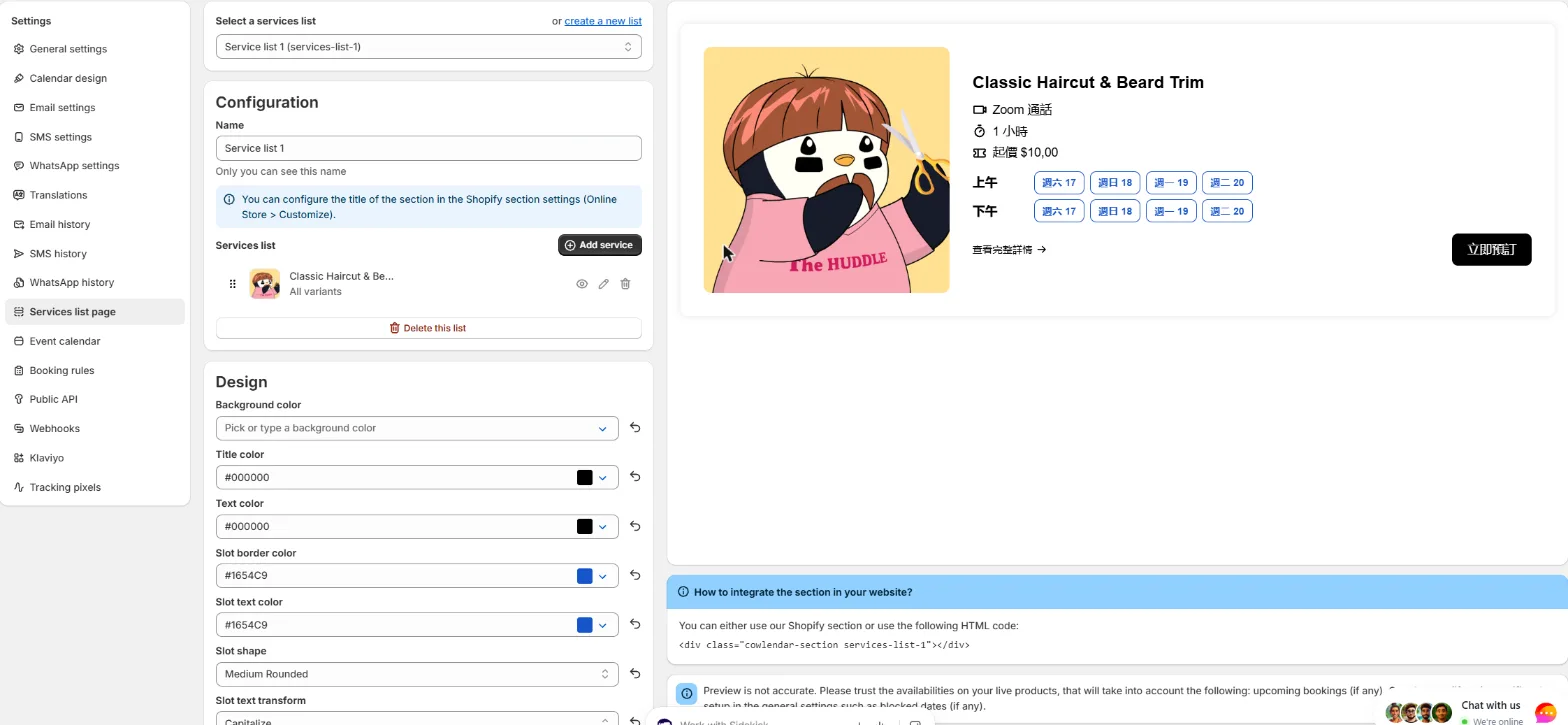
Several lists in one store
At the top, Select a services list shows the list you are editing. Click or create a new list to make another one. Each list has a name and a handle (the text between brackets, for example services-list-1). You will use the handle in the HTML code.
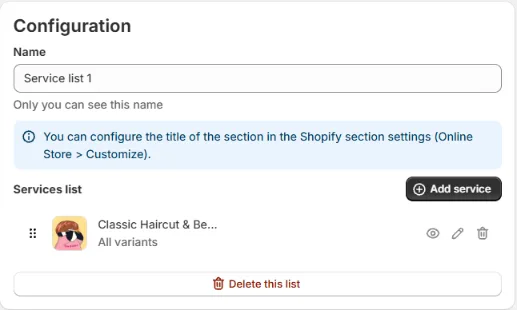
Configuration
- Name: only you can see it. Use something clear like "Homepage list" or "Massages".
- Services list: the services in the list, with their image and name (and All variants underneath). Click Add service to add more. Drag the handle on the left of a row to change the order.
- Delete this list: red button at the bottom to remove the whole list.
Each service in the list has three icons on the right. Use the trash icon to remove a service from the list.
The title of the section on your page is configured in the Shopify section settings (Online Store > Customize), not here.
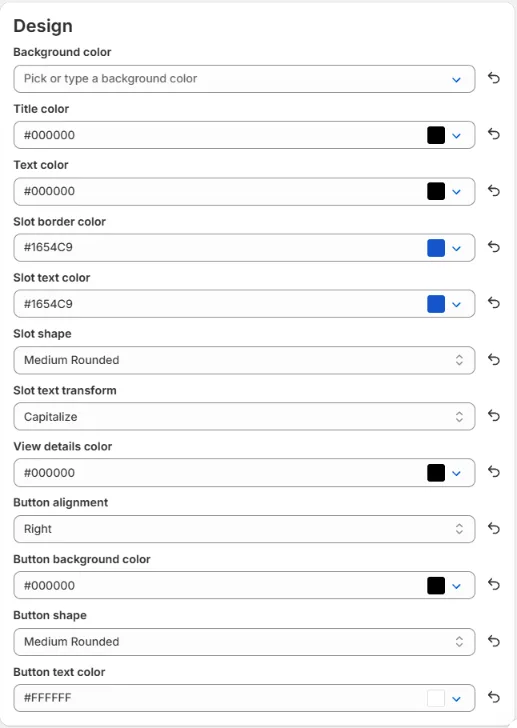
Design
The Design card has an undo arrow next to each field to go back to the default. You can change:
| Field | What it changes |
|---|---|
| Background color | The background of the list. |
| Title color | The color of the service titles. |
| Text color | The color of the texts. |
| Slot border color and Slot text color | The color of the time slot buttons. |
| Slot shape | The corners of the slots (for example Medium Rounded). |
| Slot text transform | Capitalize, uppercase and so on. |
| View details color | The color of the "View full details" link. |
| Button alignment | Left, center or right. |
| Button background color, Button shape and Button text color | The booking button. |
The preview
The right column shows a live preview of the first service: image, title, location, duration, price, rows of morning and afternoon slots, the link View full details and the booking button.
The preview is not exact. Trust the availabilities on your live products, which take into account upcoming bookings, Google sync and rules from the general settings such as blocked dates.
Add the list to your store
The blue box How to integrate the section in your website? gives you two ways:
Option 1: Shopify section
- In your Shopify admin go to Online Store > Themes > Customize.
- Open the page where you want the list.
- Click Add section, open the Apps tab and choose Cowlendar Services (under Cowlendar Booking).
- Choose the list you created and set the title in the section settings.
Option 2: HTML code
Paste this code where you want the list to appear, replacing services-list-1 with the handle of your list:
<div class="cowlendar-section services-list-1"></div>
Change the words
Words such as Morning, Afternoon, Next availability, View full details, From and Free come from Settings > Translations > Calendar translation > Services list. See Translations: Customize Every Text of Your Booking Widget.
Related guides
Did this answer your question?