
💬 SMS and WhatsApp: Credits, Pricing and History
Understand Cowlendar SMS and WhatsApp credits: balance, price per message, which messages are sent, segments, failed messages and the history pages.
Cowlendar can text your customers (SMS) or message them on WhatsApp for confirmations, reschedules, cancellations and reminders. You pay per message with a credit balance. This article explains the settings, the cost and the history pages.
Where to find it: Shopify admin > Apps > Cowlendar Booking > Settings > SMS settings or WhatsApp settings.
Credits
At the top of each page you see your balance, for example SMS credit: $76.46.
- The credit is used for sending notifications. The balance is deducted for each message sent.
- Credits do not expire. They remain valid for life.
- Click Add credits to buy more. Click See SMS pricing table or See WhatsApp pricing table to check the price per message.

For SMS: shortened URLs are not accepted. SMS messages are not sent if you use them.
Which messages can you send
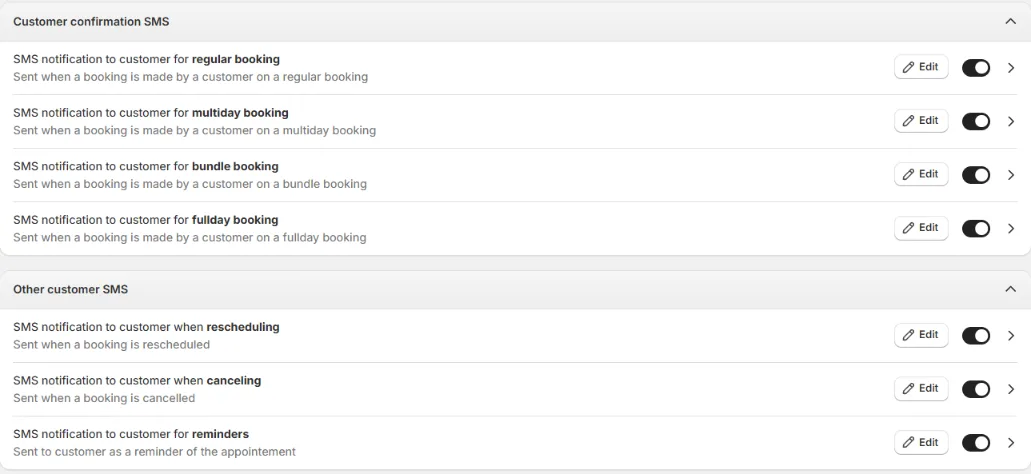
Both pages have the same two groups. Each message has a title, a description, an Edit button and an on/off switch.
Customer confirmation messages
Sent when a booking is made: one for regular booking, one for multiday booking, one for bundle booking and one for fullday booking.
Other customer messages
- When rescheduling: sent when a booking is rescheduled.
- When canceling: sent when a booking is cancelled.
- For reminders: sent to the customer as a reminder of the appointment.
There are no SMS or WhatsApp messages to the admin, and none for the waitlist.
Edit a message
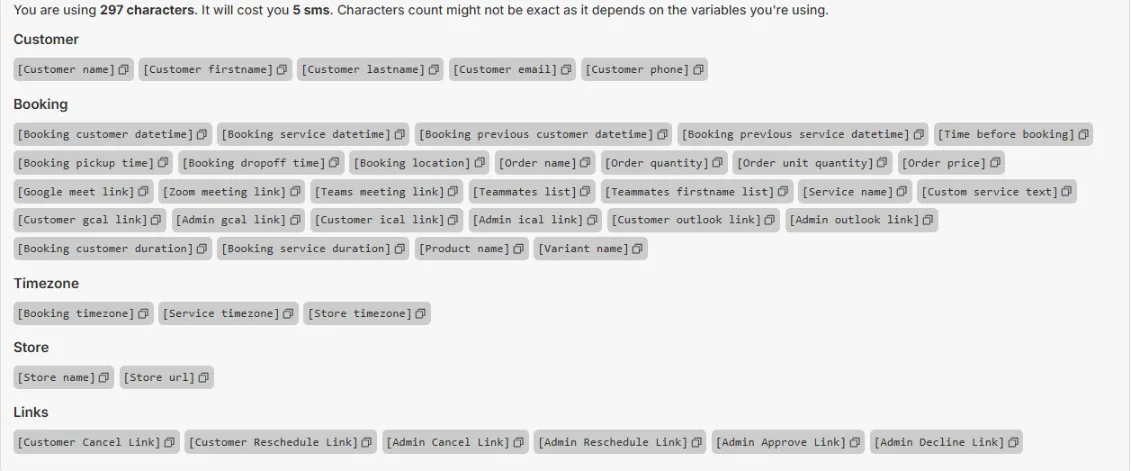
Click Edit next to a message to open its editor. You can choose the Language and change the SMS Body. The button Restore default brings back the original text, and a counter tells you how many characters you are using and how many SMS it will cost. Click a variable to add it to your text, so Cowlendar fills in the booking details. Keep the variables (the words between square brackets) in your message. These are the groups of variables you will see:
| Group | Variables |
|---|---|
| Customer | [Customer name], [Customer firstname], [Customer lastname], [Customer email], [Customer phone] |
| Booking | [Booking customer datetime], [Booking service datetime], [Booking previous customer datetime], [Booking previous service datetime], [Time before booking], [Booking pickup time], [Booking dropoff time], [Booking location], [Order name], [Order quantity], [Order unit quantity], [Order price], [Google meet link], [Zoom meeting link], [Teams meeting link], [Teammates list], [Teammates firstname list], [Service name], [Custom service text], [Customer gcal link], [Admin gcal link], [Customer ical link], [Admin ical link], [Customer outlook link], [Admin outlook link], [Booking customer duration], [Booking service duration], [Product name], [Variant name] |
| Timezone | [Booking timezone], [Service timezone], [Store timezone] |
| Store | [Store name], [Store url] |
| Links | [Customer Cancel Link], [Customer Reschedule Link], [Admin Cancel Link], [Admin Reschedule Link], [Admin Approve Link], [Admin Decline Link] |
On the right, a phone mockup previews the message. The preview is not exact: it uses fake booking data.
Turn messages on for a service
Messages are sent when the channel is on for the service. In the Advanced tab of the service, the card Customer notifications has the groups SMS notifications and WhatsApp notifications, off by default. See Service Notifications, Reminders and Google Event Title, How to Activate SMS Notifications in Cowlendar and How to Activate WhatsApp Notifications in Services.
SMS history
Where to find it: Settings > SMS history.
| Column | What it shows |
|---|---|
| Number | The phone number that received the SMS. |
| Message | The beginning of the text. |
| Status | For example sent. |
| Unit price | The price of one SMS segment. |
| Unit count | How many segments the message used. |
| Price | Unit price multiplied by unit count. |
| Delivering date | The date and time, newest first. |
A long message, or one with special characters, is split into several segments, and each segment is charged. That is why a single message can cost more than one SMS. See Why Does SMS Count as 2 SMS.

WhatsApp history
Where to find it: Settings > WhatsApp history.
| Column | What it shows |
|---|---|
| Number | The phone number. |
| Message | The beginning of the message. |
| Status | delivered, sent or failed. |
| Price | The price charged. |
| Processing date | The date and time, newest first. |
A failed message shows a price of $0.00: messages that fail are not charged.

Both history pages load rows in groups. Click Show more at the bottom to load more.
Common questions
How do I know how much I am spending?
Compare the balance in SMS settings or WhatsApp settings over time, and use the Price column of the history pages.
Do SMS and WhatsApp share the same balance?
Each settings page shows its own balance. Check the balance on each page before you send.
A customer did not receive the message.
Open the history page and search the number. For WhatsApp, look at the status. If it says failed, the message was not charged.
Did this answer your question?