
🔔 Service Notifications, Reminders and Google Event Title
Set notifications per service in Cowlendar: email, SMS and WhatsApp for confirmation, reschedule, cancellation and reminders, plus post-booking messages.
The Advanced tab of every service has several cards about communication. This article explains each one.
Where to find it: My services > Edit on a service > Advanced tab.
Global notification settings live in Settings > Email settings, SMS settings and WhatsApp settings. See Email Settings, Templates and Email History and SMS and WhatsApp: Credits, Pricing and History. The cards below let you decide, service by service, which notifications are sent.
Reminders
Configure reminders to be sent to your customers. Click Add a reminder to add one. See How to Automatically Send Email Reminders to People Who Have Booked.
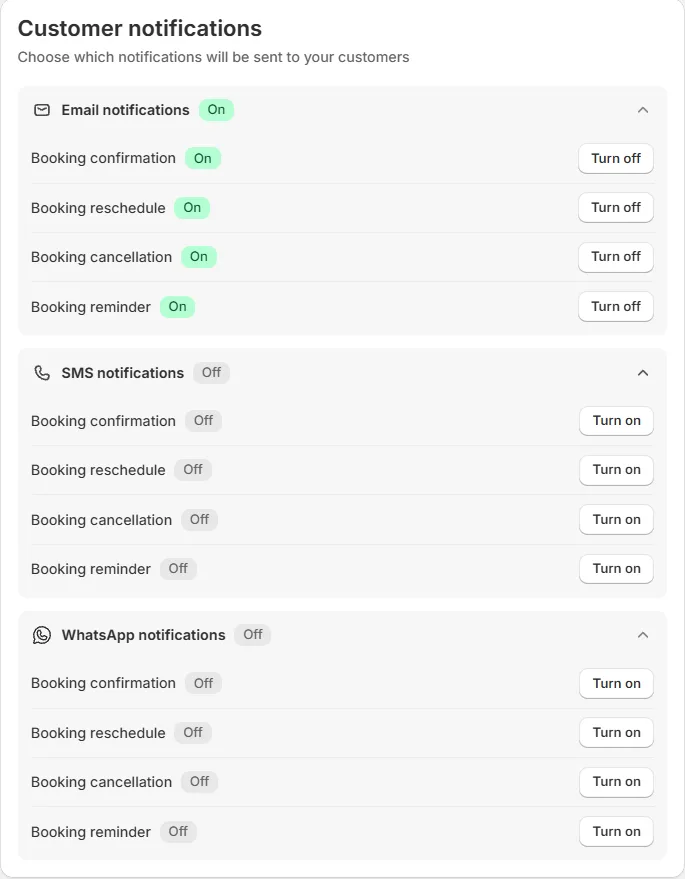
Customer notifications
Choose which notifications will be sent to your customers.
There are three groups, each with a badge that says On or Off:
| Group | Needs |
|---|---|
| Email notifications | Nothing else. On by default. |
| SMS notifications | SMS credit. Off by default. |
| WhatsApp notifications | WhatsApp credit. Off by default. |
Open a group to see four rows: Booking confirmation, Booking reschedule, Booking cancellation and Booking reminder. Each row has its own badge and a button: Turn off (when it is on) or Turn on (when it is off).
SMS and WhatsApp messages are charged from your credit balance for each message sent. Check the price tables before you turn them on. See SMS and WhatsApp: Credits, Pricing and History.
Customize email
In Options > Customize email there is a text field called Custom Booking Confirmation (optional). The text you write is added to the confirmation sent to the customer. Use it for instructions: what to bring, where to park, how to prepare.
Related: How to Customize Confirmation Emails for Each Service in Cowlendar.
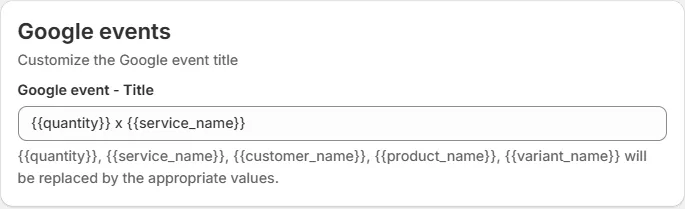
Google events
Customize the Google event title.
When Google Calendar is connected, every booking creates an event. Google event - Title sets the title of that event. The default is:
{{quantity}} x {{service_name}}
You can use these variables, which Cowlendar replaces with the real values:
| Variable | Replaced by |
|---|---|
{{quantity}} |
The booked quantity |
{{service_name}} |
The name of the service |
{{customer_name}} |
The name of the customer |
{{product_name}} |
The Shopify product name |
{{variant_name}} |
The variant name |
Example: {{customer_name}} - {{service_name}} creates events titled "Anna Smith - Haircut".
Post booking notification
Three Yes/No switches, all No by default:
- Should we send an email after the booking date?
- Should we send a SMS after the booking date?
- Should we send a WhatsApp message after the booking date?
Turn these on if you want to send a message to the customer after their appointment. Use the channel that fits you best, and remember SMS and WhatsApp use credits.
Quick checklist
- Decide which channels you use: email, SMS, WhatsApp.
- Turn on only the rows you need.
- Add reminders if you want to reduce no-shows.
- Customize the confirmation text with practical instructions.
- Test with a booking of your own and check the emails.
Did this answer your question?