
🚲 How to Set Up Pick Up and Drop Off Times for Multiday Services
Let customers choose a pick up and drop off timeslot for equipment rentals and multiday bookings. Configure available times and intervals directly from your service settings.
If you rent out equipment like bikes, tools, cars, or gear, your customers probably need to know when they can pick up and when they should drop off their item. With this feature, you can let customers choose a pick up time, a drop off time, or both when they book a multiday service.
The selected times will show up in the booking widget, in the admin booking list, and in the confirmation email sent to the customer.
This feature is available on multiday services only. If you haven't set up a multiday service yet, check out this guide first: How to Configure Multiday Booking Services
Good to know before you start
- This feature is mainly intended for equipment rentals (bikes, tools, gear, etc.).
- The price does not vary based on the selected timeslots. It only changes based on the number of days booked.
- The quantity of each SKU is not managed per pick up / drop off timeslot. Inventory is only managed per day: you must manage your rentals on a daily basis yourself and adjust the timeslots on the fly if needed.
How to enable Pick Up and Drop Off
- In your Shopify admin dashboard, click on Apps in the left panel.
- Open Cowlendar.
- Go to My Services.
- Click Edit on the multiday service you want to configure.
- Scroll down until you see the section "Is it a pick up + drop off service?"
You'll see two toggles:
- Enable pick up — lets customers choose a time to pick up the item.
- Enable drop off — lets customers choose a time to return the item.
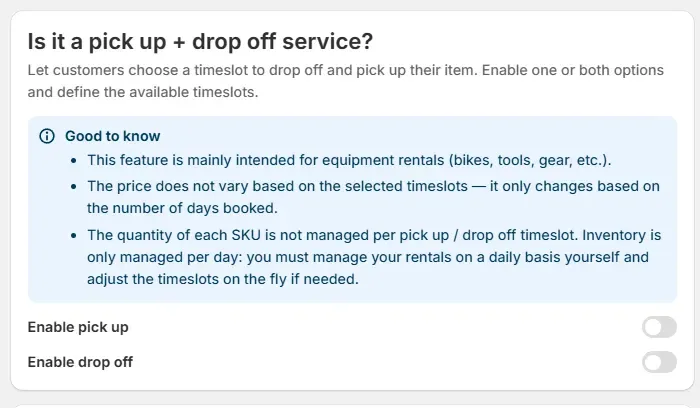
You can enable one or both depending on your business. For example, if you only need customers to show up at a certain time to collect their rental, enable just pick up. If you also need them to return it at a specific time, enable both.
Configuring Pick Up timeslots
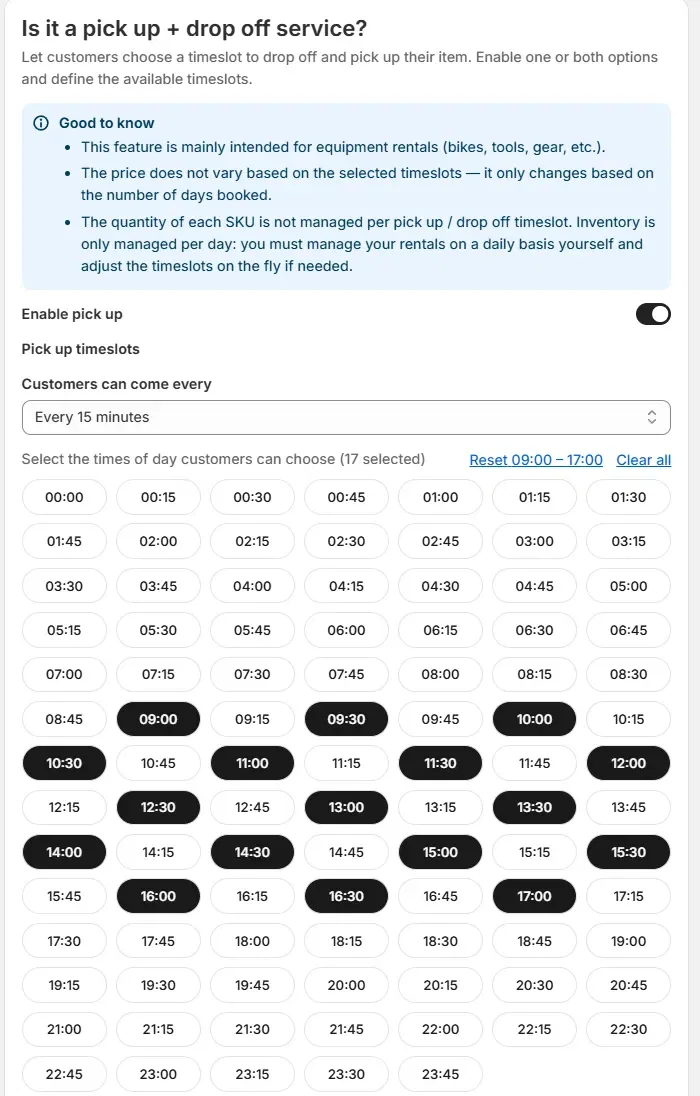
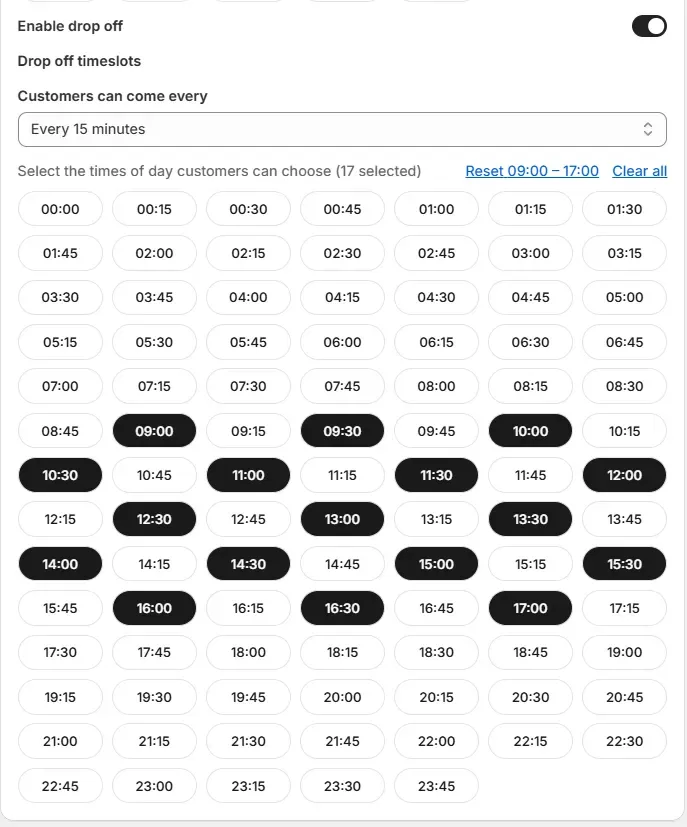
Once you toggle Enable pick up ON, a new section appears: Pick up timeslots.
Step 1: Choose the interval
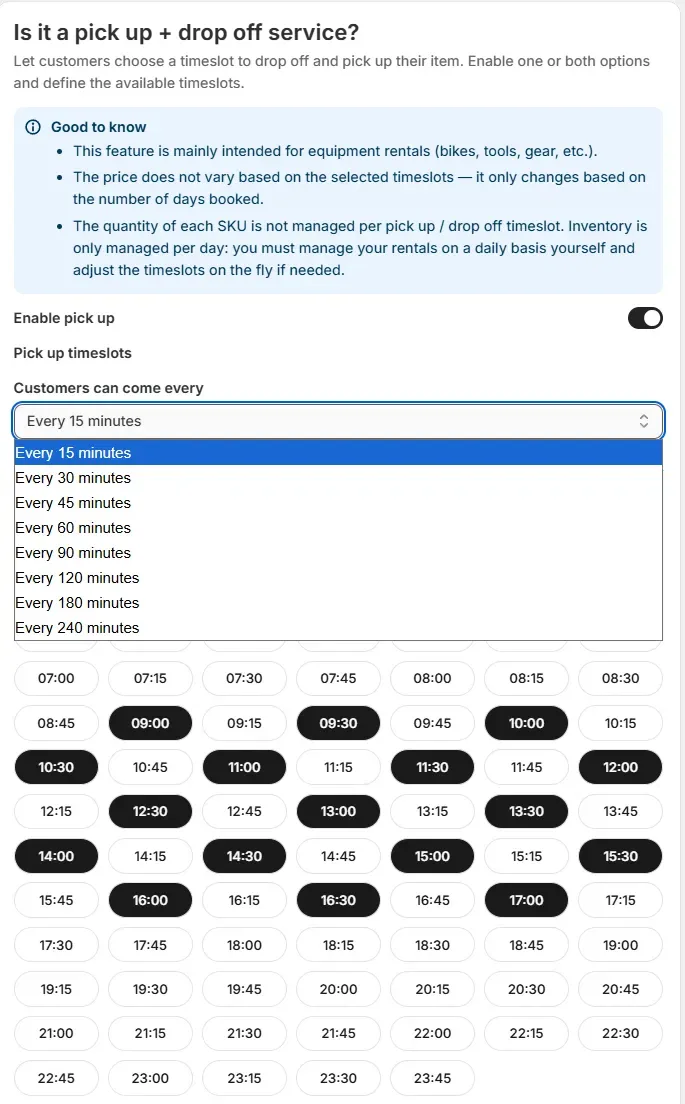
Under "Customers can come every", select how frequently you want to offer timeslots. The available intervals are:
- Every 15 minutes
- Every 30 minutes
- Every 45 minutes
- Every 60 minutes
- Every 90 minutes
- Every 120 minutes
- Every 180 minutes
- Every 240 minutes
For example, if you select Every 30 minutes, customers will see options like 09:00, 09:30, 10:00, 10:30, and so on.
Step 2: Select the available times
A grid of all possible timeslots for the day will appear (from 00:00 to 23:45, based on your selected interval).
- Click on a timeslot to toggle it on (selected times appear in black/bold).
- Click it again to deselect it.
- Use the Reset 09:00 - 17:00 link to quickly select standard business hours.
- Use Clear all to deselect everything and start fresh.
The number of selected timeslots is shown at the top (e.g. "17 selected").
Only the timeslots you select here will be shown to customers in the booking widget.
Step 3: Save
Click Save or Update at the bottom of the page.
Configuring Drop Off timeslots
The process is exactly the same as pick up. Toggle Enable drop off ON, and you'll get a separate Drop off timeslots section with its own interval and time grid.
You can configure drop off times independently from pick up times. For example, you could offer pick up every 30 minutes starting at 09:00, but drop off every 60 minutes ending at 17:00.
What customers see in the booking widget
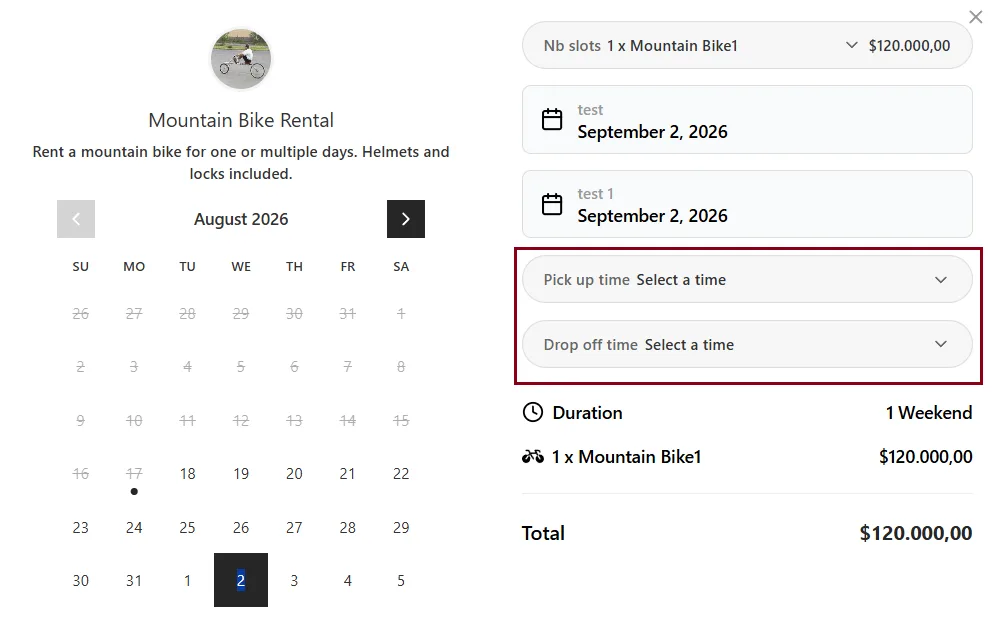
When a customer books a multiday service with pick up and/or drop off enabled, they'll see additional fields in the booking widget after selecting their dates:
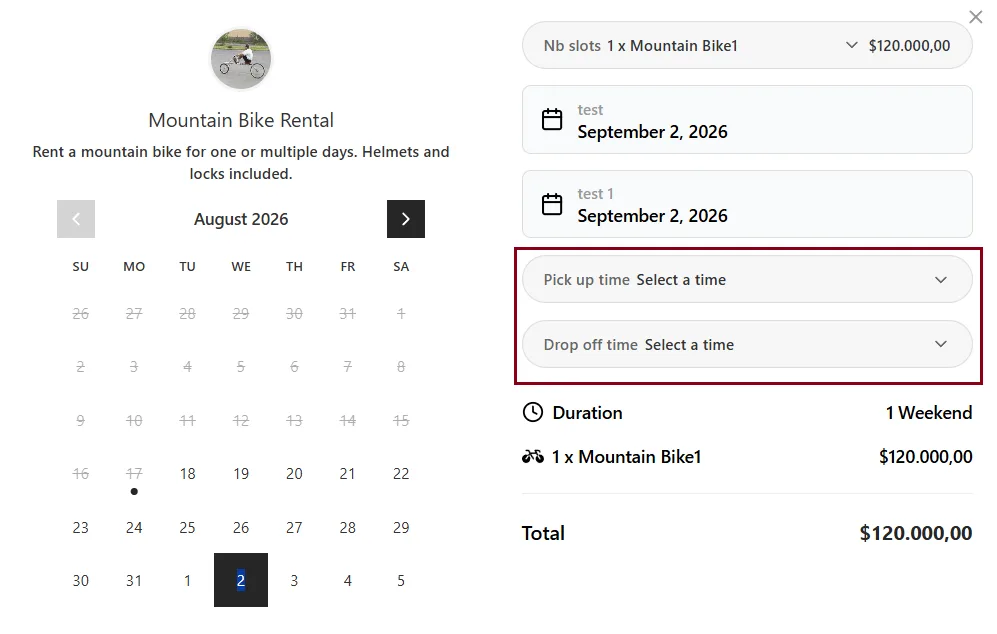
- A "Pick up time" dropdown where they select when to collect the item.
- A "Drop off time" dropdown where they select when to return it.
Each dropdown shows only the timeslots you've configured. Customers must select their times before they can continue to the next step.
When the customer clicks on a dropdown, they see the available timeslots for their selected date:
Where pick up and drop off times appear
In the Bookings list (admin)
After a customer completes their booking, the pick up and drop off times are shown directly in the Bookings tab in your Cowlendar admin, right below the booking dates. You'll see a line like:
Pick up 11:30 AM · Drop off 04:00 PM
This makes it easy to see at a glance when each customer is expected to show up.
In the confirmation email
The customer also receives a confirmation email that includes their pick up and drop off times:
Pick up time: 11:00 Drop off time: 16:00
This appears alongside the booking dates, service details, and location, so your customer has everything they need in one place.
Example: Mountain Bike Rental
Here's a real-world example of how this works:
- You run a mountain bike rental shop.
- You create a multiday service called "Mountain Bike Rental" with equipment tracking.
- You enable pick up and drop off with timeslots every 30 minutes from 09:00 to 17:00.
- A customer books 1 Mountain Bike for 8 days (Aug 20 - Aug 27).
- During checkout, they select Pick up: 11:30 AM and Drop off: 04:00 PM.
- The booking is confirmed, and both times show up in the admin and in the customer's email.
FAQ
Can I set different pick up and drop off times for different days of the week?
Not at the moment. The timeslots you configure apply to all days equally. If you need different availability on specific days, you can adjust the timeslots manually before those days.
Does the price change based on the pick up or drop off time?
No. The price is based only on the number of days booked. The pick up and drop off times are informational and help you coordinate logistics, but they don't affect pricing.
Can I enable only pick up without drop off (or vice versa)?
Yes! The two toggles are independent. Enable whichever ones make sense for your business. If your customers just need to show up to collect their rental and can return it anytime, enable only pick up.
Is inventory managed per timeslot?
No. Inventory is managed per day, not per timeslot. If you have 5 bikes available and they're all booked for a given day, no more bookings will be accepted for that day regardless of the timeslot. You'll need to manage timeslot-level capacity manually if that's important for your business.
Can I use this feature with non-multiday services?
No. Pick up and drop off is only available on multiday services (equipment rentals, hotel stays, car rentals, etc.). For classic (single-slot) services, the booking time itself serves as the arrival time.
If you need help setting up pick up and drop off times for your rental service, or have a specific use case you're not sure about, don't hesitate to reach out through our in-app chat. We're here to help! 🐮
Did this answer your question?