
🚲 The Equipments Page: Manage Your Bikes, Courts, Tables and More
Learn how to use the Equipments page in Cowlendar: the 5 templates, quantity, buffer time, blocked dates, breaks, and how to turn off, duplicate or archive.
Equipment is anything customers book that you have in a limited quantity: bikes, skis, trailers, sports courts, restaurant tables, boats, houses, cars, a photobooth. Each piece of equipment lives on the Equipments page, and you attach it to your services.
Where to find it: Shopify admin > Apps > Cowlendar Booking > Equipments (in the app sidebar).
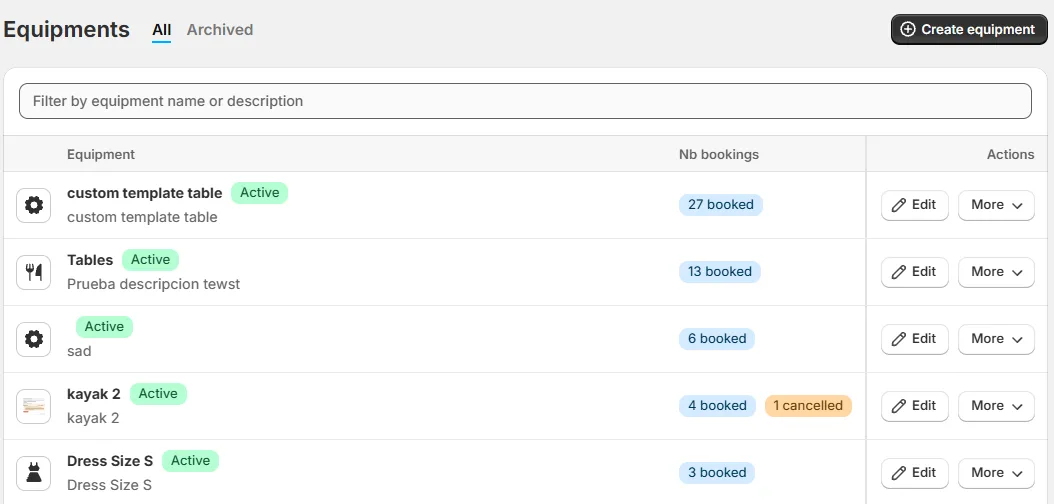
The list
The page has two tabs: All and Archived, a search box (Filter by equipment name or description) and the dark Create equipment button.
Each row shows:
- A round icon that depends on the template (bike, cutlery, gear, boat...).
- The name and a green Active badge (orange Archived in the Archived tab).
- A short description.
- Nb bookings: a blue pill such as 27 booked and, when it applies, an orange pill such as 1 cancelled.
- An Edit button and a More menu.
Equipment names do not need to be unique, but using different names makes your life easier when you attach them to services.
Create a piece of equipment
Click Create equipment.
- Under What do you want to sell/rent?, choose the template that fits what you rent.
- In General information, fill in the Internal name, the Customer label and the Description.
- In Quantity and capacity, set the Number of items.
- Optionally, turn on Use buffer time under Buffer time.
- Optionally, add Blocked dates and Break times with Add blocked dates and Add break.
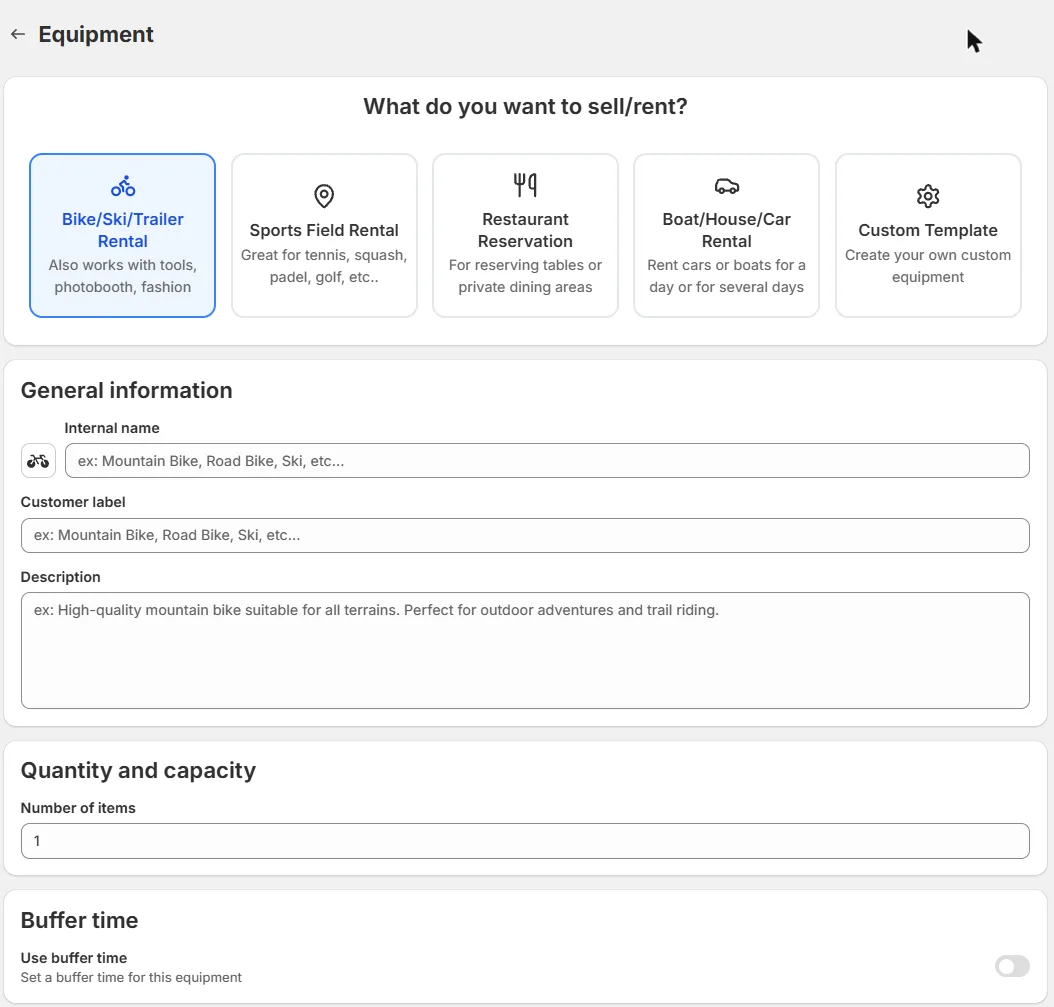
The 5 templates
The template decides the type of equipment and its icon:
| Template | Meant for |
|---|---|
| Bike/Ski/Trailer Rental | Also works with tools, photobooth, fashion. |
| Sports Field Rental | Tennis, squash, padel, golf and similar. |
| Restaurant Reservation | Reserving tables or private dining areas. |
| Boat/House/Car Rental | Renting cars or boats for a day or for several days. |
| Custom Template | Create your own custom equipment. |
For step-by-step setups see:
- How to Set Up Bikes, Ski Gear or Trailers as Equipment in Cowlendar
- How to Set Up Sports Fields as Equipment in Cowlendar
- How to Set Up Restaurant Tables as Equipment in Cowlendar
- How to Set Up Boats, Houses or Cars as Equipment in Cowlendar
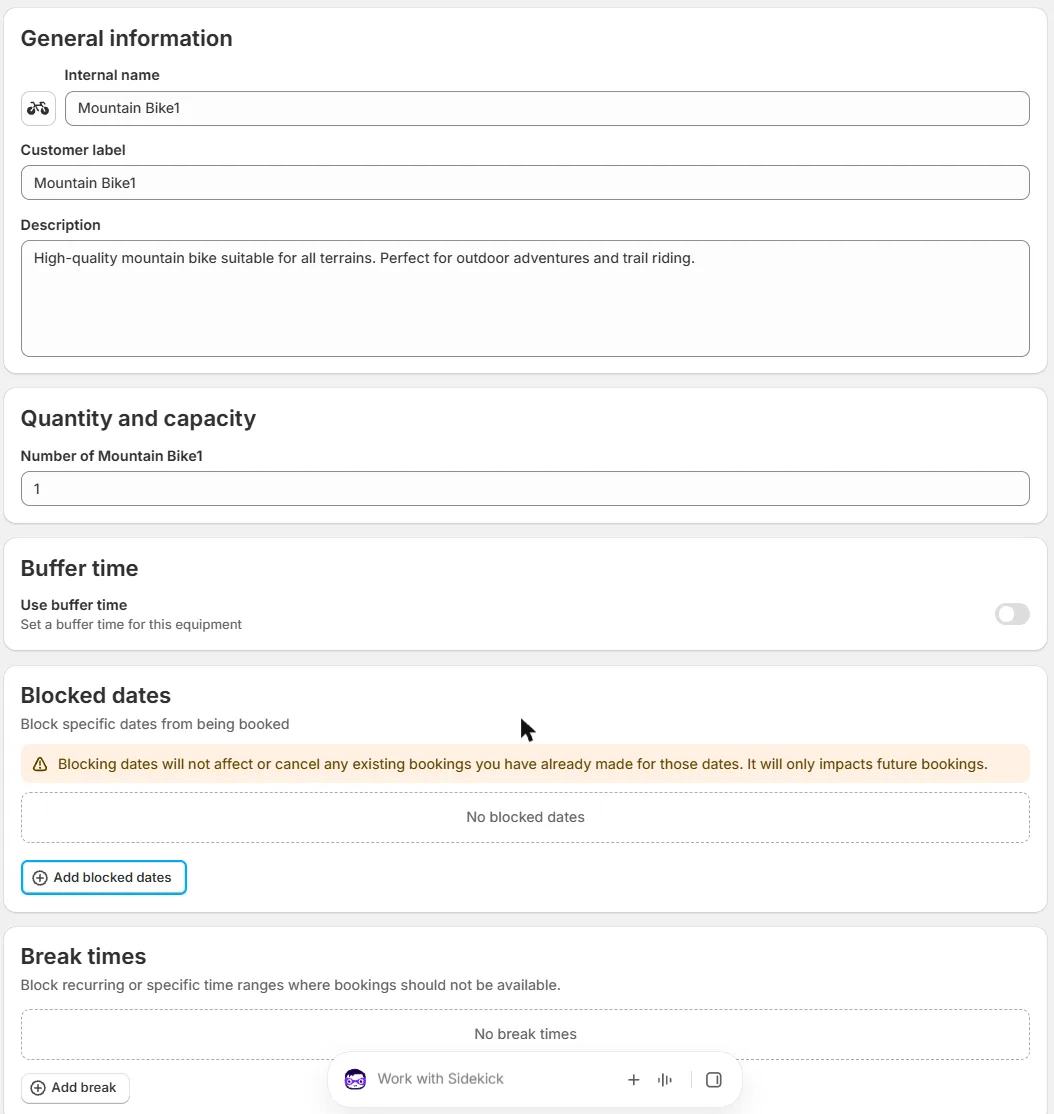
Edit an equipment
Click Edit on a row. The page has a back arrow, the equipment name and these sections:
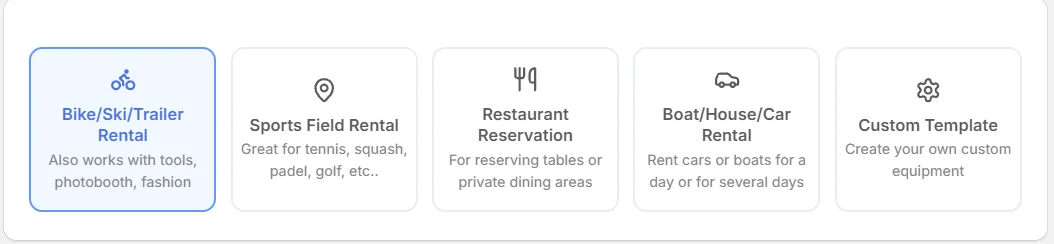
- Template: the five cards, the selected one has a blue outline.
- General information: Internal name, Customer label (the name your customers see) and Description.
- Quantity and capacity: the number of units available. The label includes the equipment name, for example Number of Mountain Bike.
- Buffer time: the switch Use buffer time (helper: Set a buffer time for this equipment). Use it to block time before or after each booking, for example to clean or prepare the item.
- Blocked dates: block specific dates with Add blocked dates. A note reminds you that blocking dates does not affect or cancel bookings you already have; it only affects future bookings.
- Break times: block recurring or specific time ranges with Add break.
Turn off, duplicate or archive
Click More on a row:
- Turn off: deactivates the equipment without deleting it. The green Active badge tells you which equipment is currently on.
- Duplicate: creates a copy, handy when you have many similar items.
- Archive (red): moves the equipment to the Archived tab.
In the Archived tab, the More menu has Unarchive to bring it back.
Archive the equipment you no longer use instead of deleting it. It keeps your list tidy and you can bring it back later with Unarchive.
Use equipment in a service
Equipment is used by services with Availability per equipment. See Availability per Equipment: Rent Bikes, Courts, Tables and More.
Did this answer your question?