
🌎 Make sure your product is not in a draft mode
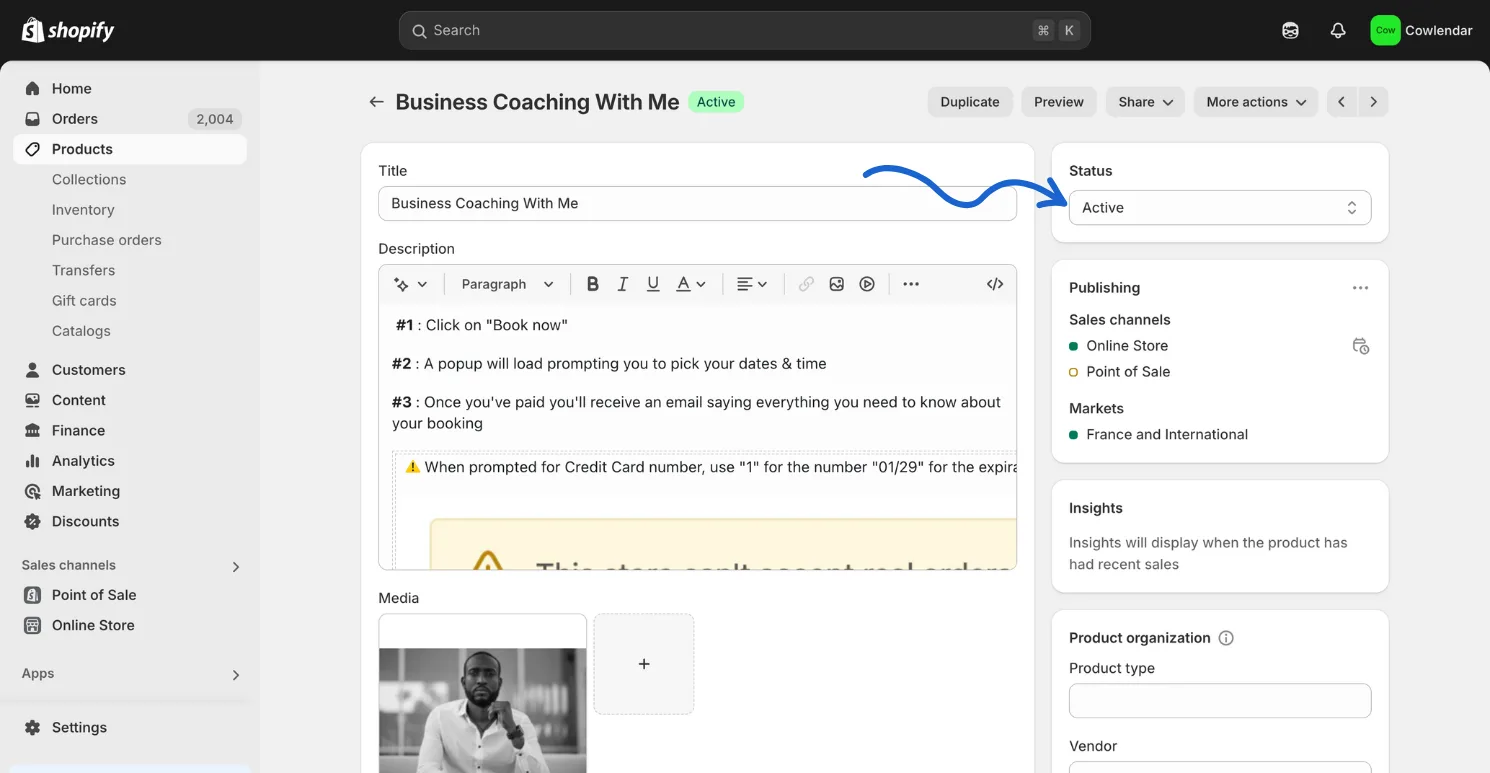
Verify your Shopify product is published and not in draft mode for Cowlendar to work.
For the Cowlendar booking app to function seamlessly, your product needs to be set to live mode rather than draft mode.
Here's a step-by-step guide to ensure your product is live:
1. Accessing Your Product Settings
Navigate to Settings > Checkout from your Shopify admin panel.
2. Checking Current Checkout Status
Within the Checkout customization section, review the listings to identify whether your product checkout is currently set to live or draft.
3. Activating Your Product
If your product is in draft mode: Click on Publish next to the desired draft checkout. Confirm by selecting Publish.
4. Verifying Activation
To ensure the changes have been implemented: Click on ⋯ adjacent to your now live checkout. Select View to observe how the live checkout appears to your customers.
Your product is now set to active mode, ensuring compatibility with the Cowlendar booking app. Always remember to save any changes made during this process.
Note: It is crucial to maintain only one live checkout at a given time for accurate customer traffic management.
Did this answer your question?