
Introducing the New Availability in Cowlendar
Availability has been completely redesigned to make scheduling easier, more flexible, and much easier to manage.
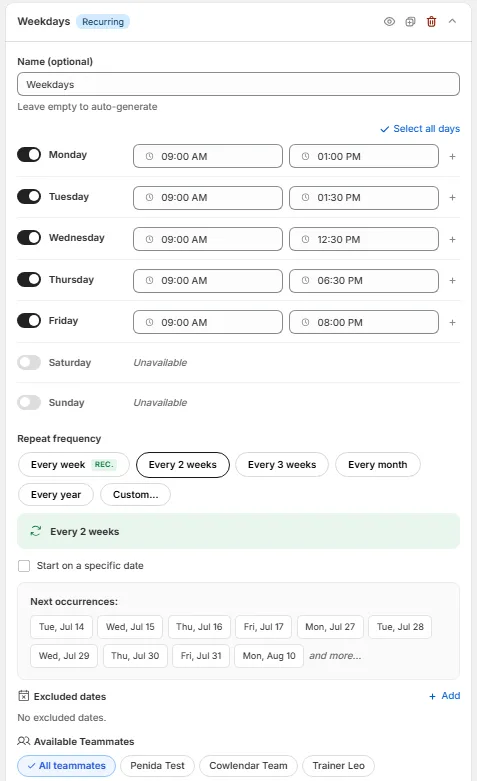
Instead of trying to fit every scheduling scenario into a single availability, you can now create multiple availability blocks, each with its own purpose. Whether you have regular working hours, seasonal schedules, holidays, or one-time events, you can configure them independently while keeping everything organized.
If you've used the previous version of Availability, you'll notice that many configurations that previously required multiple workarounds can now be done in just a few clicks.
🧠 Understanding the new Availability system
The new Availability system is built around Availability Blocks.
Think of each block as an independent schedule with its own rules.
For example, instead of having one large availability that tries to handle every possible situation, you can create separate blocks like:
| Availability Block | Purpose |
|---|---|
| Weekdays | Your regular Monday-Friday schedule |
| Weekends | Weekend appointments |
| Summer Hours | Temporary seasonal schedule |
| Christmas | Special holiday hours |
| Workshop | Availability for a specific event |
Each block can have its own:
- Available days
- Time slots
- Team members
- Booking capacity
- Repeat frequency
- Excluded dates
This makes your schedule much easier to understand and maintain.
Tip: Giving each availability block a descriptive name makes managing complex schedules much easier later.
⚡ Choose the right availability type
When creating a new availability, Cowlendar lets you choose the type of schedule you want to build.
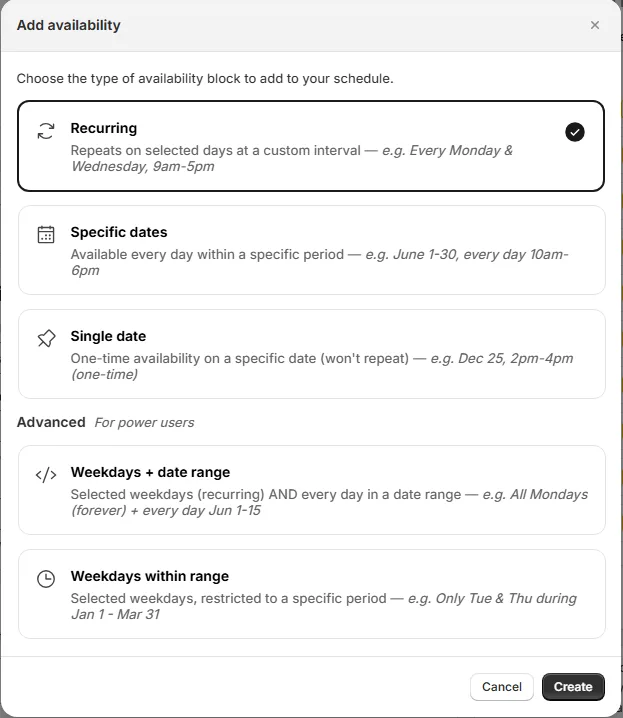
🔁 Recurring
Perfect for your regular schedule.
Examples:
- Monday to Friday
- Every weekend
- Every second Tuesday
- Monthly recurring availability
📅 Specific Dates
Creates availability for every day within a selected date range.
Example:
July 1 → July 31
Available every day from 9:00 AM to 5:00 PM.
📍 Single Date
Creates availability for one specific day only.
Perfect for:
- Events
- Pop-up appointments
- Holiday openings
- One-time workshops
🗓️ Weekdays + Date Range
Lets you combine your regular weekly schedule with additional weekdays during a specific period.
Example:
Your store normally opens Monday-Friday.
During July, you also want to accept bookings on Sundays.
Instead of creating multiple complicated schedules, simply add those Sundays within the selected date range.
📆 Weekdays Within Range
Limits selected weekdays to a specific date period.
Example:
Only Wednesdays and Sundays from January through April.
Outside that range, those weekdays won't be available.
This is perfect for:
- Seasonal services
- Training programs
- Temporary staff schedules
- Limited campaigns
🔄 Repeat frequency
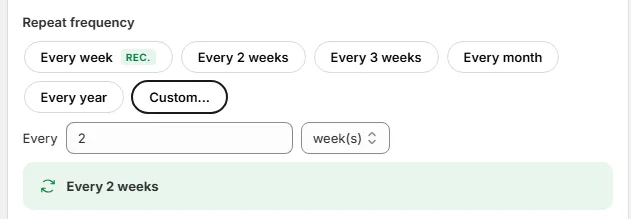
Recurring availability is no longer limited to every week.
You can now repeat schedules:
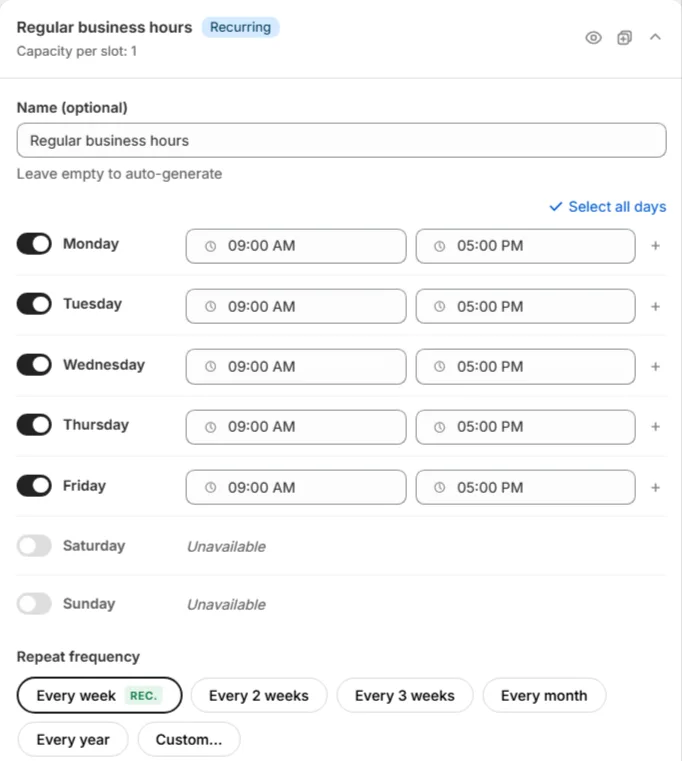
- Every week
- Every 2 weeks
- Every 3 weeks
- Every month
- Every year
- Custom intervals
You can also choose when the recurrence begins by enabling Start on a specific date.
This makes it easy to build rotating schedules without additional availability blocks.
🚫 Blocking dates
Sometimes you don't need another availability—you simply need to remove availability for certain dates.
There are three different ways to block dates depending on what you're trying to achieve.
Excluded Dates
Excluded Dates only affect the availability block you're currently editing.
For example:
Your weekday schedule runs all year, but you want to remove December 25 from that specific schedule.
Simply add it as an Excluded Date.
Blocked Dates
Blocked Dates are global.
They remove availability regardless of which availability block would normally make those dates available.
If you've been using Cowlendar for a while, this works the same way as the classic Blocked Dates feature.
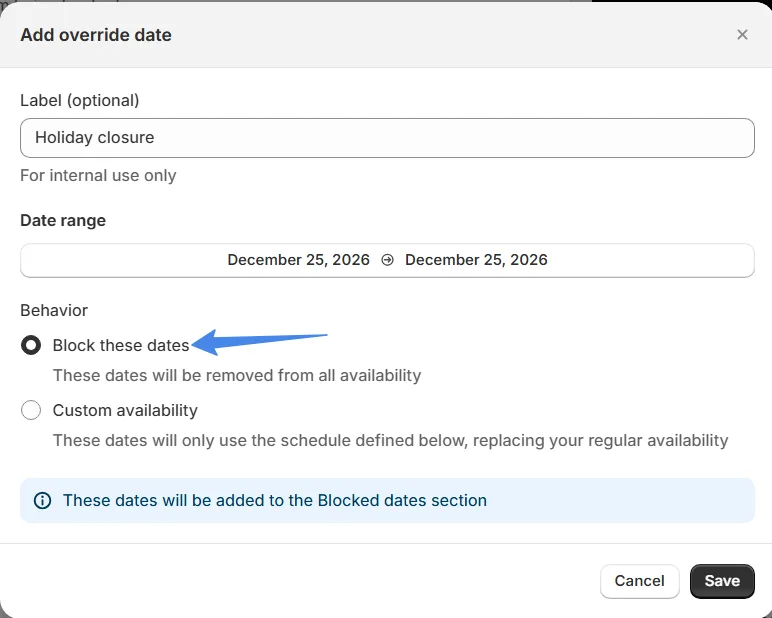
Override Dates → Block these dates
Override Dates provide another way to block dates directly while creating overrides.
Choosing Block these dates adds those dates as blocked dates, making it easy to manage holidays or temporary closures from one place.
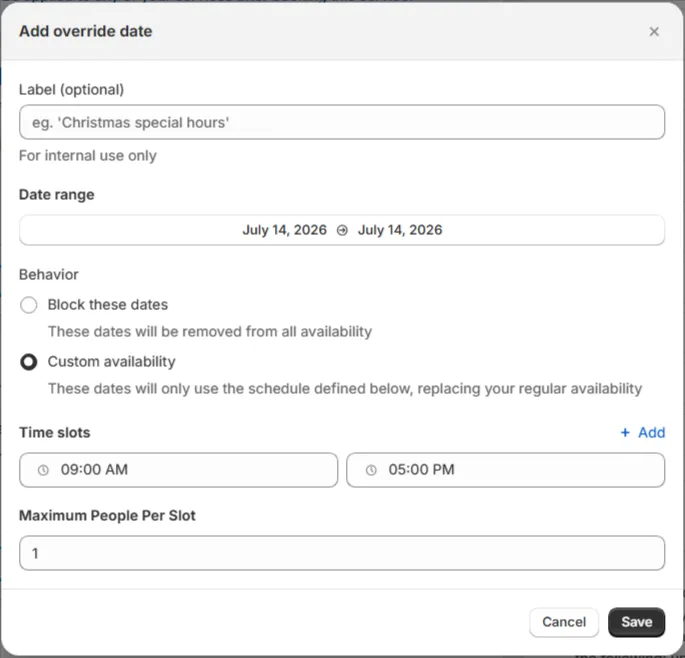
✨ Override Dates
One of the biggest improvements in the new Availability system is Override Dates.
Instead of creating additional availability blocks just to change a single day, you can override your normal schedule.
For each override, you can choose between:
Block these dates
Completely remove availability for those dates.
Perfect for:
- Public holidays
- Vacations
- Maintenance
- Unexpected closures
Custom Availability
Replace your normal schedule only for those selected dates.
For example:
Regular schedule:
Monday-Friday
9:00 AM – 5:00 PM
September 26
10:00 AM – 2:00 PM
Different booking capacity
After September 26, your regular schedule automatically resumes.
No extra recurring schedules required.
👥 Booking capacity
Each availability block can define its own Maximum People Per Slot.
However, this depends on your Booking Limit settings.
When Booking Limit per Timeslot is disabled
Each availability block controls its own capacity independently.
Example:
| Availability | Capacity |
|---|---|
| Weekdays | 5 |
| Summer Hours | 20 |
| Christmas | 1 |
When Booking Limit per Timeslot is enabled
The Booking Limit becomes the master capacity.
All availability blocks will use the same booking limit.
The individual Maximum People Per Slot setting inside each availability will no longer be used.
Important: If you want different capacities for different schedules, make sure Booking Limit per Timeslot is disabled.
🧩 Working with multiple availability blocks
You can create as many availability blocks as needed.
If two availability blocks could apply to the same date and time, Cowlendar uses the first matching availability in the list.
This allows you to intentionally prioritize one schedule over another by organizing your availability blocks accordingly.
💡 Common examples
Regular business hours
Create one Recurring availability.
Monday-Friday
9:00 AM – 5:00 PM
Summer schedule
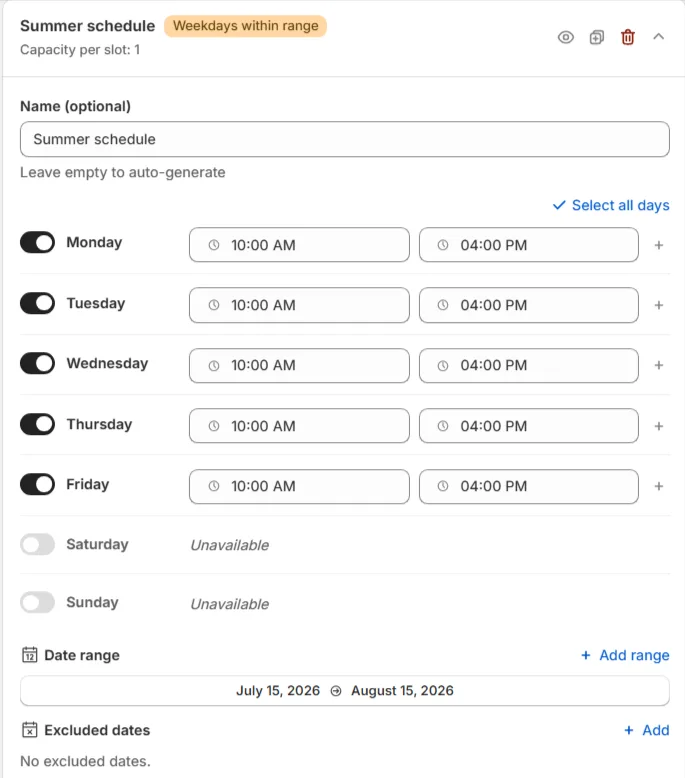
Create a Weekdays Within Range availability.
July → August
Monday-Friday
10:00 AM – 4:00 PM
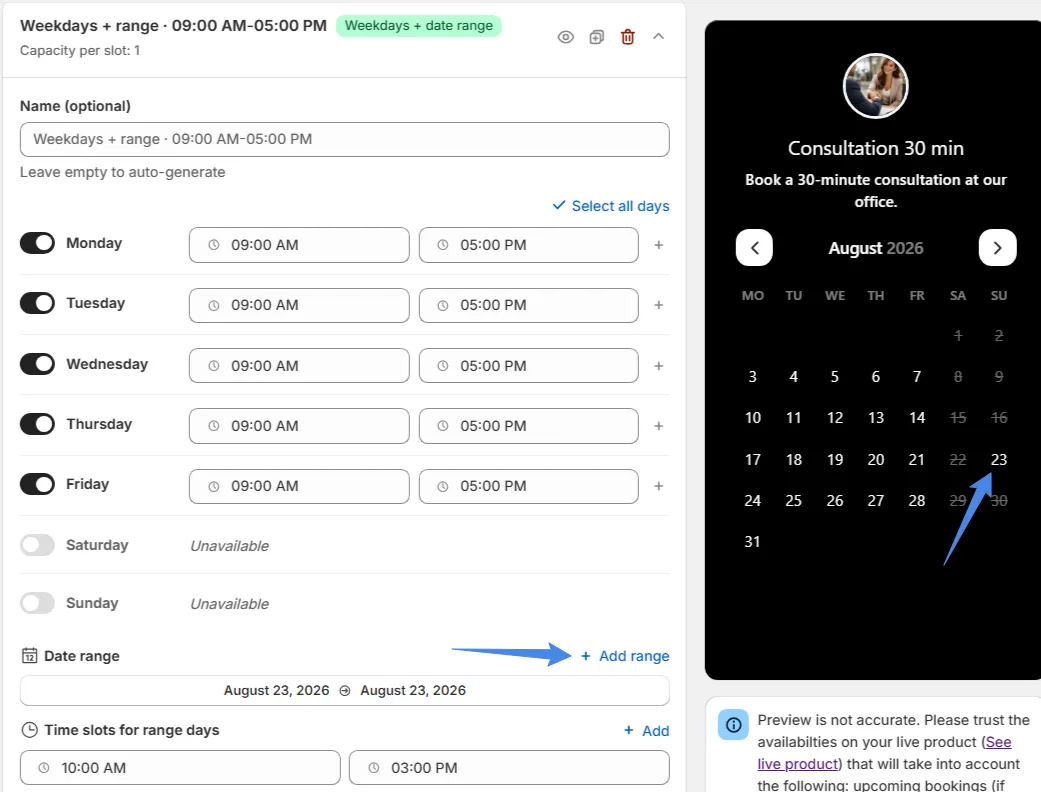
Open on selected Sundays
Use Weekdays + Date Range.
Keep your normal weekday schedule while adding Sundays during a promotional period.
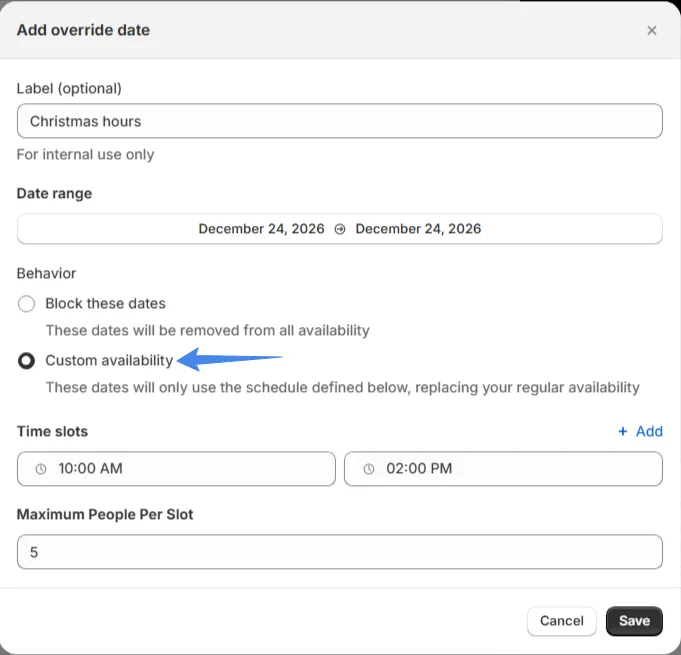
Christmas hours
Create an Override Date.
Choose Custom Availability.
Set:
December 24
10:00 AM – 2:00 PM
No recurring schedules required.
Holiday closure
Create an Override Date.
Choose Block these dates.
Done.
Best Practices
Keep your availability blocks focused. Instead of building one massive schedule, create smaller blocks that each have a single purpose. They're easier to edit and troubleshoot later.
Name your availability blocks. A schedule called "Summer Hours" is much easier to recognize than an automatically generated title months later.
Use Override Dates for exceptions. If you're only changing one day or one holiday, there's usually no need to create another recurring availability.
Review the order of your availability blocks. When multiple schedules could apply, Cowlendar uses the first matching availability, so keeping them organized helps avoid unexpected results.
Did this answer your question?