
1️⃣ Create your first service on Cowlendar
Step-by-step guide to creating your first bookable service on Cowlendar.
Looking to quickly learn about Cowlendar bookings and all of it's awesome features?
Follow these steps to create your first Cowlendar service in under 3 minutes!
Steps on how to create your first service using Cowlendar
Make sure you've enabled the app in the Cowlendar dashboard (Apps > Cowlendar)
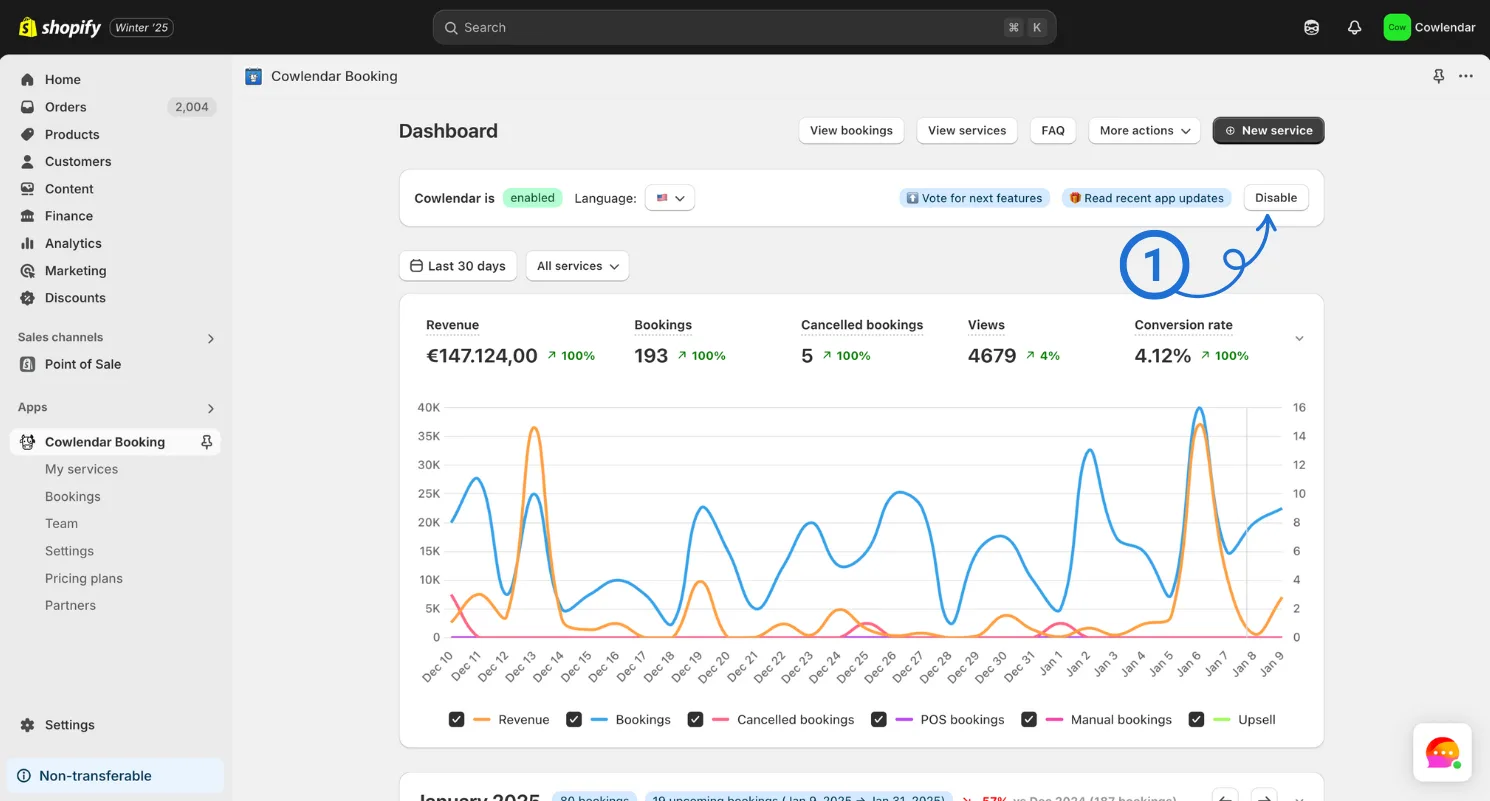
In your Shopify admin dashboard Look at the left hand side and click on products. Click Add a product
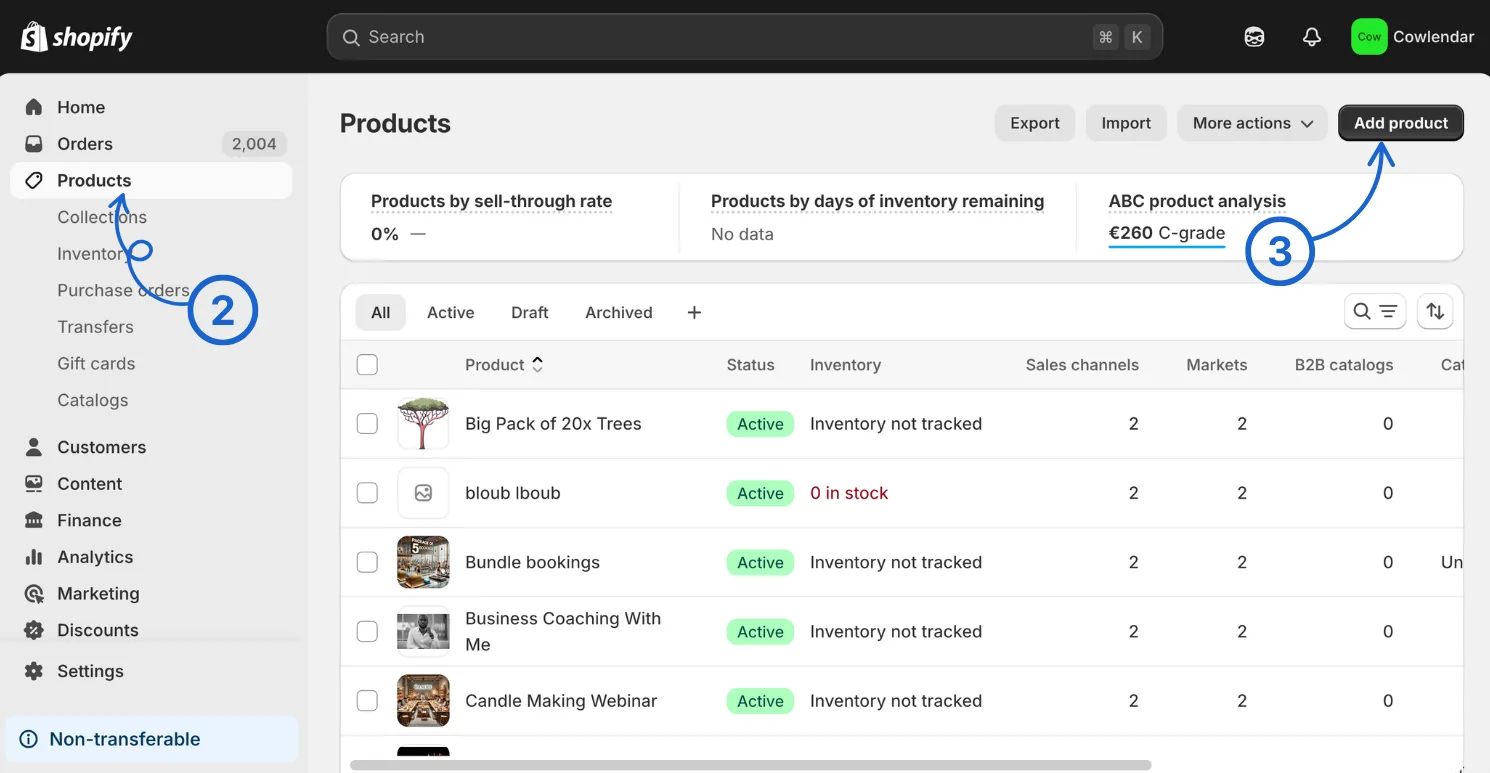
Create a product (this will be connected to your cowlendar service)
Remember that the way Cowlendar works is that by default it converts the add to cart button into a book now button. When this book now button is clicked it opens up the calendar widget
Make sure you save Look at the left panel in your shopify admin and click Apps Click on Cowlendar Click on My Services Click on New Service
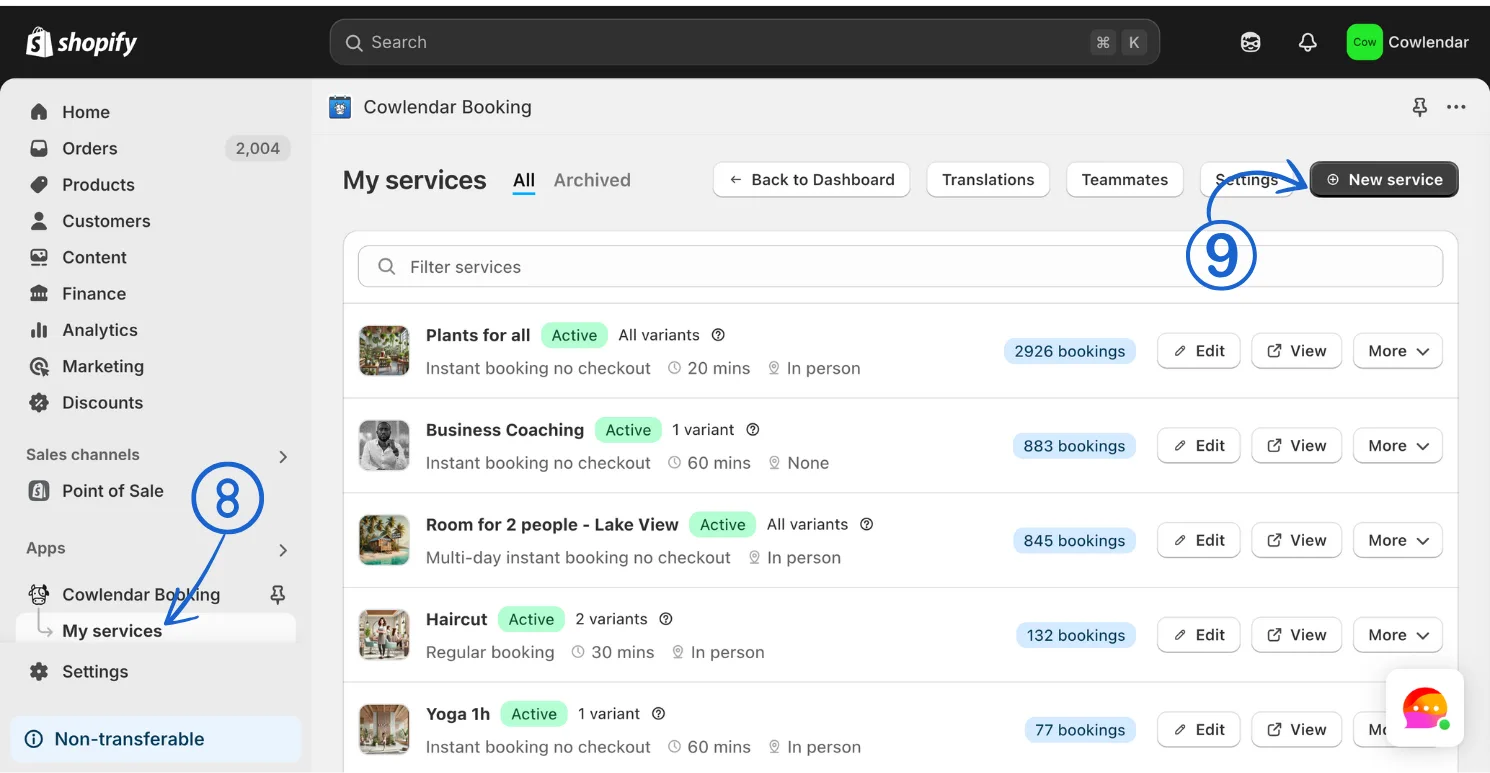
Select the product you just created Configure the service to your liking
The availability tab is where most of the magic of creating your schedule happens. This includes your weekday availiability, meeting duration, break times and much more

Go through each tab and when done make sure to click update Go back to My Services Click View on the newly created service
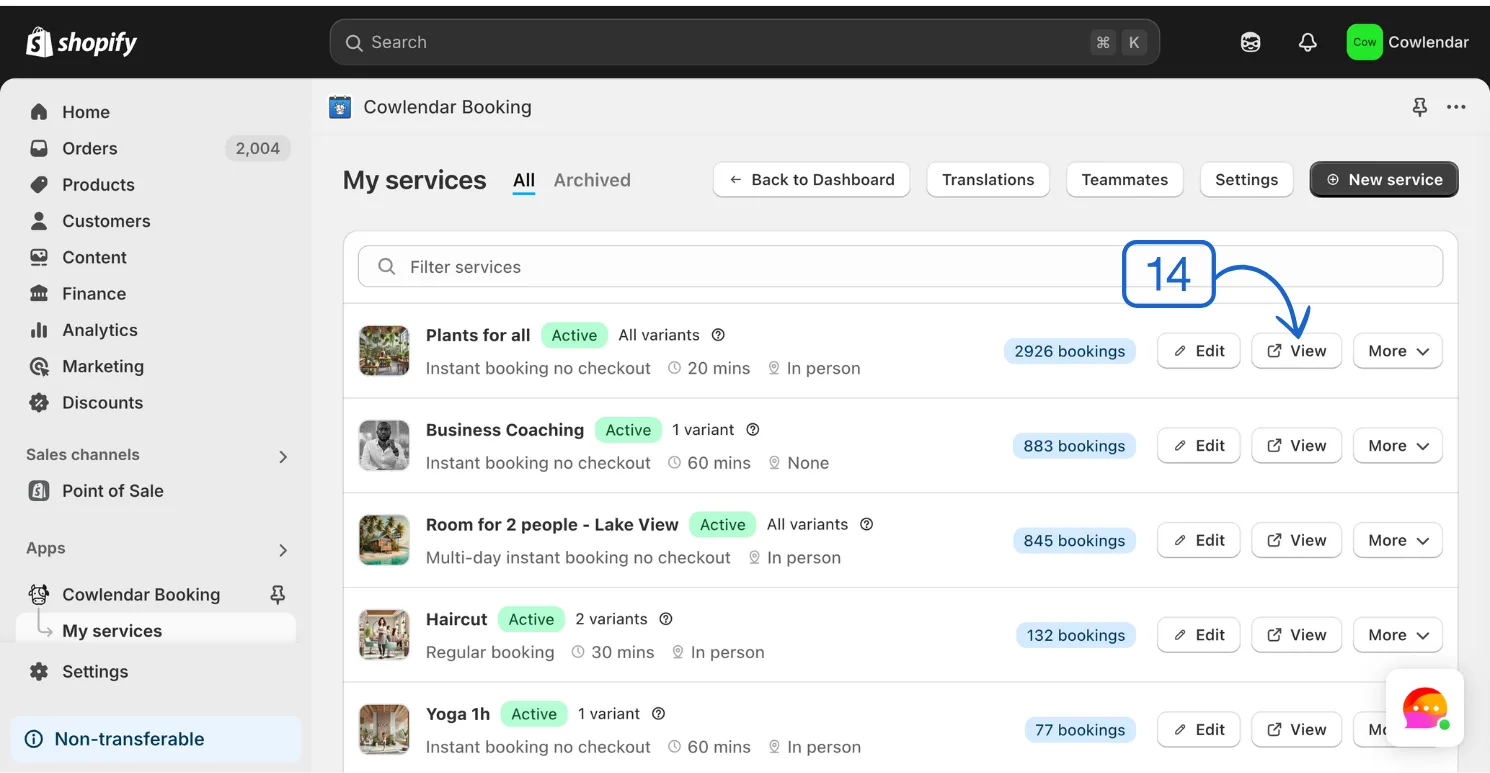
Make sure you can see a Book Now button and that when clicked, opens the calendar to your service
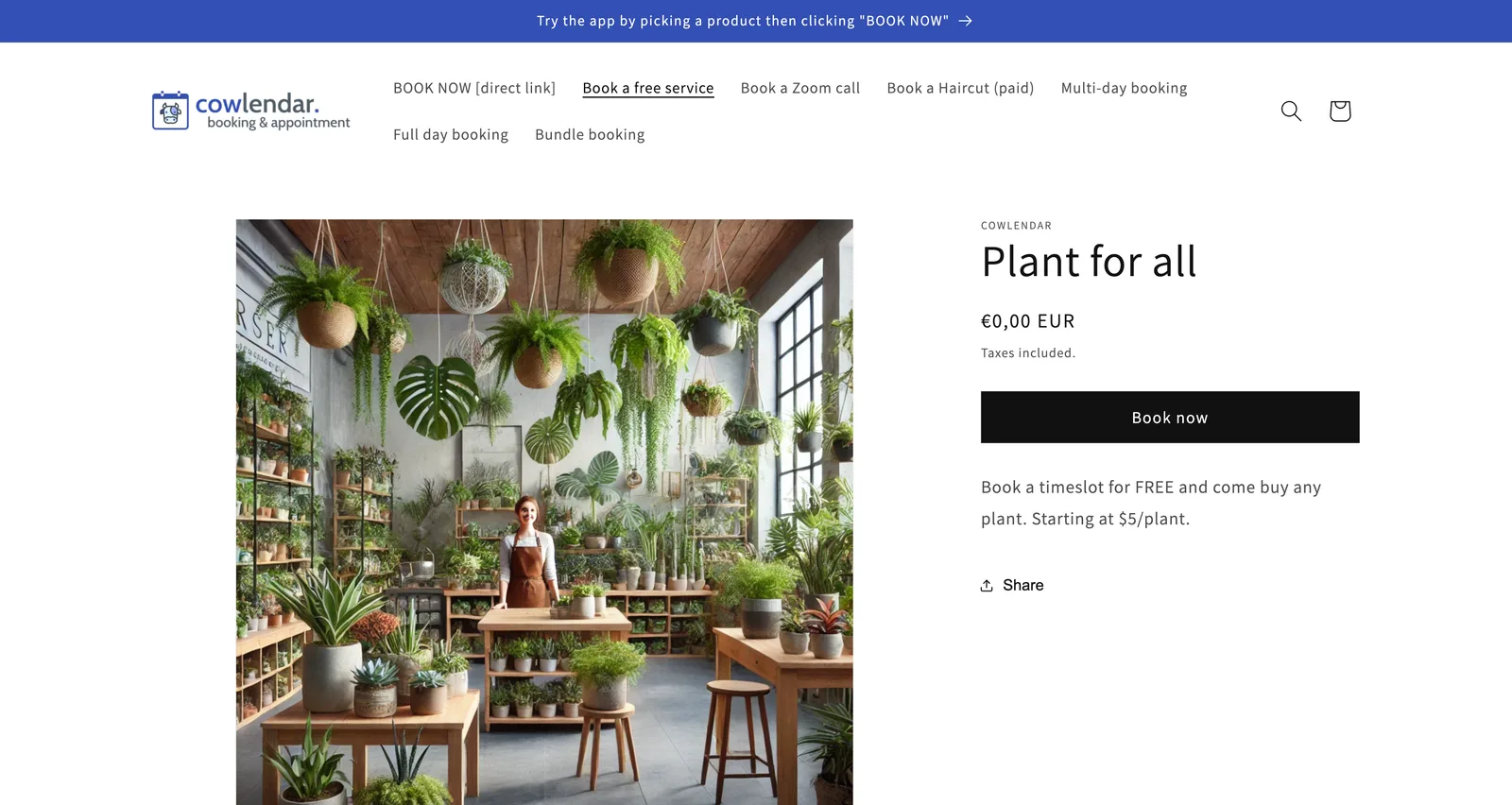
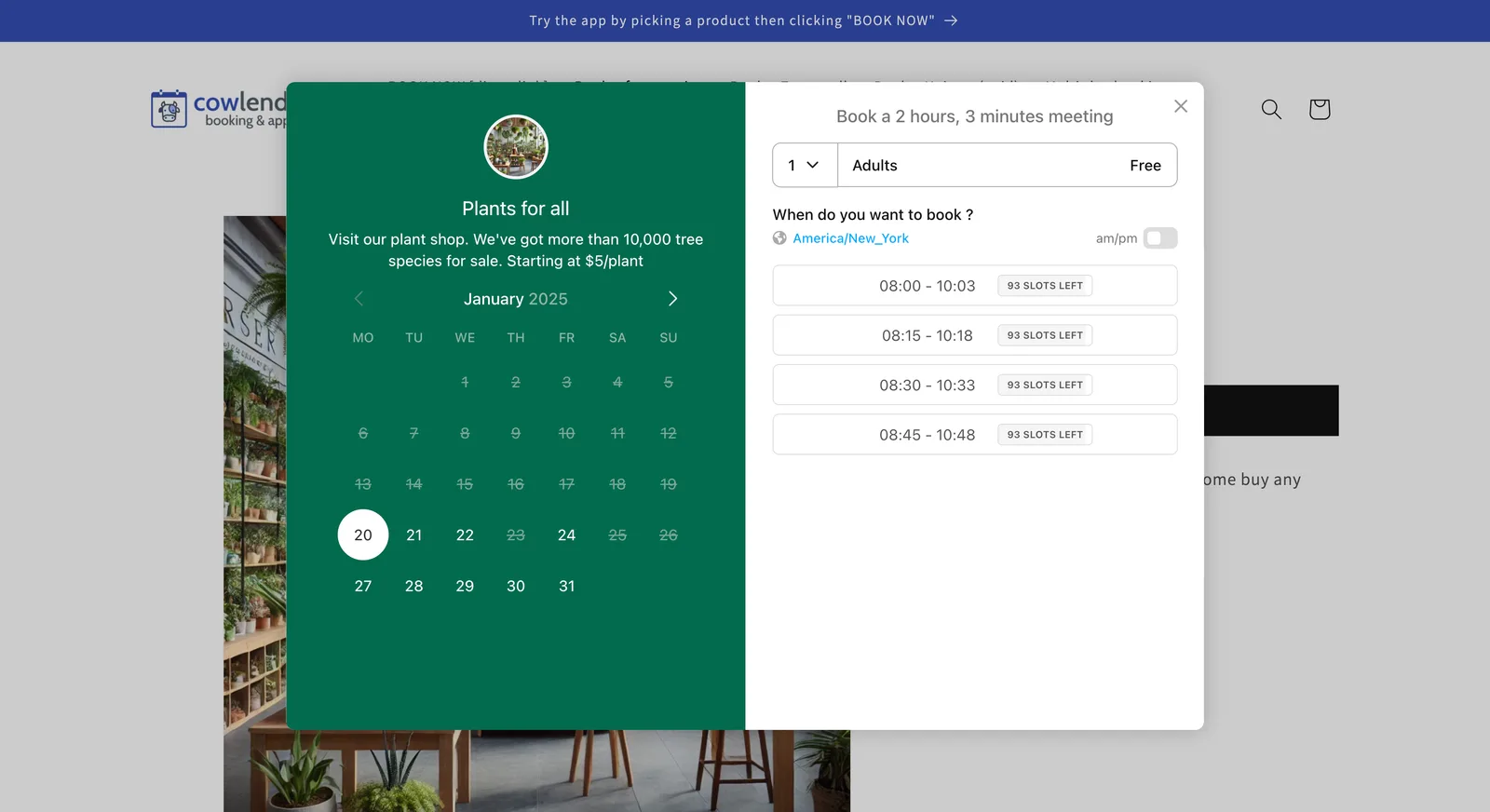
Don't panic if you don't see the book now button! Just come by chat and we will resolve this for you quickly.
Did this answer your question?