
➕ Manual Booking from the Admin
Create bookings yourself from the Cowlendar admin for phone, walk-in or email customers. Find the Manual booking button and see how these bookings are listed.
Not every customer books online. Some call you, some write to you and some show up at your door. With Manual booking you create the booking yourself in Cowlendar, so the slot is taken and the booking appears in your list like any other.
Where to find the Manual booking button
You can start a manual booking from four places:
- Bookings page: the dark Manual booking button at the top right.
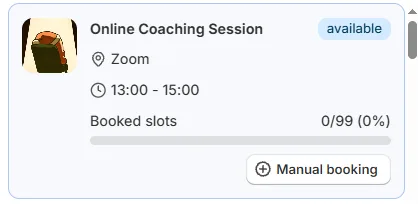
- Services availabilities tab: every slot card has its own Manual booking button, so you book that exact slot.
- Customers page: open a customer with Details, then click Manual booking in the header of the window. The customer is already selected.
- Subscriptions tab: every subscription row has a Manual booking link under the customer, to book a session for that subscriber.

How to create a manual booking
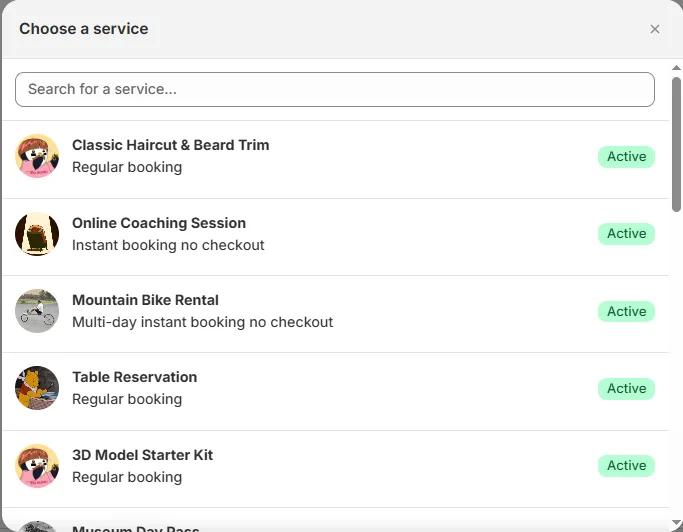
- Click Manual booking. A window called Choose a service opens, with a Search for a service... box and the list of your services. Each service shows its type (for example Regular booking) and an Active badge.
- Search for the service you need, or pick it from the list.
- Choose the date and time.
- Enter the customer details.
- Confirm the booking.
How manual bookings appear in your list
- In the Bookings page, the line under the service name says manual (for example "Regular booking - manual"). The same applies to the other families: Multiday, Bundle and Fullday.
- To see only the bookings you created yourself, open the All types filter and tick the (manual) options.
- The booking takes the slot, so it counts toward your capacity and your booking limits.
Manual bookings made by customers in person at your shop with Shopify POS are a different type, labeled POS.
Related settings
- Settings > General settings > General preferences > Disable autocomplete for customer information in manual booking: when this switch is on, your browser does not suggest saved names and emails while you type a customer's details. It is on by default. See General Settings: A Complete Tour.
- Team portal permissions: you can let a teammate create manual bookings from the team portal. By default, manual bookings are limited to the services the teammate is assigned to; there is another option to allow manual bookings on any service. See Team Portal and Permissions.
Common questions
Does the customer receive an email?
Notifications follow your notification settings. Check Settings > Email settings and the Advanced tab of the service to see which emails are on.
Can I create a manual booking for a slot that is already full?
Check the slot in Services availabilities first. It shows how many places are booked out of the total for each slot, so you can see whether there is room before you create the booking.
Did this answer your question?