
📅 Fullday Services: Book Whole Days Without Time Slots
Set up a Fullday service in Cowlendar for day passes, open houses and events: capacity per day, show start and end time, pre-select the date and more.
A Fullday service sells a whole day. Your customer picks a date, not a time slot. It is perfect when the duration is unknown or irrelevant: a museum pass, a market stall, an open house, a trail.
Fullday is one of the four basic modes. If you are not sure it is the right one, read Service Types and Presets: Which One Should You Choose?
Create a Fullday service
- Open My services and click New service.
- Choose Fullday Booking, or one of the presets built on it: Full Day Event (single day passes for museums, zoos, hiking trails or workshops) or Event (Start Time Only) (great for garage sales, open houses or events with no fixed end time).
- Link the service to a Shopify product and open its settings.
In the General tab, under Type of booking, you choose:
- Fullday regular booking: the customer pays through the Shopify checkout.
- Fullday instant booking no checkout: no order and no payment is made on Shopify (for free events or payments taken in person).

The Availability tab
Availability mode
A fullday service can use Availability per service or Availability per equipment (for example a limited number of passes or tickets handled as equipment). See Availability per Equipment: Rent Bikes, Courts, Tables and More.
Booking limit
In the Booking limit card you set Capacity per day: Maximum number of bookings for the same day. Switch on Customize capacity for each availability if you want to set the capacity inside each availability block instead.
Availabilities
Define the days (and the time window) when your service is available, like in any service. Excluded dates can be added inside each availability.
Override dates and Blocked dates
- Override dates replaces your regular availability on specific dates with a custom schedule.
- Blocked dates blocks dates. Blocked dates always win over custom schedules, and existing bookings are not affected.
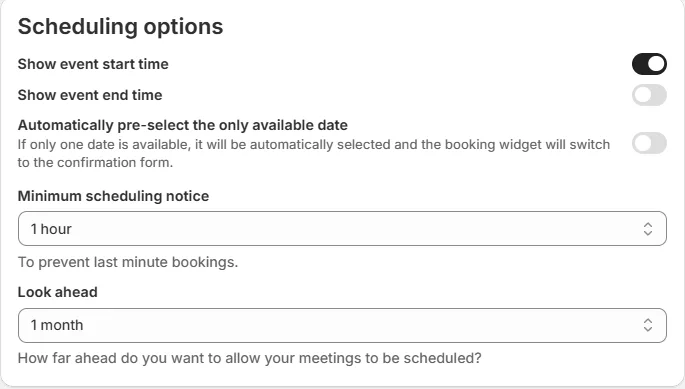
Scheduling options
| Option | What it does |
|---|---|
| Show event start time | Shows the start time of the event to the customer. |
| Show event end time | Shows the end time of the event to the customer. |
| Automatically pre-select the only available date | If only one date is available, it is selected automatically and the widget goes straight to the confirmation form. |
| Minimum scheduling notice | The shortest time before the event when a customer can still book (to prevent last minute bookings). |
| Look ahead | How far ahead customers can book. |
In the preview on the right, the widget shows a calendar with the available days highlighted in green and a Quantity selector. There are no time slots to choose.
Other cards
- Buffer time (on the regular version): Don't use buffer time, Use custom buffer time or Use global buffer time.
- Seasons: Customize price by seasons or peak times.
Fullday services do not have Meeting duration or Break times, because there are no time slots.
The Customization tab
- Language, timezone & hour format.
- Display preferences: on the regular version, Skip cart (Directly go to checkout) and Enable autocomplete for customer information.
- Redirect after booking (instant version only). See Redirect After Booking: Send Customers to a Thank-You Page.
- Widget visibility: choose what the customer sees. See Widget Visibility: Show or Hide Every Element of the Booking Widget.
- Calendar month to show: Current month or First available date.
The Payment tab
Depending on the version you will find Confirm/Decline a booking, Waitlist, Pre-payment (regular version), Upsell and Deposit.
Common questions
What do customers see?
A calendar where they pick a day. If you set the start or end time to be shown, they see it as information about the event.
Can I limit how many people book the same day?
Yes, with Capacity per day in the Booking limit card.
Can I sell different tickets (adult, child)?
Yes. In the General tab, the Participants card has the switch Use different participant types on the regular version. See How to Set Up Different Participant Types for Your Service.
Did this answer your question?