
📊 How to Set Up Tracking Pixels in Cowlendar
Track your booking funnel with Meta Pixel and Google Tag / GA4. Set up server-side tracking to bypass ad-blockers and iOS ATT, measure ROAS, and build remarketing audiences.
Cowlendar now supports Meta Pixel (Facebook & Instagram) and Google Tag / GA4 tracking directly from your booking widget. This means you can track your booking funnel, build remarketing audiences, and measure ad performance without installing any extra code on your store.
This feature also supports server-side tracking (Conversions API for Meta, Measurement Protocol for Google), which means your events can bypass ad-blockers and iOS App Tracking Transparency (ATT) restrictions that would otherwise prevent tracking.
This is a Beta feature. It's fully functional but we're still polishing a few things. If you run into any issues, reach out to us in live chat and we'll sort it out!
Why should I set this up?
If you're running Facebook or Google ads to drive bookings, you need tracking pixels to:
- Measure your return on ad spend (ROAS) — know exactly which ads are generating bookings, not just clicks.
- Build remarketing audiences — retarget people who opened your booking widget but didn't complete the booking.
- Optimize ad delivery — platforms like Meta and Google use conversion data to find more people likely to book.
Without server-side tracking, a large share of your events will be lost due to ad-blockers and iOS privacy features. That's why we strongly recommend setting up the Conversions API / Measurement Protocol tokens alongside your pixel.
How to get there
- In your Shopify admin dashboard, look at the left panel and click on Apps.
- Click on Cowlendar.
- Click on Settings in the left sidebar.
- Click on Tracking pixels.
You'll see two cards: Meta Pixel (Facebook & Instagram) and Google Tag / GA4. Both are inactive by default. Set up one or both depending on where you run ads.
Setting up Meta Pixel (Facebook & Instagram)
Step 1: Toggle it on
Click the toggle on the right side of the Meta Pixel card to activate it.
Step 2: Enter your Pixel ID
Paste your Meta Pixel ID (a numeric ID, e.g. 123456789012345).
Not sure where to find it? Check this guide from Meta: Where to find my Pixel ID
Step 3: Add your Conversions API access token (strongly recommended)
Paste your CAPI access token to enable server-side tracking. When set, booking confirmations, cancellations, and reschedules are sent directly from Cowlendar's servers to Meta, bypassing ad-blockers and iOS ATT entirely. The browser pixel automatically stops firing those events to avoid double-counting.
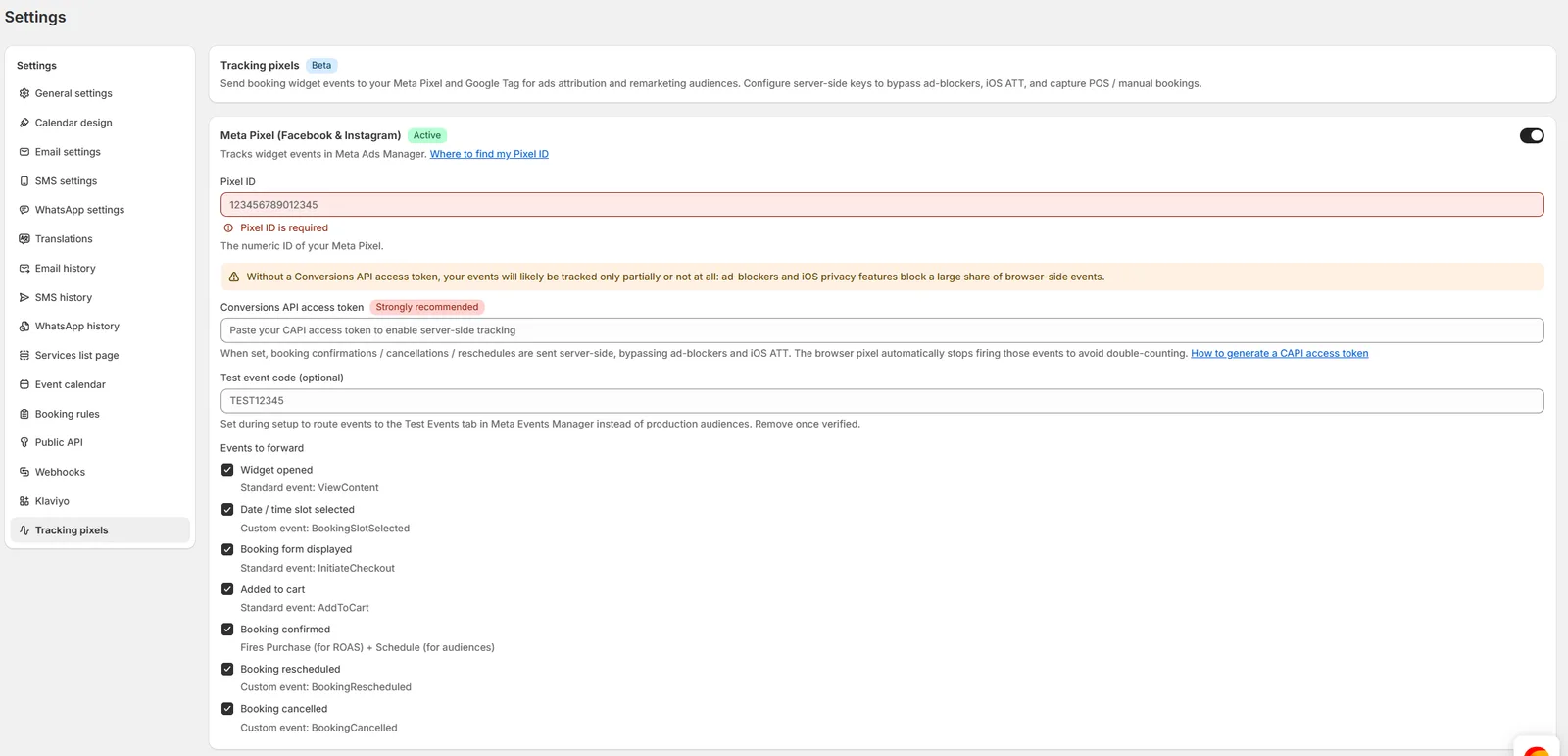
Not sure how to get one? Follow Meta's guide: How to generate a CAPI access token
⚠️ Without a Conversions API access token, your events will likely be tracked only partially or not at all. Ad-blockers and iOS privacy features block a large share of browser-side events.
Step 4: Set a Test event code (optional)
If you want to verify that events are being received correctly, enter a Test event code (e.g. TEST12345). This routes events to the Test Events tab in Meta Events Manager instead of your production audiences.
Once you've confirmed everything is working, remove the test event code so events go to production.
Step 5: Save
Click Save at the bottom of the page. You're all set!
Setting up Google Tag / GA4
Step 1: Toggle it on
Click the toggle on the right side of the Google Tag / GA4 card to activate it.
Step 2: Enter your Measurement ID
Paste your Measurement ID. This is the ID that starts with G- for GA4, AW- for Google Ads, or GT- for server-side Tag Manager.
Not sure where to find it? Check this guide from Google: Where to find my Measurement ID
Step 3: Add your Measurement Protocol API secret (strongly recommended)
Paste your MP API secret to enable server-side tracking. When set, booking confirmations, cancellations, and reschedules are sent directly from Cowlendar's servers to GA4. Browser fires of those events are automatically suppressed to avoid duplicates.
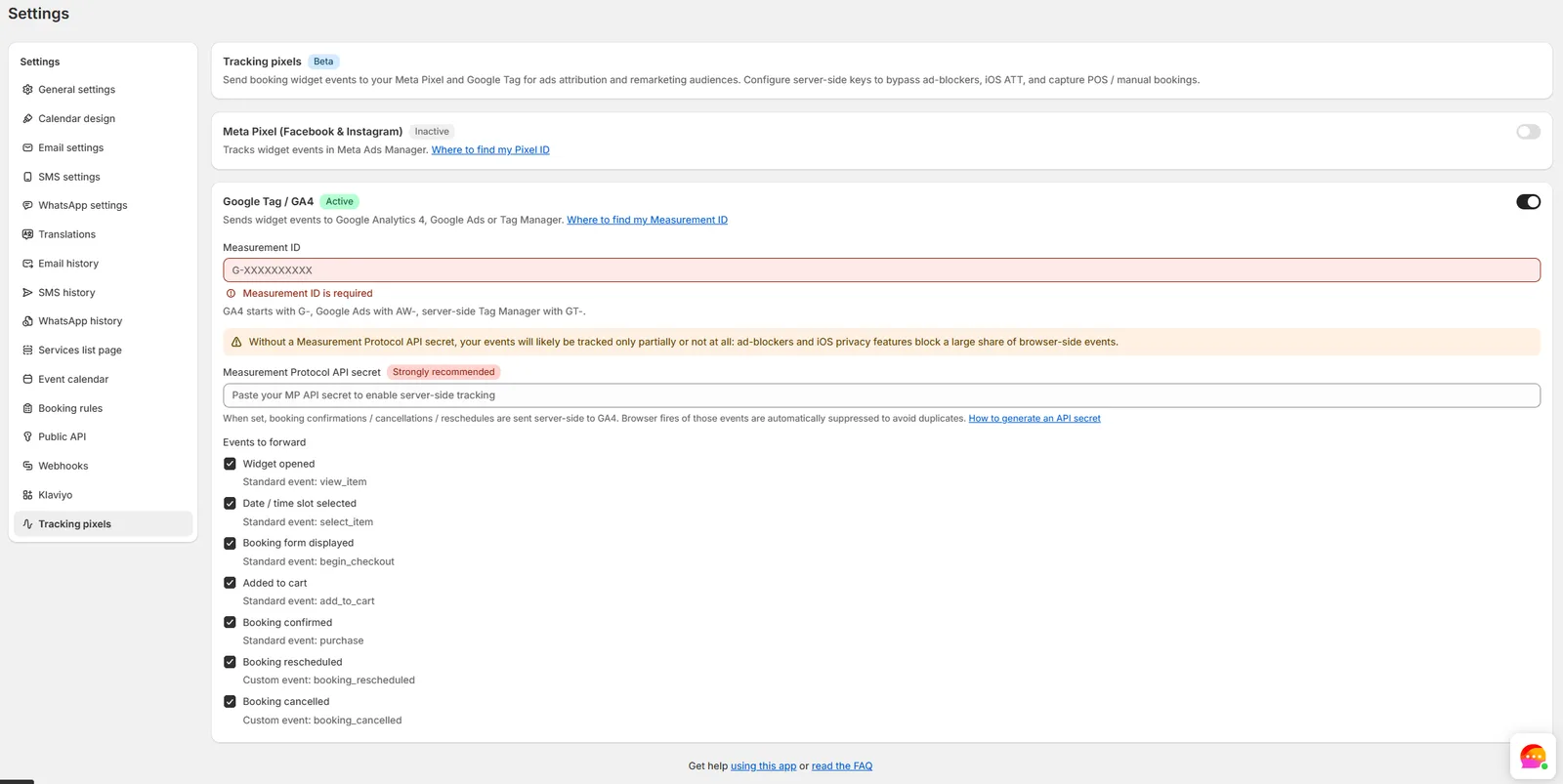
Not sure how to get one? Follow Google's guide: How to generate an API secret
⚠️ Without a Measurement Protocol API secret, your events will likely be tracked only partially or not at all. Ad-blockers and iOS privacy features block a large share of browser-side events.
Step 4: Save
Click Save at the bottom of the page. Done!
Events that Cowlendar tracks
Both Meta Pixel and Google Tag track the same booking funnel events, mapped to each platform's event naming conventions:
| Booking funnel step | Meta Pixel event | Google Tag / GA4 event |
|---|---|---|
| Widget opened | ViewContent (standard) |
view_item (standard) |
| Date / time slot selected | BookingSlotSelected (custom) |
select_item (standard) |
| Booking form displayed | InitiateCheckout (standard) |
begin_checkout (standard) |
| Added to cart | AddToCart (standard) |
add_to_cart (standard) |
| Booking confirmed | Purchase + Schedule (standard) |
purchase (standard) |
| Booking rescheduled | BookingRescheduled (custom) |
booking_rescheduled (custom) |
| Booking cancelled | BookingCancelled (custom) |
booking_cancelled (custom) |
All events are enabled by default. You can toggle individual events on or off depending on what you need.
A few things to note:
- Widget opened fires when a customer opens the Cowlendar booking calendar on your product page. This is great for measuring how many people start the booking process.
- Booking confirmed fires the
Purchaseevent, which is what Meta and Google use to calculate ROAS. On Meta, it also fires aScheduleevent for building audience segments of people who've booked. - Custom events (like
BookingSlotSelected,BookingRescheduled,BookingCancelled) are specific to Cowlendar. You can use them to build custom audiences or set up custom conversions in your ad platform.
Browser-side vs. Server-side: how it works
| Browser-side only (no API token) | With server-side token | |
|---|---|---|
| Widget opened | ✅ Tracked via browser | ✅ Tracked via browser |
| Date / time slot selected | ✅ Tracked via browser | ✅ Tracked via browser |
| Booking form displayed | ✅ Tracked via browser | ✅ Tracked via browser |
| Added to cart | ✅ Tracked via browser | ✅ Tracked via browser |
| Booking confirmed | ⚠️ Browser only (blockable) | ✅ Sent server-side, browser suppressed |
| Booking rescheduled | ⚠️ Browser only (blockable) | ✅ Sent server-side, browser suppressed |
| Booking cancelled | ⚠️ Browser only (blockable) | ✅ Sent server-side, browser suppressed |
When you configure the server-side token (CAPI for Meta, MP API secret for Google), the most important conversion events are sent directly from Cowlendar's servers. This means they'll be tracked even if the customer is using an ad-blocker, a privacy-focused browser, or has opted out via iOS ATT.
The browser pixel is automatically suppressed for those events to avoid double-counting. You don't need to configure anything extra for deduplication.
Bonus: Server-side tracking also captures conversions from POS bookings and manual bookings created by your team in the Cowlendar admin, which would never be captured by browser-side tracking alone.
How to verify it's working
For Meta Pixel
- Go to Meta Events Manager.
- Select your Pixel.
- If you set a Test event code, click the Test events tab to see incoming events in real-time.
- Open your store in a new browser tab and go through the booking flow (open the widget, select a date, fill in the form, add to cart).
- You should see
ViewContent,BookingSlotSelected,InitiateCheckout, andAddToCartevents appear. - Complete the booking to see the
PurchaseandScheduleevents. - Once you've confirmed everything works, remove the test event code from Cowlendar settings so events go to production.
For Google Tag / GA4
- Go to Google Analytics.
- Navigate to Admin > DebugView (or Reports > Realtime).
- Open your store and go through the booking flow.
- You should see
view_item,select_item,begin_checkout,add_to_cart, andpurchaseevents appear.
FAQ
Do I need both Meta Pixel and Google Tag?
No! Set up whichever platform(s) you use for advertising. If you run ads on both Facebook/Instagram and Google, set up both. If you only run ads on one platform, just set up that one.
Will this slow down my store?
No. The tracking pixels are loaded asynchronously and don't affect page load speed or the booking experience.
I already have a Meta Pixel / Google Tag installed on my Shopify store. Will this conflict?
No. Cowlendar's tracking pixels fire specifically for booking-related events. They won't interfere with your existing store-wide pixel. However, make sure you're not double-tracking booking events through another app or custom code.
Can I track bookings in Google Ads (not just GA4)?
Yes! Use your Google Ads conversion tracking ID (starts with AW-) as the Measurement ID. This will send events directly to Google Ads for conversion optimization.
Do server-side events count toward my Meta CAPI or Google MP quotas?
The volume from booking events is typically very low compared to platform limits, so this shouldn't be a concern for the vast majority of stores.
I set everything up but I don't see events in my ad platform. What should I do?
A few things to check:
- Make sure the toggle is ON (active) for the tracking pixel.
- Double-check your Pixel ID / Measurement ID for typos.
- If you're using a test event code on Meta, check the Test events tab, not the main overview.
- Try opening your store in an incognito/private browsing window (your own browser might have an ad-blocker that blocks the events).
- If you've set up the server-side token, confirm that the token is valid and hasn't expired.
Still stuck? Reach out to us in live chat and we'll help you debug it!
If you have any questions about setting up tracking pixels or need help verifying your configuration, don't hesitate to reach out through our in-app chat. We're here to help! 🐮
Did this answer your question?