
💳 Pricing Plans, Booking Limits and Billing
All Cowlendar plans from Free to Unlimited, how revenue and booking limits work, automatic upgrades, extra team seats, prorated billing and cancellation.
All Cowlendar features are available on every plan. The plans differ only in the monthly volume you can handle and in their price.
Where to find it: Shopify admin > Apps > Cowlendar Booking > Pricing plans (in the left sidebar of the app).
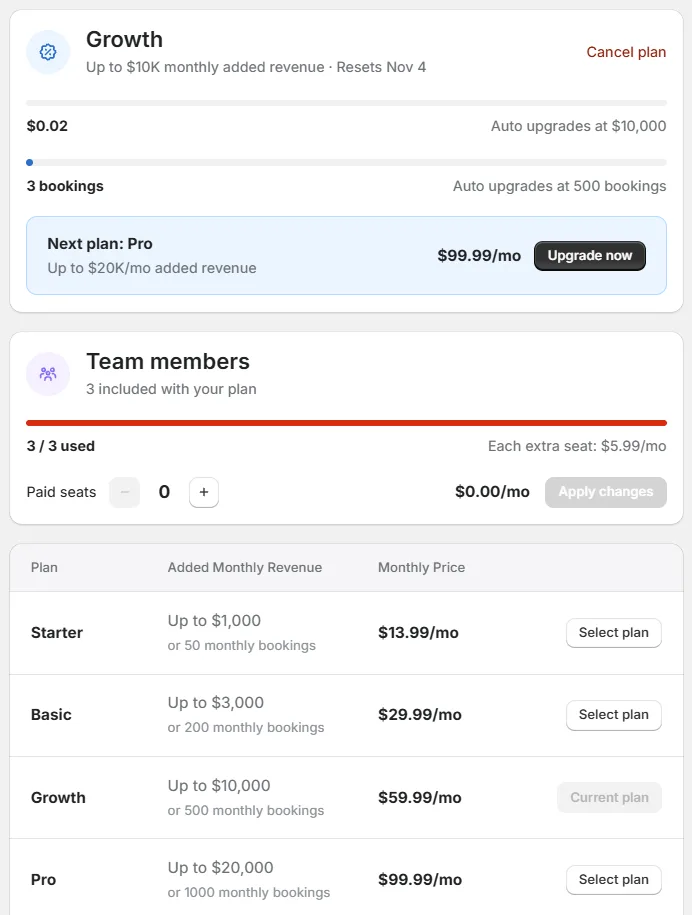
The plans
| Plan | Added monthly revenue | Monthly price |
|---|---|---|
| Free | 5 monthly bookings | $0 |
| Starter | Up to $1,000 or 50 monthly bookings | $13.99/mo |
| Basic | Up to $3,000 or 200 monthly bookings | $29.99/mo |
| Growth | Up to $10,000 or 500 monthly bookings | $59.99/mo |
| Pro | Up to $20,000 or 1000 monthly bookings | $99.99/mo |
| Scale | Up to $30,000 or 1500 monthly bookings | $149.99/mo |
| Business | Up to $50,000 or 2500 monthly bookings | $199.99/mo |
| Unlimited | $50,000+ | $299.99/mo |
The Free plan is offered with the link Continue on our Free plan under the table.
Prices and limits can change. The table of your own Pricing plans page is always the current one.
Your current plan
The top card shows your plan, for example Growth, with its limit and the date it resets (for example Resets Nov 4). It has two progress bars. The first shows the revenue added this cycle (for example $0.02), with the text Auto upgrades at and the amount. The second shows the bookings of this cycle (for example 2 bookings), with Auto upgrades at and the number.
Under them, a blue box shows the Next plan with its limit and price, and the button Upgrade now.
What happens when you reach the limit
Your plan upgrades automatically to the next tier when you reach your monthly limit, so your bookings never stop.
On the Free plan, when you reach the limit the booking module disappears from your store until you upgrade. You can switch back at any time.
Team members
The card Team members shows how many seats are included in your plan (for example 3 included with your plan) and how many you have used (for example 3 / 3 used).
Each extra seat costs $5.99/mo. To add seats, use the Paid seats stepper (- and +) and click Apply changes. See How to Properly Set Up Your Team Members in Cowlendar.
Change your plan
- Open Pricing plans.
- Find the plan in the table.
- Click Select plan.
- Shopify shows you its billing screen. Review it and approve.
All plan changes are prorated. You only pay for the days you actually used each plan. For example, if you upgrade from $13.99 to $29.99 after 10 days, you are charged the difference for the remaining 20 days. Shopify's prorated billing calculator works out the exact amount.
Cancel your plan
- Open Pricing plans.
- Click Cancel plan at the top right of your current plan card.
If you cancel in the middle of a billing cycle, Shopify still charges the full current 30-day cycle. That is Shopify's standard billing policy.
Uninstalling the app
Uninstalling cancels your subscription automatically. Your services and bookings can be restored only if you reinstall within 48 hours. After that, data is permanently deleted according to Shopify's privacy policy. If you have a problem, contact support before uninstalling.
Common questions
Are some features only for higher plans?
No. All features are on all plans. The plan only sets your monthly volume.
Which limit counts, revenue or bookings?
Each plan shows both limits and an Auto upgrades at text for each. Check the two progress bars on your page.
I need help with billing.
Click Contact Support at the bottom of the page or write to our team through the chat.
Did this answer your question?