
🛒 Abandoned Bookings
Understand the Abandoned tab in Cowlendar: bookings started but not completed, how long a slot stays locked in the cart and how to adjust the lock time.
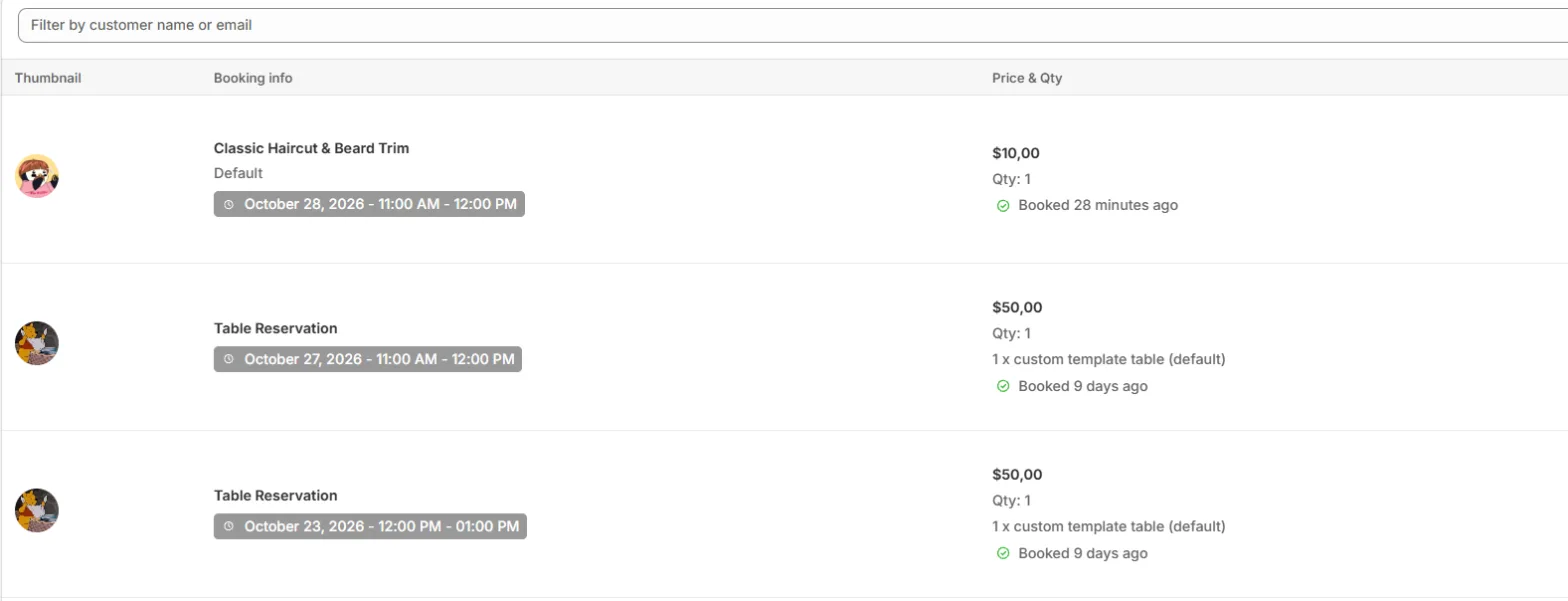
The Abandoned tab lists bookings that were started in the booking widget but never completed. It helps you understand where customers drop off.
Where to find it: Shopify admin > Apps > Cowlendar Booking > Bookings > tab Abandoned.
What you see
The tab has a search box (Filter by customer name or email), a sort icon and an Export button.
The columns are:
- Thumbnail: the service image.
- Booking info: the service name and the date and time the customer selected.
- Price & Qty: the price, the quantity and the ticket detail (for example 3 x Adults, 1 x Children).
- Customer: what the customer filled in the booking form (name, email, phone), when they got that far.
Each row also says how long ago the booking was started.
There are no action buttons and no status column: these are not confirmed bookings, they are for information only.
Why does a booking become abandoned?
When a customer picks a slot and adds the booking to the cart, Cowlendar locks the slot for a few minutes so nobody else can take it while the customer checks out. If the customer never completes the purchase, the booking stays here as abandoned, and when the lock time ends the slot becomes available again.
Abandoned bookings do not count as confirmed bookings and do not take a slot once the lock has expired.
Control the lock time
The lock is configured per service:
- Open My services and click Edit on the service.
- Go to the Advanced tab.
- Scroll to Slots lock time.
- Make sure Enable lock is on, and set the number and the unit (for example 20 minutes).
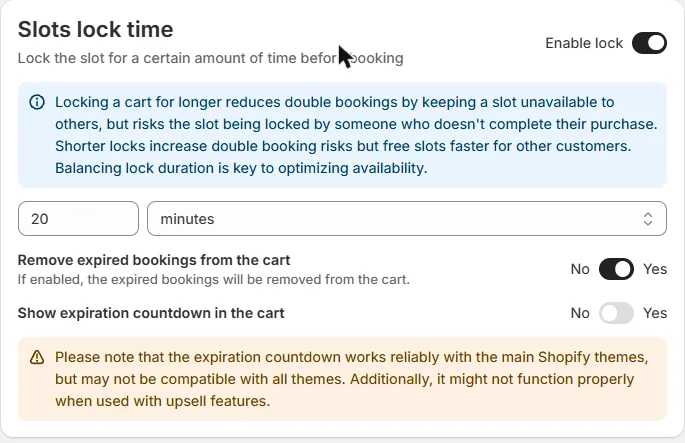
You will also find two options in this card:
- Remove expired bookings from the cart: when it is Yes, bookings whose lock has expired are removed from the customer's cart.
- Show expiration countdown in the cart: shows the customer a countdown in the cart.
The countdown works reliably with the main Shopify themes, but may not be compatible with all themes. It might also not work properly when used with upsell features.
A longer lock reduces double bookings but keeps the slot out of reach of other customers for longer. A shorter lock frees slots faster but increases the chance of double bookings. For the full explanation, read How to Change the Amount of Time Cowlendar Locks a Booking While in Cart.
The Slots lock time card exists on services with checkout. Instant booking services (without checkout) do not have a cart, so they do not have this card.
Common questions
A customer says the slot was not available, but I see no booking. Why?
The slot may have been locked by another customer who had it in the cart. Look at the Abandoned tab and the lock time of the service.
Can I contact the customers in this tab?
The tab shows the details the customer entered in the booking form, so you can see who started a booking. It has no action buttons.
Cette réponse a-t-elle résolu votre question ?