
🗓️ Bookings Calendar: View and Print Your Bookings
Use the Bookings calendar tab to see bookings in List, Day, Week and Month view, filter by service or teammate, show blocked dates and buffers, and print.
The Bookings calendar shows your bookings on a calendar instead of a table. It is the best way to plan your week, spot gaps and print your schedule.
Where to find it: Shopify admin > Apps > Cowlendar Booking > Bookings > tab Bookings calendar.
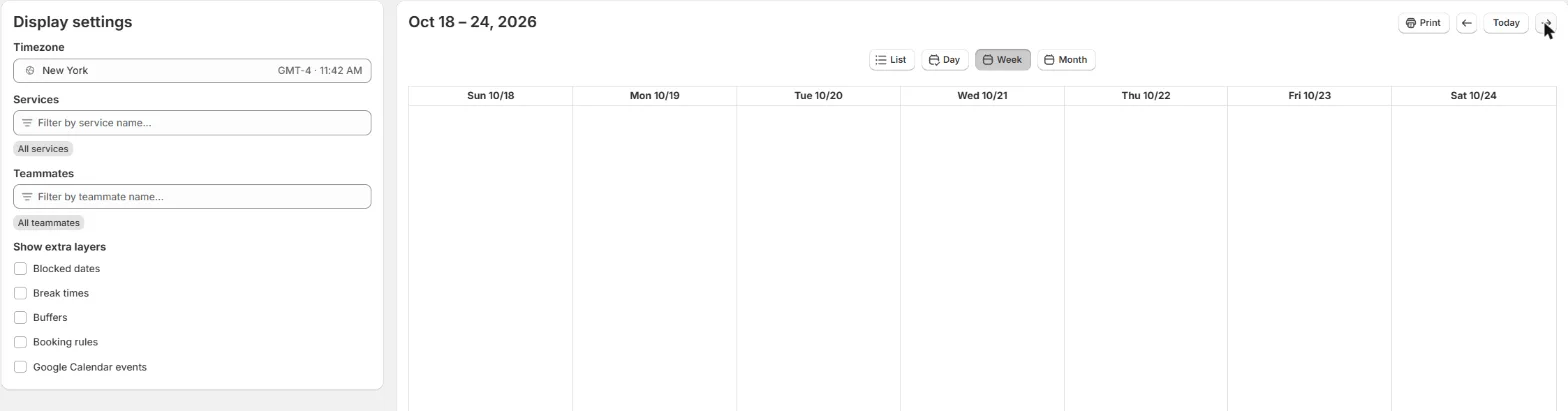
The four views
Use the buttons at the top right of the calendar:
| View | What it shows |
|---|---|
| List (default) | Your bookings grouped by day, one after the other. Each entry shows the time range, the service, the quantity, the customer, the teammates and the pick up and drop off times when the service has them. |
| Day | One column with the bookings of a single day. |
| Week | Seven columns, one per day. Today's column is shaded. |
| Month | A month grid with a card for each booking. |
Use the arrows and the Today button to move through time. The title shows the range you are looking at.
Display settings
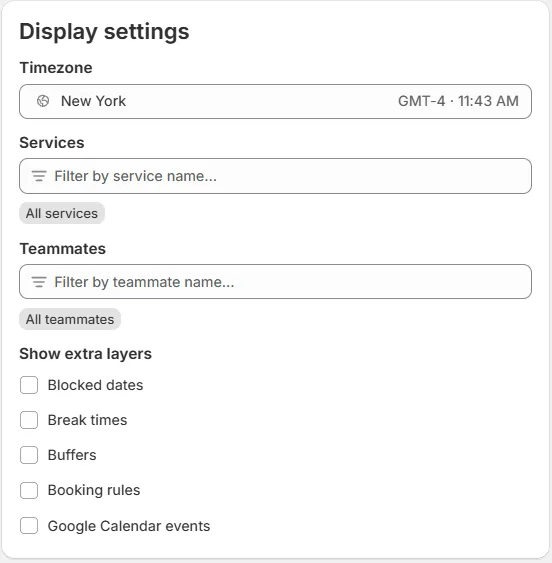
The panel on the left controls what you see:
- Timezone: choose the timezone used to display the times.
- Services: type a service name to filter. The default is All services.
- Teammates: type a teammate name to filter. The default is All teammates.
Show extra layers
Under Show extra layers there are five checkboxes, all unchecked by default. Tick one to display it on the calendar next to your bookings:
- Blocked dates
- Break times
- Buffers
- Booking rules
- Google Calendar events
Turn on Buffers and Break times if you want to understand why a slot is not available. Turn on Google Calendar events to see your personal events from the connected Google Calendar on the same screen.
Print your calendar
Click Print at the top right. Your browser opens its print window with the calendar in the view and period you have selected, so choose the view (for example Week) and the dates first.
Common questions
Why don't I see a booking on the calendar?
Check the Services and Teammates filters in Display settings, the timezone, and the period you are looking at. Use the arrows to move to the right date.
Is this the same as the Services availabilities tab?
No. The Bookings calendar shows the bookings you already have. Services availabilities shows the open and booked slots of each service. See Services Availabilities: See Your Open and Booked Slots.
Can I click a booking to edit it?
Manage a booking (reschedule, cancel, change status) from the Bookings tab. See Bookings Page: Tabs, Filters, Statuses and Export.
Cette réponse a-t-elle résolu votre question ?