
💳 Pre-Payment Bookings: Charge the Remaining Amount or Send an Invoice
Collect the remaining balance of a pre-payment booking in Cowlendar. Learn the Pre-payment tab, the AUTHORIZED badge, Charge remaining amount and Send invoice.
With pre-payment, the customer pays only a part of the price when they book (for example 30% or 50%) and the rest later. This article explains how you collect the rest from the admin.
If you have not turned pre-payment on yet, start with How to Use the Pre-Payment Feature.
Where to find your pre-payment bookings
Shopify admin > Apps > Cowlendar Booking > Bookings > tab Pre-payment.
The tab lists only the bookings paid in two parts. It has the same search, date range and filters as the Bookings tab (see Bookings Page: Tabs, Filters, Statuses and Export).

What you see on a pre-payment booking
In the Booking info column, the line under the service name says Regular booking - with checkout (Pre-payment order ...) followed by the order number. Under it you find two links:
- Charge remaining amount
- Send invoice
In the Price & Qty column a blue AUTHORIZED badge appears while the remaining balance has not been collected.

How to collect the remaining amount
- Open the Pre-payment tab.
- Find the booking with the AUTHORIZED badge.
- Click Charge remaining amount to collect the balance yourself, or Send invoice to send the customer an invoice for the balance.
- Once the balance is collected, the booking no longer shows the AUTHORIZED badge.
You can also reach these actions from the Bookings tab and from a customer's Details window, because the booking row is the same everywhere.
Collect the balance automatically
You can ask Cowlendar to collect the balance for you. In the service:
- Open My services and click Edit on the service.
- Go to the Payment tab.
- In the Pre-payment card, set When to charge the remaining amount? The option shown by default is After booking date.
- Set Automatically charge the remaining amount after the booking date: enter a number and choose the unit (for example 30 Days).
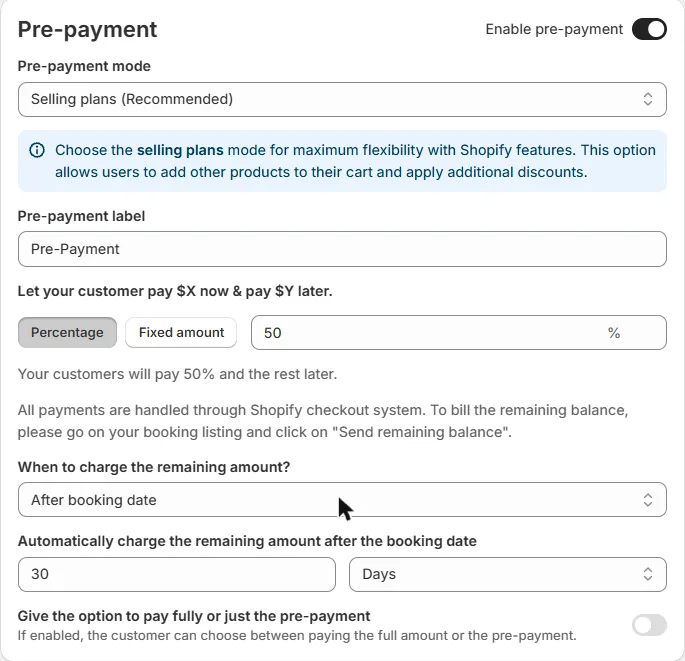
Other settings of the Pre-payment card
| Setting | What it does |
|---|---|
| Pre-payment mode | Choose how the pre-payment is processed. Selling plans (Recommended) gives you the most flexibility with Shopify features: customers can add other products to their cart and you can apply additional discounts. |
| Pre-payment label | The text your customers see for the pre-payment option. |
| Percentage / Fixed amount | Choose whether the customer pays a percentage of the price (for example 50%) or a fixed amount now. The card shows a sentence such as "Your customers will pay 50% and the rest later". |
| Give the option to pay fully or just the pre-payment | When on, the customer can choose between paying everything now or only the pre-payment. |
All payments are handled through the Shopify checkout. Cowlendar does not process payments by itself.
Pre-payment cannot be combined with Subscriptions on the same service. If pre-payment is on, the subscription switch is disabled.
Common questions
What does AUTHORIZED mean?
It is the badge of a booking whose first payment was made but whose remaining balance has not been collected yet.
What is the difference between a deposit and a pre-payment?
A pre-payment is part of the price of the service, paid now, with the rest later. A deposit is an extra amount billed to confirm the booking. See How to Use the Deposit Feature in Cowlendar.
Cette réponse a-t-elle résolu votre question ?