
👥 Teammate Settings: General, Availabilities, Buffer Time and Permissions
Learn what each teammate tab does in Cowlendar: General with Google, Outlook and Zoom, Availabilities blocks, Buffer time and Permissions for the team portal.
Each person on your team has their own settings page. This article explains what each tab does.
Where to find it: Shopify admin > Apps > Cowlendar Booking > Team > Edit next to the teammate.
The Team page
The page Team members lists your teammates. Use Filter by teammate name... to search and Add a teammate to add one.
- The shop owner has the blue badge Cowlendar admin, plus green badges such as Google is connected or Zoom is connected when those accounts are linked. The admin has an Edit button but cannot be deleted.
- Other teammates have an Edit button and a red Delete button.
- The pencil icon next to an email lets you edit the email.
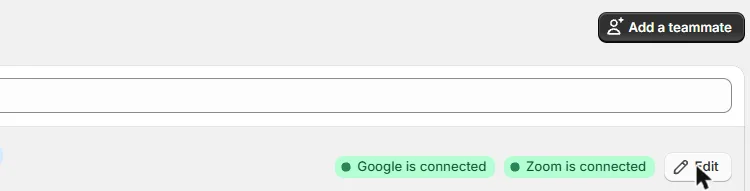
Your plan includes 3 team members. Extra seats cost $5.99 per month each. See Cowlendar Pricing Plans, Limits and Billing.
When you open a teammate, a left menu called Teammate settings shows four items: General, Availabilities, Buffer time and Permissions.
General
General info
First name, Last name, Email address.
Profile picture: click Add file to upload a picture. Use a square image, maximum 200KB.
Google integration
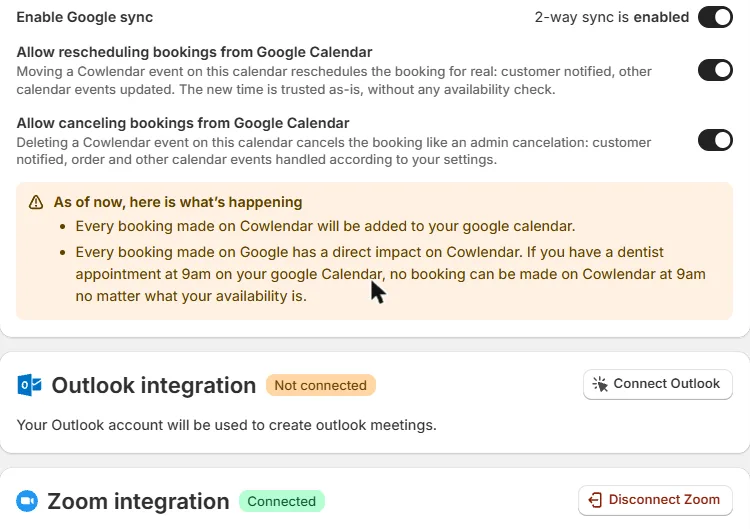
Connect the teammate's Google Calendar so their bookings appear there and their personal events block their availability. When connected you see a green Connected badge, the connected account and these options:
- Calendar to use: choose which of the teammate's Google calendars to use (for example the primary one).
- Enable Google sync (2-way sync): lets events created in Google block times in Cowlendar.
- Allow rescheduling bookings from Google Calendar: moving a Cowlendar event in Google reschedules the real booking. The customer is notified and the other calendar events are updated. The new time is accepted as it is, without checking availability.
- Allow canceling bookings from Google Calendar: deleting a Cowlendar event in Google cancels the booking like an admin cancelation.
With 2-way sync on, an appointment in your Google Calendar at 9am means no booking can be made at 9am in Cowlendar, whatever your availability says.
To disconnect, use the red Disconnect Google button. For the full guide, read How to Connect Google.
Outlook integration
Shows Connect Outlook when the account is not connected. The connected Outlook account is used to create Outlook meetings.
Zoom integration
Shows a green Connected badge and the connected account, with a red Disconnect Zoom button. If it is not connected, connect it to get automatic Zoom links. See How to Connect Zoom.
Availabilities
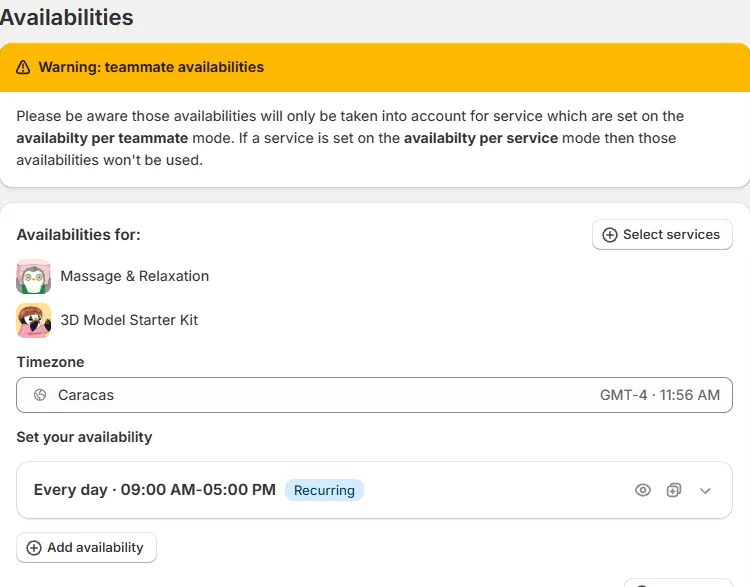
Here you define when this teammate can take bookings. A yellow banner reminds you that these availabilities are only used by services set to Availability per teammate. Services set to Availability per service ignore them.
The page is a stack of blocks. Each block applies to a group of services:
- Availabilities for: click Select services to choose the services of the block.
- Timezone: the timezone of the teammate's hours.
- Set your availability: the working hours (for example Weekdays 09:00 AM-05:00 PM, Recurring). Use Add availability to add more.
- Set break times? (Add break), Block specific dates? (Add blocked dates) and Override specific dates? (Add override dates).
- All slots have the same availabilities: a switch.
- How many people maximum can book the same timeslot with you?: the capacity. For multiday services the question is how many people maximum can book on the same day?
- Use general settings limit per slot in addition to the teammate limit: when it is off, only the teammate limit per slot is used.
- Buffer type to use: Don't use buffer time, Use custom buffer time or Use global buffer time.
- Remove block deletes the block.
Click Add new availabilities to create another block for other services.
For a step-by-step guide, read How to Configure Availability per Teammate.
Buffer time
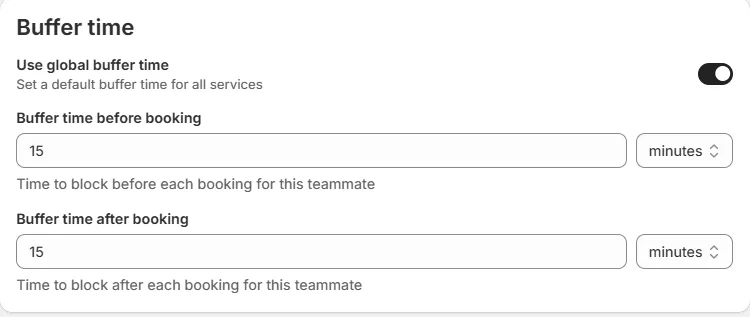
The Buffer time card has:
- Use global buffer time (helper: Set a default buffer time for all services).
- Buffer time before booking: a number and a unit (minutes). Helper: Time to block before each booking for this teammate.
- Buffer time after booking: a number and a unit. Helper: Time to block after each booking for this teammate.
See How Buffer Time Works in Cowlendar.
Permissions
Controls what the teammate can see and do in the team portal. See Team Portal and Permissions.
Cette réponse a-t-elle résolu votre question ?