
🧩 Service Types and Presets: Which One Should You Choose?
Choose the right Cowlendar service type: Regular, Multiday, Fullday or Bundle, with checkout or instant booking, plus ready-made presets for salons and rentals.
When you click New service, Cowlendar asks you to pick a service type or a preset. The choice sets up the booking flow your customers see, so it is worth spending two minutes here.
Where to find it: Shopify admin > Apps > Cowlendar Booking > My services (or Home) > New service.
The page is titled Choose a service type or a preset, with the line Select a starting point. You can customize everything later.
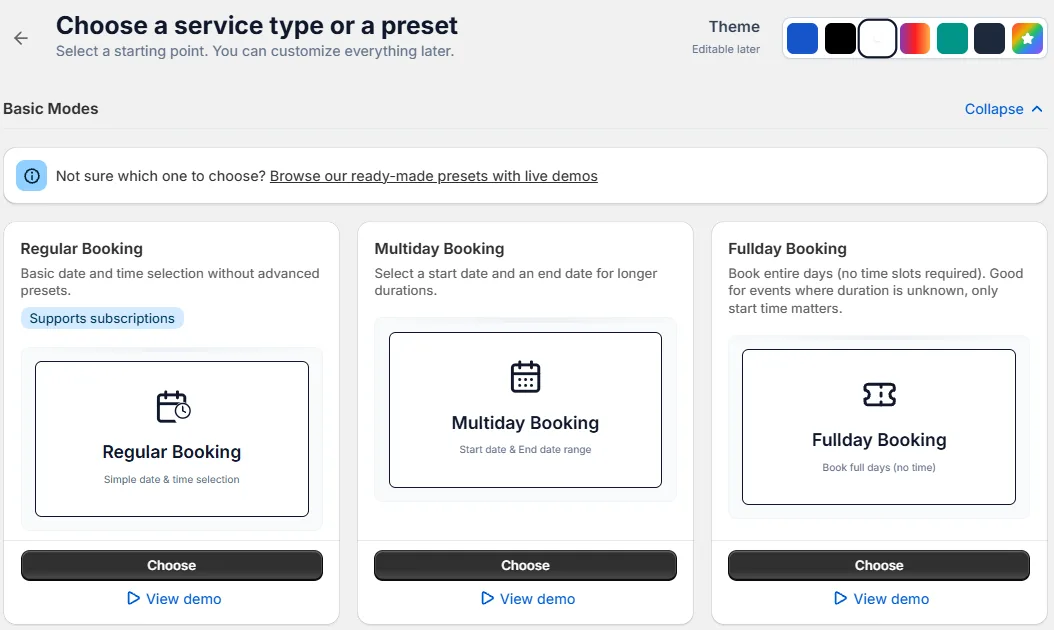
The 4 basic modes
| Mode | What it is | Typical use |
|---|---|---|
| Regular Booking | Basic date and time selection without advanced presets. It is the only mode that supports subscriptions. | Haircuts, coaching, consultations, classes. |
| Multiday Booking | The customer selects a start date and an end date, for longer durations. | Rentals of bikes, cars, houses, boats. |
| Fullday Booking | Book entire days, with no time slots. Good for events where the duration is unknown and only the start time matters. | Museum passes, open houses, markets. |
| Bundle Booking | The customer selects several separate slots in one go. | Class packs, a package of sessions. |
Each card has two buttons: Choose and View demo. Use View demo to see the booking widget before you decide.
In the service editor, Bundle services are called Multislot. They are the same thing.
Checkout or instant booking?
Every mode comes in two versions. You pick it later, in the General tab of the service, under Type of booking:
| Version | What happens | Use it when |
|---|---|---|
| Regular booking (with checkout) | The customer pays through the Shopify checkout. | You charge online. |
| Instant booking no checkout | No order and no payment is made on Shopify. | The service is free, or you charge people in the real world instead of online, for example a free show. |
The names in the editor are: Regular booking / Instant booking no checkout, Multi-day regular booking / Multi-day instant booking no checkout, Fullday regular booking / Fullday instant booking no checkout, and Multislot regular booking / Multislot instant booking no checkout.
In My services the service shows its type next to its name, so you always know which one it is.
The ready-made presets
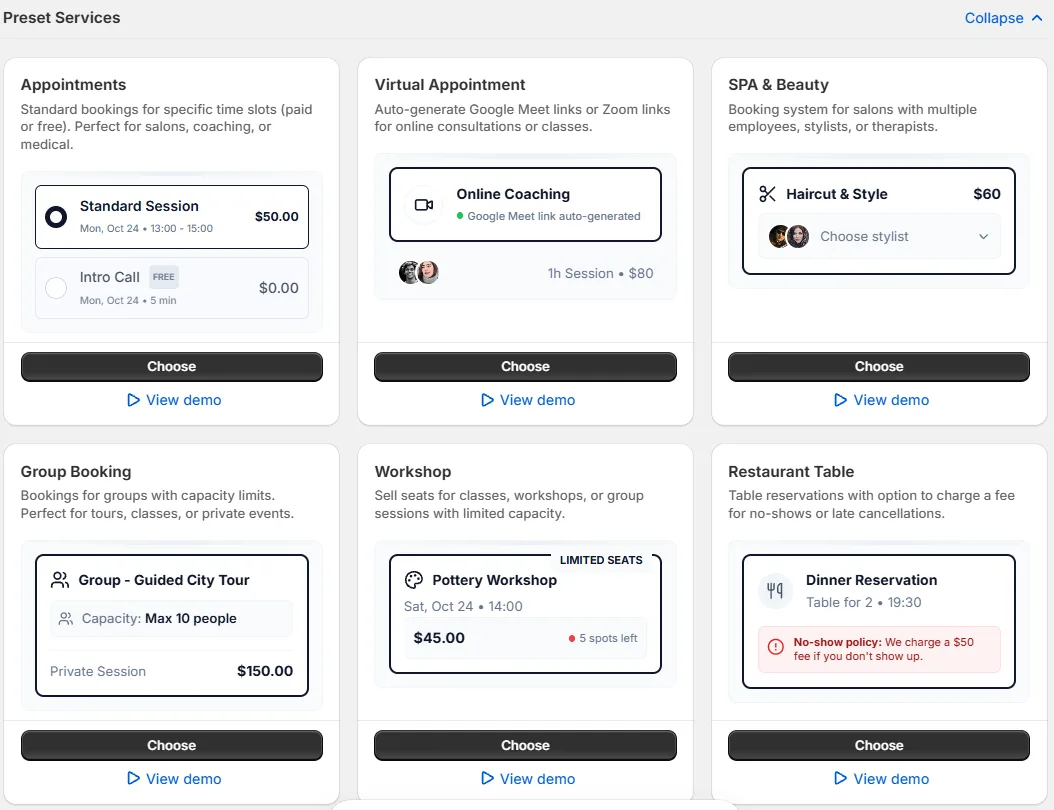
Presets are ready-made starting points built on the four modes. They set up the service for a typical business, and you can customize everything afterwards.
| Preset | Made for |
|---|---|
| Appointments | Standard bookings for specific time slots (paid or free): salons, coaching, medical. |
| Virtual Appointment | Google Meet or Zoom links generated automatically for online consultations or classes. |
| SPA & Beauty | Salons with several employees, stylists or therapists. |
| Group Booking | Groups with capacity limits: tours, classes, private events. |
| Workshop | Sell seats for classes, workshops or group sessions with limited capacity. |
| Restaurant Table | Table reservations, with the option to charge a fee for no-shows or late cancellations. |
| Full Day Event | Single day passes for museums, zoos, hiking trails or workshops. |
| Event (Start Time Only) | Garage sales, open houses or events with no fixed end time. |
| Service with Prepayment | Charge a percentage upfront (for example 30%) to secure the booking, the rest paid later. |
| Sport Court Rental | Tennis, padel or squash courts, by the hour. |
| Class Packs (bundle bookings) | Customers buy a bundle (for example 5 sessions) and select all their dates during the purchase. |
| Equipment Rental (Multiday) | Cameras, bikes or tools with daily or hourly rates and inventory tracking. |
| Car or Boat Rental | Vehicles for days or weeks, with pickup and drop-off logistics. |
| Property Rental (Multiday) | Nightly accommodation bookings, with check-in and check-out times. |
| Memberships or Subscriptions | Recurring billing for gyms, clubs or exclusive communities. |
Two special cards:
- Event with QR Ticket: sell tickets for concerts or parties with automatic QR codes for check-in. It is marked Coming Soon and cannot be chosen yet. See What's Coming Next in Cowlendar.
- Custom Service: if you need a different booking flow, click Chat with us and our team will help you.
At the top right there is a Theme picker with seven color swatches, marked Editable later, to choose the starting look of the widget.
On this page you may also see suggestions for other Penida apps (Subscriptions by Beez and Bundle by Beez). They are optional.
What changes between types
The service editor has the same logic for all types, but some cards only exist in some of them:
| Feature | Regular | Regular instant | Multiday | Fullday | Bundle |
|---|---|---|---|---|---|
| Pricing tab | Yes | No | No | No | No |
| Subscriptions card | Yes (checkout only) | No | No | No | No |
| Pre-payment card | Yes | No | Yes (checkout) | Yes (checkout) | Yes (checkout) |
| Discounts card | No | No | Yes (checkout) | No | Yes (checkout) |
| Waitlist card | Yes | Yes | Yes | Yes | No |
| Slots lock time | Yes (checkout) | No | Yes (checkout) | Yes (checkout) | Yes (checkout) |
| Redirect after booking | No | Yes | Yes (instant) | Yes (instant) | Yes (instant) |
| Meeting duration | Yes | Yes | No | No | Yes |
"Checkout" in the table means the version with checkout. "Instant" means the version without checkout.
How to choose
- Does the customer book one slot at a specific time? Choose Regular.
- Does the customer book a range of days (rental, stay)? Choose Multiday.
- Does the customer book a whole day with no time slot? Choose Fullday.
- Does the customer buy several sessions and pick all dates at purchase? Choose Bundle. If instead you want recurring billing with credits, choose Regular with Subscriptions.
- Do you charge online? Use the version with checkout. Is the service free, or paid on the spot? Use instant booking.
Next steps:
Cette réponse a-t-elle résolu votre question ?