
🌐 Translations: Customize Every Text of Your Booking Widget
Edit every text of the Cowlendar booking widget per language, from buttons to error messages, and override the texts of one service with Services translation.
Every word your customers see in the booking widget can be changed: button labels, messages, errors, form fields and more. You edit them in Translations, one language at a time.
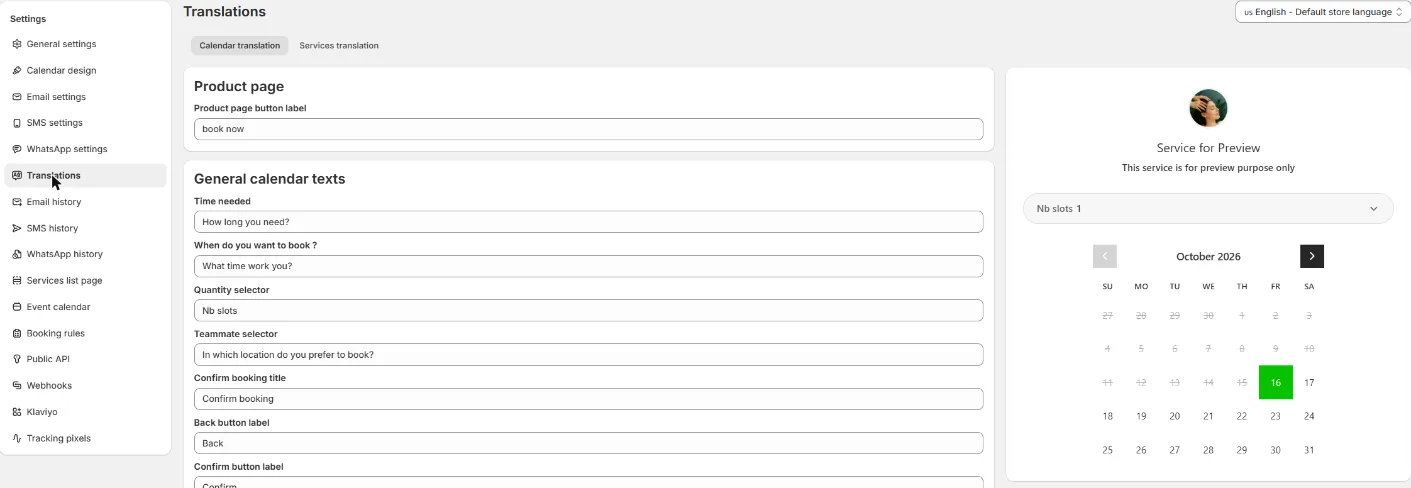
Where to find it: Shopify admin > Apps > Cowlendar Booking > Settings > Translations.
The page has two tabs:
- Calendar translation: texts shared by all your services.
- Services translation: texts for one specific service.
At the top right there is a language selector (for example English - Default store language). The language you choose there is the one you are editing. On the right, a live preview called Service for Preview shows the calendar while you work.
To choose which languages your store offers, use the Multi-languages card in General Settings: A Complete Tour.
Calendar translation
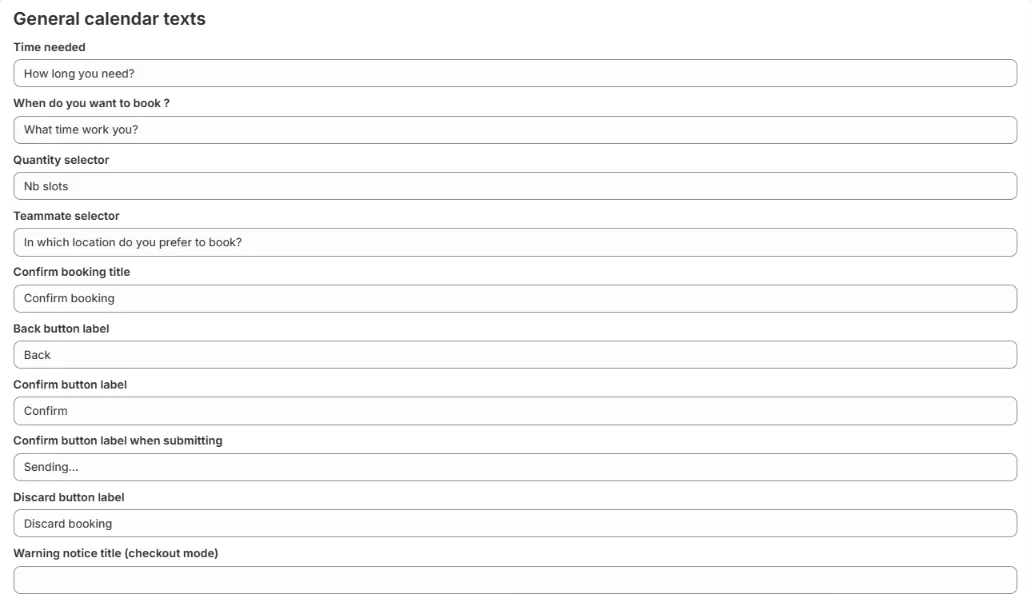
Each row is a text field with its label above it. Change the text and the preview updates. The fields are grouped in cards:
| Card | What you can change |
|---|---|
| Product page | The button label shown on your product page (Product page button label). |
| General calendar texts | The main widget: titles and questions, Back, Confirm and Discard booking buttons, success and on-hold messages, the video call and phone call notices, booking limit messages, "no times available" messages, error messages, slot counters (for example {{quantity}} slots left), labels such as Timezone, Location and Add to calendar, the form placeholders and the Security Deposit banner. |
| Multi-day calendar texts | Start date, end date, Duration, Total, To pay now, Pick up time, Drop off time. |
| Participants texts | The participants selector and its popover. |
| Equipments texts | The equipments selector and its popover. |
| Bundle bookings texts | The messages for choosing several timeslots (Pick {{count}} Timeslots, and how many you selected). |
| Subscriptions texts | Choose your plan, Single Session, summary and slot messages. |
| Waitlist texts | Join the waitlist, the banners and the confirmation message. |
| Calendar form | Labels and error messages of the form: Name, Email, Phone number, Confirm Email. |
| Cancellation and rescheduling page | The texts of the page where customers cancel or reschedule. |
| Services list | Morning, Afternoon, Next availability, View full details, From, Free and similar. |
Variables
Some texts contain words between double curly brackets, like {{count}}, {{quantity}}, {{date}} or {{deposit_total}}. Cowlendar replaces them with the real value. If you translate or rewrite the text, keep the variable exactly as it is. If you delete it, the number or date will not appear.
Texts that say (checkout mode) are used by services that go through Shopify checkout. Texts that say (no checkout mode) are used by instant booking services without checkout. Edit the one that matches the services you sell.
Services translation
Use this tab when one service needs different texts from the rest.
At the top you will find a Search a service field and the buttons Expand all and Collapse all. The helper says: Override what your customers see for each service. Leave a field empty to keep the original text.
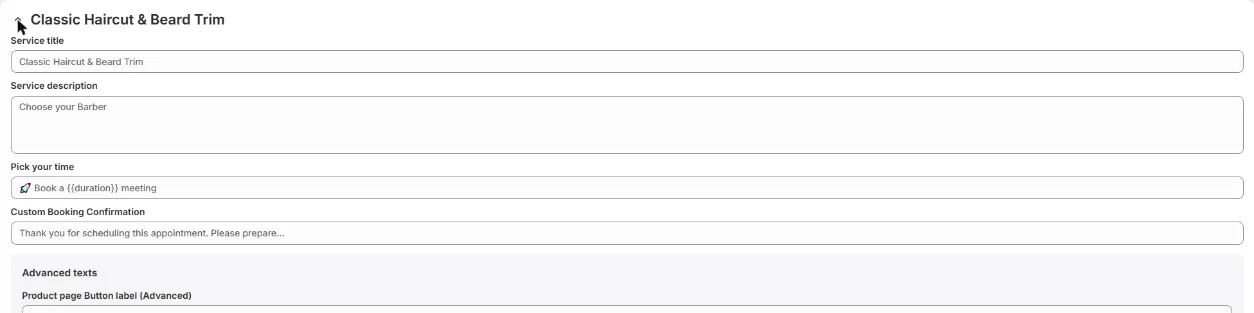
Open the accordion of a service. You will find:
- Service title
- Service description
- Pick your time
- Custom Booking Confirmation
- A grey box Advanced texts, only for services that have Use advanced configuration turned on. It lets you change the button label, the questions, the Name and Email labels, the Back and Confirm buttons, the warning title and description and the video text.
- A grey box Upsell with the labels Upsell - Products label and Upsell - Services label.
The grey text inside each field is the current text, shown as a placeholder. If you leave a field empty, Cowlendar keeps showing it. A text you type here wins over the same text in Calendar translation, only for that service.
Multiday, Fullday and Bundle services have the same fields as a Regular one: Service title, Service description, Pick your time, Custom Booking Confirmation and the Upsell box.
When you save a text, the service shows a blue label such as 1 customized. The text appears in the widget that opens when the customer clicks the button, not in the title of your Shopify product page.
If you delete a text you already saved and click Save, the field comes back with the old text after you reload. To go back to the original wording, write the original text again in that field.
Translate to another language
- In General settings, enable Multiple-languages and add the languages you want.
- Open Translations.
- Choose the language in the selector at the top right.
- Edit the texts you want and check the preview. Then click Save in the bar at the top (it shows Unsaved changes, Discard and Save). Do this before you switch to another language or tab, so you do not lose your edits.
- Repeat for each language and for each tab.
Common questions
I changed a text and nothing changed on my store.
Check that you edited the right place: a text in Services translation overrides Calendar translation for that service. Also check that you edited the language your customer sees.
Remember that translations of a service appear inside the booking widget, not in the product title of your Shopify page.
I do not want to translate anything. Can I just change the English texts?
Yes. Keep your default language selected and edit the texts in Calendar translation.
I edited a text and it disappeared.
Changes need to be saved. Click Save in the bar at the top before you leave the page, change the language or switch tabs.
Cette réponse a-t-elle résolu votre question ?