
📈 Track Bookings as Google Ads Conversions with GA4
Send Cowlendar booking events to GA4 from Tracking pixels, mark the booking event as a key event and import it into Google Ads as a conversion.
Cowlendar can send your booking events to Google Analytics 4 (GA4). From GA4 you can mark the event that matters to you (a confirmed booking) and use it as a conversion in Google Ads.
This article covers the Cowlendar side in detail and gives you the order of the steps on Google's side. The screens of Google change often, so for Google's own buttons follow Google's help.
Where to find it in Cowlendar: Shopify admin > Apps > Cowlendar Booking > Settings > Tracking pixels. The page has a Beta badge.
Before you start
You need:
- A GA4 property and its Measurement ID (it starts with
G-). - A Google Ads account linked to that GA4 property.
The card Google Tag / GA4 has the link Where to find my Measurement ID.

Step 1: Turn on Google Tag / GA4 in Cowlendar
- Open Settings > Tracking pixels.
- In the card Google Tag / GA4, turn the switch on. The badge changes from Inactive to Active.
- Paste your Measurement ID in the field of that name. It looks like G-XXXXXXXXXX. The help text explains that GA4 IDs start with G-, Google Ads IDs with AW- and server-side Tag Manager IDs with GT-. The link Where to find my Measurement ID shows you where to find it.
- Optional but strongly recommended: paste a Measurement Protocol API secret in its field. Without it, ad-blockers and iOS privacy features block a large share of the events from the browser, so your events can be tracked only partially or not at all. With the secret, booking confirmations, cancellations and reschedules are sent from the server to GA4, and the browser fires of those events are suppressed so they do not count twice. The link How to generate an API secret explains how to create it.
- In Events to forward, choose which events to send. All seven are on by default:
| Cowlendar event | GA4 event |
|---|---|
| Widget opened | view_item |
| Date / time slot selected | select_item |
| Booking form displayed | begin_checkout |
| Added to cart | add_to_cart |
| Booking confirmed | purchase |
| Booking rescheduled | booking_rescheduled (custom event) |
| Booking cancelled | booking_cancelled (custom event) |
A bar at the top shows Unsaved changes, with Discard and Save. Click Save.
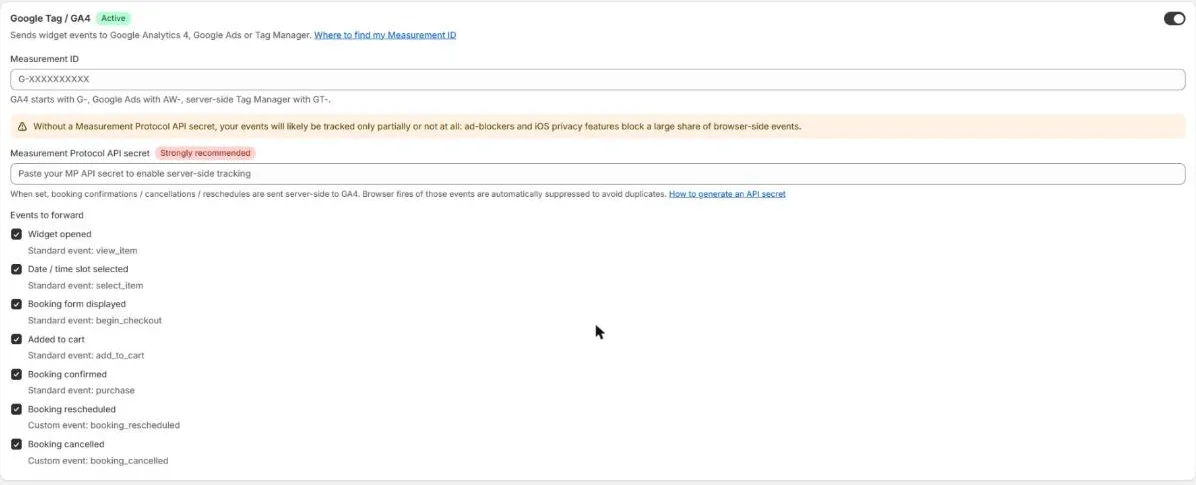
The card sends the widget events to Google Analytics 4, Google Ads or Tag Manager. The event you will use as the conversion in Google Ads is Booking confirmed (purchase).
Step 2: Check that GA4 receives the events
- Open your store in a new tab and use the booking widget as a customer would (open it, pick a date).
- In GA4, open Reports > Realtime (or DebugView).
- Look for the events coming from your store.
Do this before you touch Google Ads. If GA4 does not receive anything, Google Ads will not either.
Step 3: Mark the booking event as a key event in GA4
In GA4, go to Admin > Events and mark the purchase event as a key event (GA4's name for what used to be a conversion). It appears in the list after GA4 has received it at least once, so make a test booking first.
Step 4: Import it into Google Ads
In Google Ads, go to Goals > Conversions > New conversion action > Import > Google Analytics 4 properties and choose the key event. Follow Google's screens to finish.
Google Ads may import it as a secondary goal first. If you want to optimize your campaigns for bookings, check in Google Ads that the goal is set as primary. Google decides how this is shown, so check their current screens.
How the data reaches you
- Events are sent from the customer's browser. Ad-blockers and some privacy settings of browsers can block part of them. This is normal for any browser-based tracking.
- Bookings you create yourself from the admin (manual bookings) are not made by a customer in the widget.
- Conversions can take hours to appear in Google Ads.
For Meta (Facebook and Instagram) the same page has the card Meta Pixel, with a server-side option for better accuracy. See the existing guide: How to Set Up Tracking Pixels.
Common questions
GA4 receives nothing.
Check that the switch of Google Tag / GA4 is on, that the Measurement ID is correct and that your browser has no ad-blocker while you test.
I do not see my booking event in the GA4 events list.
Make a test booking first. GA4 lists an event only after it has received it.
Google Ads shows no conversions.
Wait a few hours, then check that the key event is imported and that the Google Ads account is linked to the same GA4 property.
Cette réponse a-t-elle résolu votre question ?