
📋 Bookings Page: Tabs, Filters, Statuses and Export
Learn how to use the Cowlendar Bookings page: tabs, date range, service, teammate, type and status filters, sorting, row actions and CSV or XLSX export.
The Bookings page is where you see and manage everything your customers have booked. This guide explains each tab, each filter, what the statuses mean and what you can do from every row.
Where to find it: Shopify admin > Apps > Cowlendar Booking > Bookings.

At the top you see the title Bookings with a blue badge showing how many bookings match your current filters, and the dark Manual booking button on the right (see Manual Booking from the Admin).
The tabs
| Tab | What you find in it |
|---|---|
| Bookings | Your bookings. This is the default tab. |
| Needs approval | Bookings waiting for you to confirm them. They only appear here for services set to Do not automatically accept new bookings (Payment tab of the service). |
| Declined | Bookings that were declined. |
| Canceled | Bookings that were canceled. |
| Pre-payment | Bookings paid in two parts, with the actions to collect the remaining balance. See Pre-Payment Bookings: Charge the Remaining Amount or Send an Invoice. |
| Waitlist | Customers waiting for a slot. See How to Set Up a Waitlist for a Service. |
| Subscriptions | Customers who bought a subscription or a pack of credits. See How to Set Up Recurring Service Subscription in Cowlendar. |
| Abandoned | Bookings that were started but not completed. See Abandoned Bookings. |
| Bookings calendar | A calendar view of your bookings. See Bookings Calendar: View and Print Your Bookings. |
| Services availabilities | The open and booked slots of your services. See Services Availabilities: See Your Open and Booked Slots. |
The first five tabs (Bookings, Needs approval, Declined, Canceled and Pre-payment) share the same toolbar and the same columns, so everything below works on all of them.
The toolbar
From left to right, the toolbar has:
1. Search
Type a customer name, email, service name or order number to find a booking quickly.
2. Date range
By default the page shows Upcoming bookings. Click the date button to choose another period:
- Upcoming (default)
- Past
- Today
- Yesterday
- Last 7 days
- Last 30 days
- Last 90 days
- Tomorrow
- Next 7 days
- Next 30 days
- Next 90 days
- Custom
With Custom you type a Since and an Until date (or pick them on the two calendars) and click Apply.
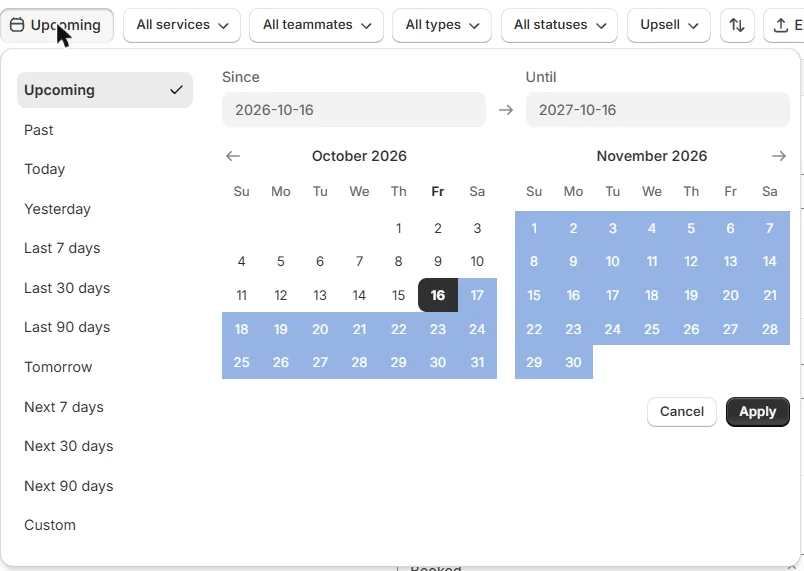
If a booking is missing, the first thing to check is this button. With Upcoming selected, past bookings are not shown. Switch to Past or Custom to find them.
3. All services
Opens a list of your services with a search box and checkboxes. All is checked by default. Tick one or several services to see only their bookings.
4. All teammates
Same idea for your team: tick one or several teammates to see only the bookings assigned to them.
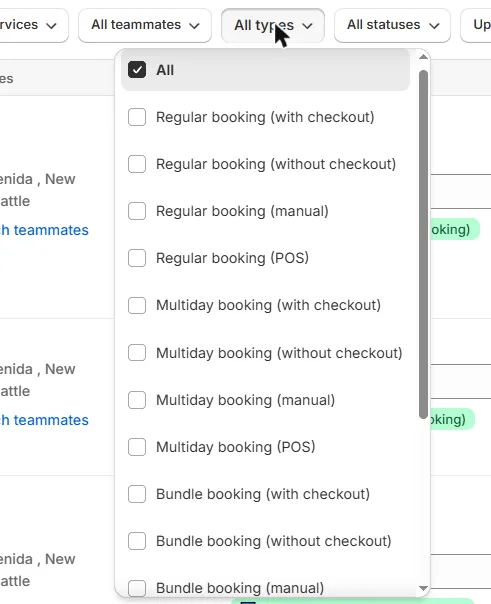
5. All types
Filters by the kind of booking. There are four families, and each one comes in four versions:
| Family | Versions |
|---|---|
| Regular booking | with checkout, without checkout, manual, POS |
| Multiday booking | with checkout, without checkout, manual, POS |
| Bundle booking | with checkout, without checkout, manual, POS |
| Fullday booking | with checkout, without checkout, manual, POS |
- With checkout: the customer paid through the Shopify checkout.
- Without checkout: the customer used an instant booking service (no order and no payment on Shopify).
- Manual: you created the booking yourself from the admin.
- POS: the booking was made from Shopify POS.
"Bundle" is the name used here for the services called Multislot in the service editor. They are the same thing.
6. All status
Filters by the status of each booking. The statuses are: Booked, No Show, Started, Pending, Completed, Arrived, Delayed and Paid.
A new booking starts as Booked. The other statuses are there for you to follow what happens on the day of the appointment (for example, mark a customer as Arrived or as No Show). You change the status of a booking with the status selector at the right of its row.
7. Upsell
Choose With upsell to see only the bookings where the customer also bought an upsell product or service, or Without upsell for the rest.
8. Sort
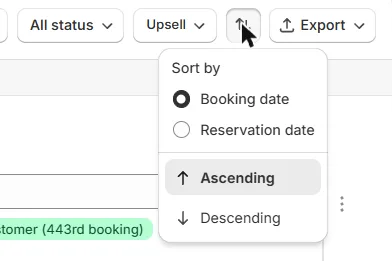
Click the sort icon. In Sort by you choose between Booking date and Reservation date, and then Ascending or Descending.
Booking date and Reservation date change what the list is sorted by. Try each one to see which order suits you.
9. Export
Click Export and choose Export CSV or Export XLSX to download your bookings in a file you can open in Excel or Google Sheets.
What each row shows
Every booking is one row with these columns:
- Booking info: the service name, the variant, the booking type with the Shopify order number (click the number to open the order), the date and time of the appointment, the meeting link when the service has one, and an Add note link to save an internal note on the booking.
- Price & Qty: the price, the quantity (Qty), the detail of the quantity when you use participant types (for example 2 x Adult, 1 x Child), and how long ago the booking was made.
- Customer: name, phone and email, with an Edit customer data link.
- Teammates: the teammates assigned to the booking, with a Switch teammates link.
- Status: the status selector described above.

Badges you may see on a row
| Badge | Meaning |
|---|---|
| First-time customer (blue) | It is the first booking of this customer. |
| Return customer (Nth booking) (green) | The customer has booked before, with the number of the booking. |
| Declined (orange) | The booking was declined. |
| Canceled by admin (orange) | You canceled it. The date and time are shown. |
| Refunded from Shopify (blue) | The order was refunded in Shopify. |
| Deposit refunded (blue) | The deposit was refunded. |
| AUTHORIZED (blue) | Pre-payment booking. The remaining balance has not been collected yet. |
Actions on a booking
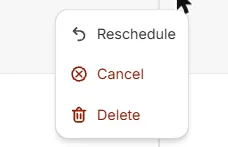
Click the three dots (⋮) at the end of the row to open the menu:
- Reschedule: move the booking to another date or time.
- Cancel: cancel the booking. See How to Cancel a Booking.
- Delete: remove the booking from the list. See How to Delete a Booking.
There are no checkboxes on this page, so you cannot cancel or delete several bookings at once. Each action is done one booking at a time.
Common questions
I can't find a booking. What should I check?
- The date range button: Upcoming hides past bookings.
- The tab: a declined or canceled booking is not in the Bookings tab.
- The other filters: services, teammates, types, status and upsell. A filter that is not on All hides bookings.
- The search box: clear it.
If the list says No bookings found, change the filters or the search term.
Where do bookings that wait for my confirmation go?
To the Needs approval tab. To use this, open the service, go to the Payment tab and choose Do not automatically accept new bookings.
Can I filter by a booking made by one of my teammates?
Yes. Use All teammates and tick the teammate.
Cette réponse a-t-elle résolu votre question ?