
🎟️ Bundle Services: Sell Several Time Slots in One Booking
Learn how to sell class packs and packages with Bundle (Multislot) services in Cowlendar: date labels, fixed or free number of slots and fixed quantity.
With a Bundle service, the customer buys several sessions in one purchase and picks all the dates right away. Example: a 5-class yoga pack where the customer chooses 5 dates when they buy.
In the service editor, the name is Multislot. In the New service page, it is Bundle Booking (Allow customers to select multiple separate slots in one go). They are the same service type.
Create a Bundle service
- Open My services and click New service.
- Choose Bundle Booking, or the preset Class Packs (bundle bookings) (customers buy a bundle, for example 5 sessions, and must select all their dates during the purchase).
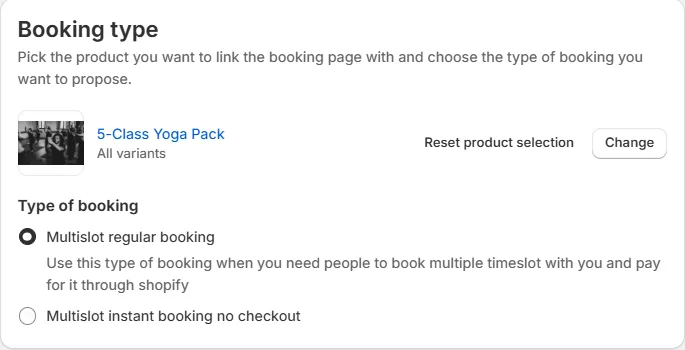
- Link the service to a Shopify product (for example a "5-Class Yoga Pack" product) and open its settings.
In the General tab, Type of booking offers Multislot regular booking (checkout) and Multislot instant booking no checkout.
The Availability tab
This tab has the same logic as a Regular service, plus two things that only exist in Bundle services.
Date labels
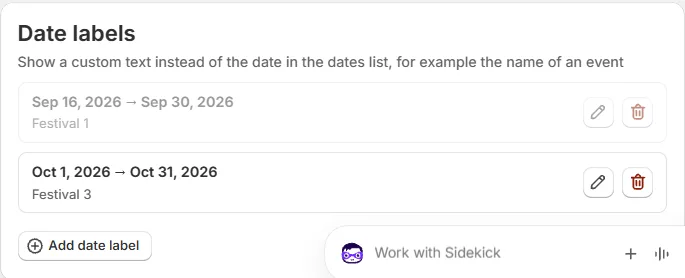
Show a custom text instead of the date in the dates list, for example the name of an event.
Each label links a date range to a text. For example, the range Oct 1, 2026 to Oct 31, 2026 can be labeled Festival 3. In the widget, the customer sees Festival 3 as a heading above the slots of that range.
- Click Add date label to create one.
- Use the pencil icon to edit it and the red trash icon to delete it.
How many timeslots should your customer pick?
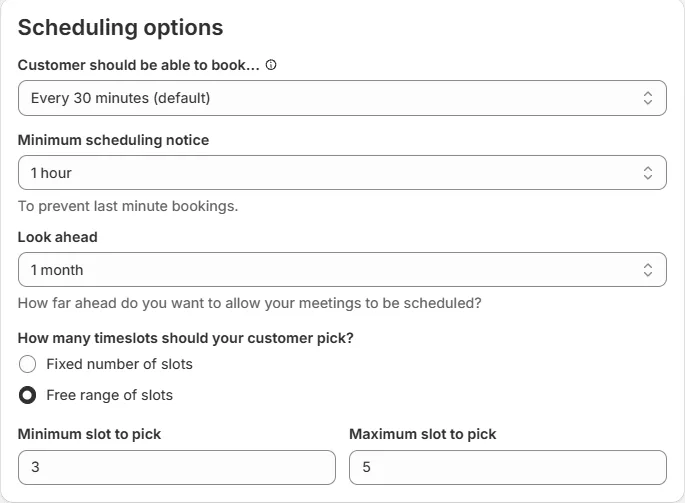
Choose how many slots the customer must select:
- Fixed number of slots: the customer must pick the number of slots you set.
- Free range of slots: the customer picks any number between a minimum and a maximum. You set Minimum slot to pick and Maximum slot to pick (for example 3 and 5).
With a fixed number, customers must pick exactly that number of slots before they can continue. With a free range, they can continue as soon as they have picked the minimum.
Other options
- Customer should be able to book...: the interval between slots (for example every 30 minutes).
- Minimum scheduling notice and Look ahead.
- Booking limit: Capacity per slot (there is no daily limit field in Bundle services).
- Buffer time, Break times, Override dates, Blocked dates, Seasons.
The Customization tab: Bundle settings
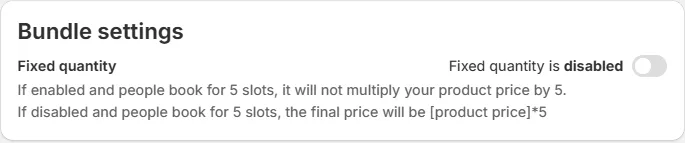
The Bundle settings card has Fixed quantity:
- Off (Fixed quantity is disabled): if the customer books 5 slots, the final price is the product price multiplied by 5.
- On: if the customer books 5 slots, the price is not multiplied by 5.
Use it when your product price already covers the whole pack. For example, your "5-Class Yoga Pack" product costs $80: turn Fixed quantity on so the customer pays $80 for the 5 slots.
The Payment tab
Bundle services with checkout have these cards: Confirm/Decline a booking, Pre-payment, Upsell, Discounts and Deposit. They do not have a Waitlist card.
Change the look of the bundle widget
Go to Settings > Calendar design and find the card Bundle booking design: main background color, slot background, border and text colors, slot shape, and the colors of the selected slot. See How to Customize Your Cowlendar Calendar Design.
Change the wording
Go to Settings > Translations > Calendar translation and find the card Bundle bookings texts: Number of bookings, Pick X timeslots, the selected timeslots counters and more. See Translations: Customize Every Text of Your Booking Widget.
Bundle or Subscription?
- Use a Bundle when the customer pays once for a fixed pack and picks all dates at purchase.
- Use Subscriptions (Regular services) when the customer pays on a recurring schedule and uses credits over time. See How to Set Up Recurring Service Subscription in Cowlendar.
For more examples, read How Do I Sell Several Timeslots at Once and How to Configure Bundle Services and Multiday Services with Pre-Selected Dates.
Cette réponse a-t-elle résolu votre question ?