
📍 Meeting Location, Organizer and Timezone Lock
Set the meeting location of a service in Cowlendar, choose who hosts the meeting, pick a Google event color and lock the timezone for in-person bookings.
Each service has a Meeting location that tells customers where the booking takes place and creates the right link or address. This article covers the location, the organizer of the meeting, the event color and the timezone lock.
Where to find it: My services > Edit on a service > General tab > card Meeting location. The timezone options are in the Customization tab.
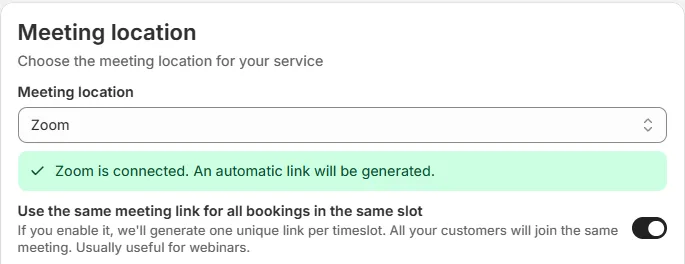
Meeting location
Choose the meeting location for your service. The options are:
| Option | What it is for |
|---|---|
| None | Services with no specific place or link. |
| Google meet | Online meetings with a Google Meet link. |
| Microsoft Teams | Online meetings with a Teams link. |
| Zoom | Online meetings with a Zoom link. When Zoom is connected, a green message says Zoom is connected. An automatic link will be generated. |
| Phone call | You call the customer. The widget tells the customer: This booking takes place through a phone call. We'll call you at the date and time you've booked. |
| In-Person | A physical address. A text box appears under the dropdown: type the address there. |
| Custom | Any other location that is not in the list. |
For video calls the widget shows: This booking takes place through a video call. The link will be sent to you once you've purchased the service.
You connect Zoom, Google and Outlook accounts in the Team page. See How to Connect Zoom and How to Connect Google.
One meeting link for everyone in the same slot
The switch Use the same meeting link for all bookings in the same slot (its state depends on each service, check it in the service you edit) is for group sessions: we'll generate one unique link per timeslot, and all your customers will join the same meeting. Usually useful for webinars. See How to Use a Shared Zoom Link for Group Bookings in the Same Time Slot.
This switch only appears for online meeting locations such as Zoom.
Meeting organizer
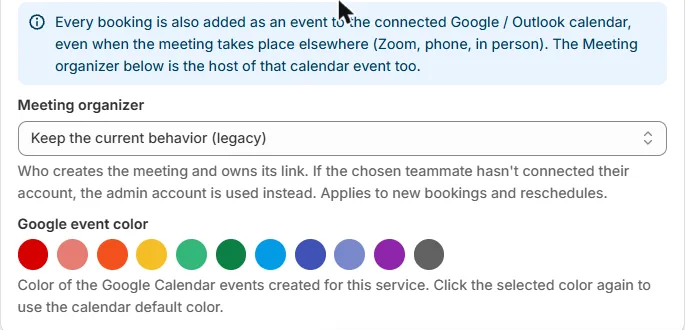
A note in the card explains: Every booking is also added as an event to the connected Google / Outlook calendar, even when the meeting takes place elsewhere (Zoom, phone, in person). The Meeting organizer is the host of that calendar event too.
Meeting organizer chooses who creates the meeting and owns its link. It applies to new bookings and reschedules. If the teammate you chose has not connected their account, the admin account is used instead. The three options:
| Option | Meaning |
|---|---|
| Keep the current behavior (legacy) | Cowlendar keeps working like before. It is the default. |
| The event organizer chosen on each availability | Each availability block has its own organizer. You choose it in the Availability tab, in the Teammates area of the availability. |
| Always the admin account (shop owner) | The admin account is always the organizer. |
In the Availability tab, the Event hosting box tells you who hosts the Google Calendar and Zoom events. If the organizer is still on legacy, it shows a warning: set it to The event organizer chosen on each availability to pick one.
Google event color
Color of the Google Calendar events created for this service. Choose one of the 11 colors. Click the selected color again to use the default color of the calendar. It helps you recognize each service in your Google Calendar.
Timezone, language and hour format
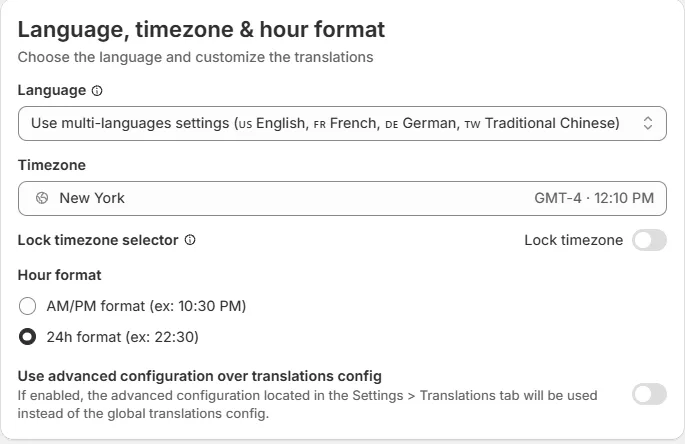
In the Customization tab, the card Language, timezone & hour format contains:
- Language: the language of this service. By default it uses the multi-language settings of your store. See Translations: Customize Every Text of Your Booking Widget.
- Timezone: the timezone of the service.
- Lock timezone: This will lock the timezone selector to the service timezone you have selected. This is more convenient for in-person type of bookings and when the client is booking from another timezone.
- Hour format: AM/PM format or 24h format.
- Use advanced configuration over translations config: when on, the advanced texts from Settings > Translations are used instead of the global translations.
With Lock timezone on, your customer cannot change the timezone and will only see the locked timezone. That may lead to people booking in the wrong timezone, so use it only when everyone should see your local time, such as in-person services.
Common questions
I chose Zoom but the booking has no link.
Check that your Zoom account is connected in the Team page and that the green message Zoom is connected shows in the card.
Can different services use different locations?
Yes. The location belongs to each service.
Cette réponse a-t-elle résolu votre question ?