
🗓️ Event Calendar: Show All Your Events in One Embeddable Calendar
Build an embeddable event calendar with month, week, list and grid views, choose its services, set the click action, customize colors and add it to your store.
The Event calendar shows the availability of several services together in a single calendar that you can place on any page of your store. Customers browse by month, week, list or grid and click an event to book it. It is ideal for classes, workshops, tours and events.
Where to find it: Shopify admin > Apps > Cowlendar Booking > Settings > Event calendar.
Several calendars
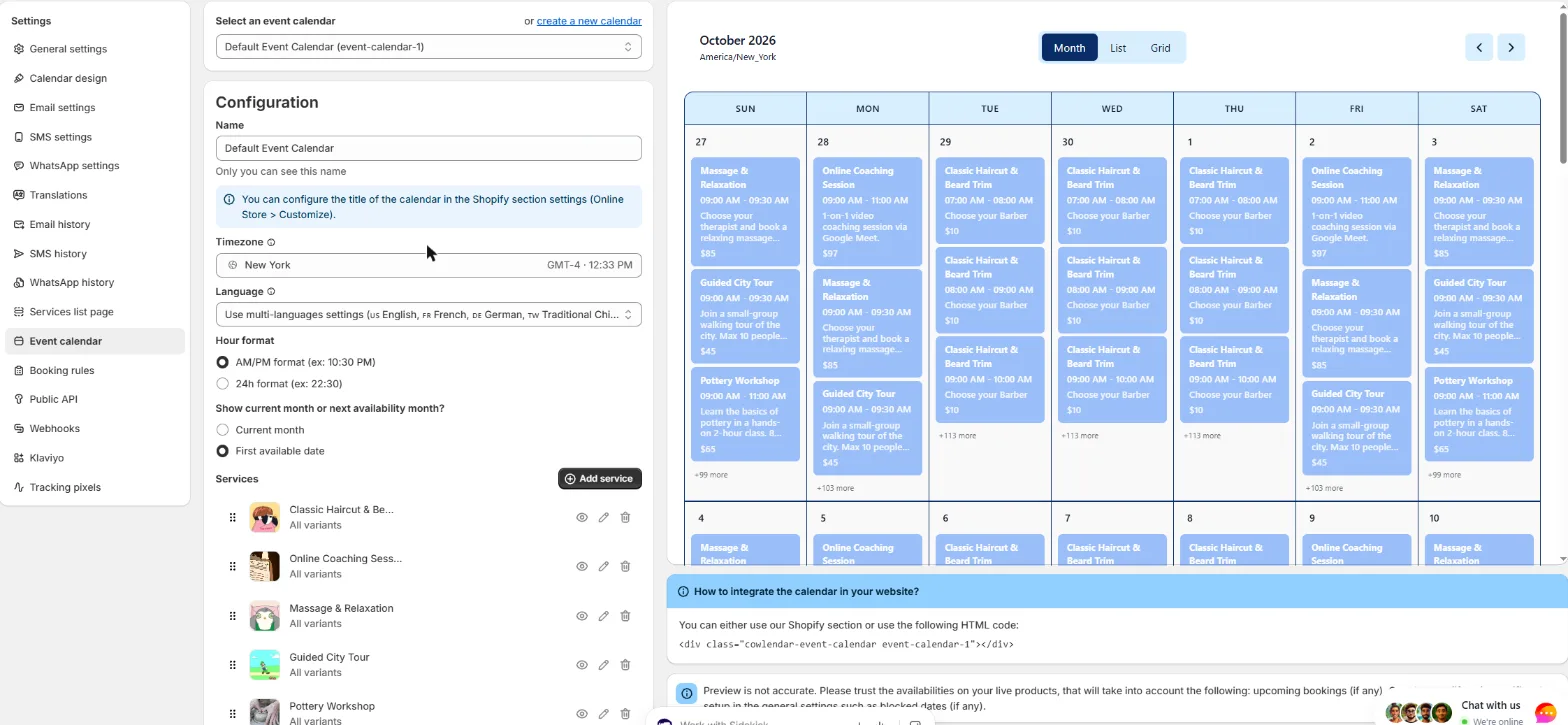
At the top, Select an event calendar shows the calendar you are editing (name and handle, for example event-calendar-1). Click or create a new calendar to create another one, for example one per location or per type of activity.
Configuration
- Name: only you can see it.
- Timezone: the timezone used to display the calendar.
- Language: by default it uses your multi-language settings.
- Hour format: AM/PM format or 24h format.
- Show current month or next availability month?: Current month or First available date.
- Services: the services included. Click Add service to add more, drag to reorder.
- Delete this calendar: red button to remove the calendar.
The title of the calendar is configured in the Shopify section settings (Online Store > Customize).
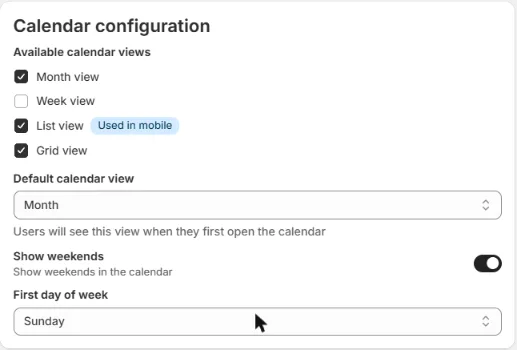
Calendar configuration
| Option | What it does |
|---|---|
| Available calendar views | Tick the views your customers can use: Month view, Week view, List view (marked Used in mobile) and Grid view. |
| Default calendar view | The view customers see first. |
| Show weekends | Show or hide Saturday and Sunday. |
| First day of week | Sunday, Monday and so on. |
Calendar slot design
- Event layout: Compact shows only the event title and time. Expanded adds the description.
- Show event end time: display the end time along with the start time.
- Action target: choose what happens when a customer clicks an event. The default is Open widget. Note that Cowlendar opens the product page when there is more than one variant available for the service.
Open the dropdown in the settings to see the available actions.
Calendar design
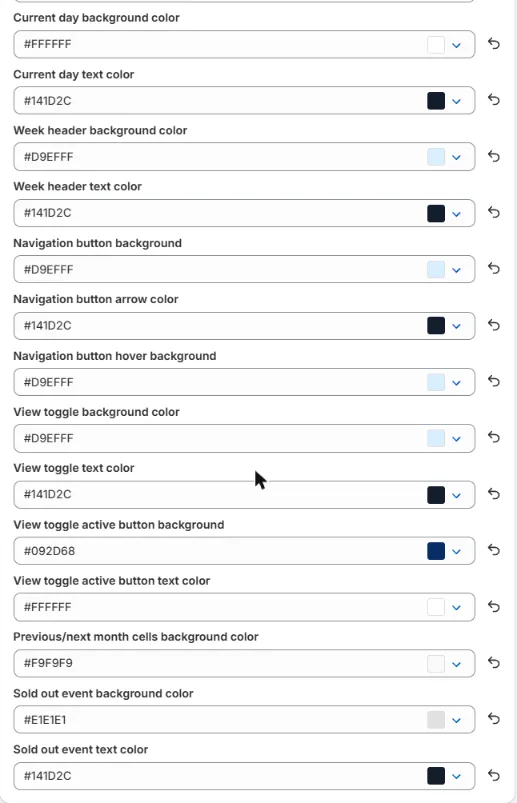
You can customize the colors of the calendar: background, title, text, header, grid, current day, week header, navigation buttons, view toggle, previous and next month cells, and sold out events. Each field has an undo arrow to go back to the default.
Add the calendar to your store
Option 1: Shopify section
- Go to Online Store > Themes > Customize.
- Open the page where you want the calendar.
- Click Add section, open the Apps tab and choose Cowlendar Event Calendar (under Cowlendar Booking).
- Choose the calendar you created and set its title in the section settings.
Option 2: HTML code
Paste this code where you want the calendar to appear, replacing event-calendar-1 with the handle of your calendar:
<div class="cowlendar-event-calendar event-calendar-1"></div>
Good to know
- The preview is not exact: trust the real availability on your live products.
- Change the words with Settings > Translations. See Translations: Customize Every Text of Your Booking Widget.
Related guide: How to Display Your Services in a Calendar on Any Shopify Page.
Cette réponse a-t-elle résolu votre question ?