
🔑 Public API (Beta): Generate Tokens and Read or Create Bookings
Generate a Cowlendar API token, authenticate with Bearer, list services and bookings and create manual bookings. Includes request examples and error codes.
The Public API lets your own tools talk to Cowlendar: read your services and bookings, and create bookings from outside Shopify. It is in Beta.
Need to be notified when something happens instead of asking for data? Use Webhooks (Beta): Real-Time Notifications for Your Bookings together with the API.
Where to find it: Shopify admin > Apps > Cowlendar Booking > Settings > Public API.

What you can do
| You can | You cannot (yet) |
|---|---|
| List your services | Create or edit services |
| List your bookings, with filters | Cancel, reschedule, confirm or decline bookings |
| Create manual bookings | Manage subscriptions |
| Read free slots or teammates |
There are no update or delete endpoints.
Step 1: Generate a token
Each token has full access to your shop's bookings and services. Tokens are shown in full only once at creation. Store them securely.
- Open Settings > Public API.
- In the Tokens card, click Generate token.
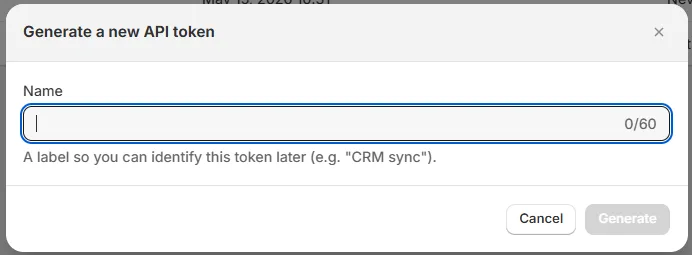
- In the window Generate a new API token, type a name in the Name field (up to 60 characters). Choose a label that tells you what the token is for, for example CRM sync. Then click Generate.
- Copy the token and store it in a safe place (a password manager or an environment variable). You cannot see it again.
The table lists your tokens with the columns Name, Prefix, Created, Last used and Actions. The prefix (it starts with cow_) helps you recognize a token without showing it in full. Last used tells you if a token is still in use.
To stop a token from working, click Revoke on its row. Revoked tokens are hidden; tick Show revoked to see them.
Never put a token in your website code, in a public repository or in a screenshot. If one is exposed, revoke it and generate a new one.
Step 2: Authenticate
Send the token in every request as a Bearer token.
- Base address:
https://app.cowlendar.com - Header:
Authorization: Bearer cow_u_xxx
Error codes:
| Code | Meaning |
|---|---|
| 401 | The token is missing or invalid. |
| 403 | The request is not allowed for this shop. |
| 429 | Too many requests. Wait and try again. |
List your services
GET /public-api/v1/services
Returns the services that are not archived. Filters (all optional):
| Parameter | Use |
|---|---|
limit |
Services per page, 1 to 100. |
cursor |
Pagination cursor from the previous response. |
is_active |
true or false. |
type |
A service type, for example classic-checkout, classic-no-checkout, multiday-checkout, multiday-no-checkout, multislot-checkout, multislot-no-checkout, fullday-checkout, fullday-no-checkout. |
q |
Search text, 1 to 120 characters. |
sort |
-id (default), id, title or -title. |
Example:
curl "https://app.cowlendar.com/public-api/v1/services?limit=10&is_active=true" \
  -H "Authorization: Bearer cow_u_xxx"
Each service in the response includes its id, title, type, is_active, timezone, durations, default_duration and the participants and equipments it uses. Keep the id: you need it to create bookings.
List your bookings
GET /public-api/v1/bookings
You can filter by date, service, status, attendance and customer email, and paginate with limit and cursor.
curl "https://app.cowlendar.com/public-api/v1/bookings?limit=20" \
  -H "Authorization: Bearer cow_u_xxx"
Create a booking
POST /public-api/v1/bookings
Creates a manual booking, like the ones you create from the Bookings page. It does not create a Shopify order. See Create a Manual Booking from Your Admin.
Send a JSON body with the service, the date and time, and the customer details. The full list of required and optional fields (participants, equipment and subscriptions) is in the API documentation: click View API documentation on the Public API page.
Tips
- Use a separate token per tool, with a clear name, so you can revoke only one.
- Check Last used from time to time and revoke tokens you no longer use.
- Go through the View API documentation button on the page for the complete reference of fields.
Common questions
I lost my token.
You cannot see it again. Revoke it and generate a new one.
I get 401.
Check that the header is exactly Authorization: Bearer followed by the token, with no extra spaces or quotes.
Can I limit what a token can do?
No. There is no permission selector. Every token has full access to bookings and services.
Cette réponse a-t-elle résolu votre question ?