
👁️ Widget Visibility: Show or Hide Every Element of the Booking Widget
Control what appears in each step of the Cowlendar booking widget: hide prices, timezone, duration, quantity, teammate and more, per service and per step.
Widget visibility lets you choose, for each service, which elements your customers see at each step of the booking process. Hide the price on a free event, hide the timezone for a local business, remove the teammate name... without any code.
Where to find it: My services > Edit on a service > Customization tab > card Widget visibility.
Choose exactly which elements are shown or hidden in each step of the booking widget.
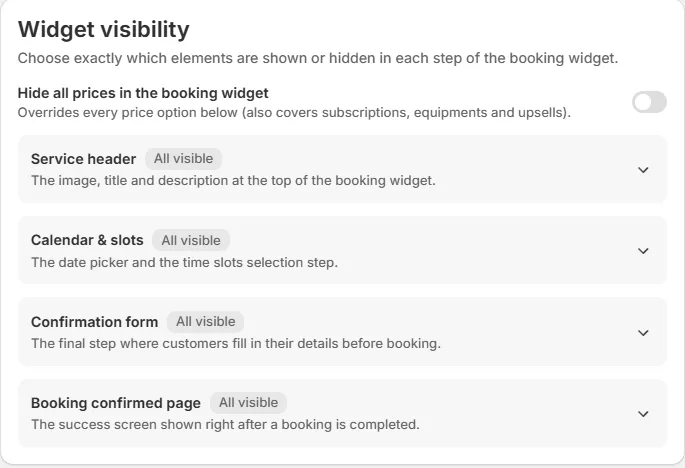
Hide all prices
At the top there is a switch: Hide all prices in the booking widget. It overrides every price option below and also covers subscriptions, equipments and upsells. Turn it on when you do not want customers to see any price in the widget.
The groups
Below the switch you see collapsible groups. Each group has a badge: All visible, or a yellow N hidden when you have switched something off. Inside each group every element has its own switch (all on by default). Only one group stays open at a time.
Service header
The image, title and description at the top of the booking widget.
- Service image
- Service title
- Service description
Calendar & slots
The date picker and the time slots selection step.
- Timezone selector
- Hour format selector (AM/PM)
- End time in slots (for example 09:00 - 10:30)
- Estimated price in calendar and slots
- Estimated price in the quantity selector
On multiday services this group has only the two price items.
Selection recap (side panel)
The summary panel shown next to the calendar once dates are selected. This group exists in multiday, fullday and bundle services.
- Duration
- Quantity
- Equipments details
- Total price
- To pay now amount (pre-payment)
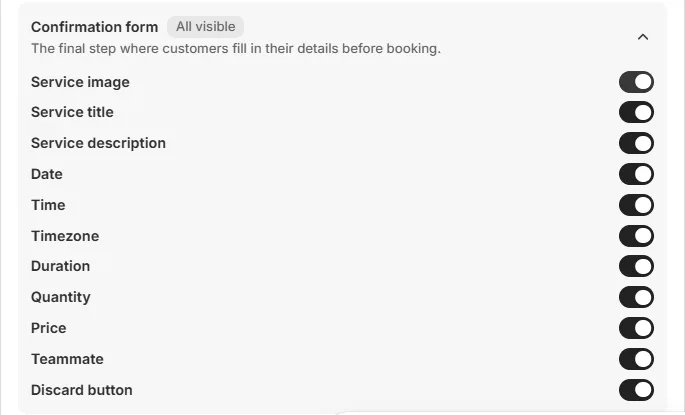
Confirmation form
The final step where customers fill in their details before booking.
- Service image
- Service title
- Service description
- Date
- Time
- Timezone
- Duration
- Quantity
- Price
- Teammate
- Discard button
Booking confirmed page
The success screen shown right after a booking is completed.
- Duration
- Quantity
- Customer email
- Timezone
- Teammate
- Add to calendar links
- Book another session button
Examples
A free event: hide every price. Turn on Hide all prices in the booking widget.
A local shop: hide the timezone. Switch off Timezone selector in Calendar & slots, Timezone in Confirmation form and Timezone in Booking confirmed page. If all your customers are in the same place you can also lock the timezone. See Meeting Location, Organizer and Timezone Lock.
A one-person business: hide the teammate. Switch off Teammate in the Confirmation form and the Booking confirmed page.
Remove the "Discard" button. Switch off Discard button in the Confirmation form.
Good to know
- The settings are per service. Repeat them in each service where you want the change.
- The groups available depend on the type of service. Regular services have four groups; multiday, fullday and bundle services also have Selection recap (side panel).
- To change the words of the widget instead of hiding elements, use Translations: Customize Every Text of Your Booking Widget.
- To change the colors and shapes, use Settings > Calendar design.
Cette réponse a-t-elle résolu votre question ?